
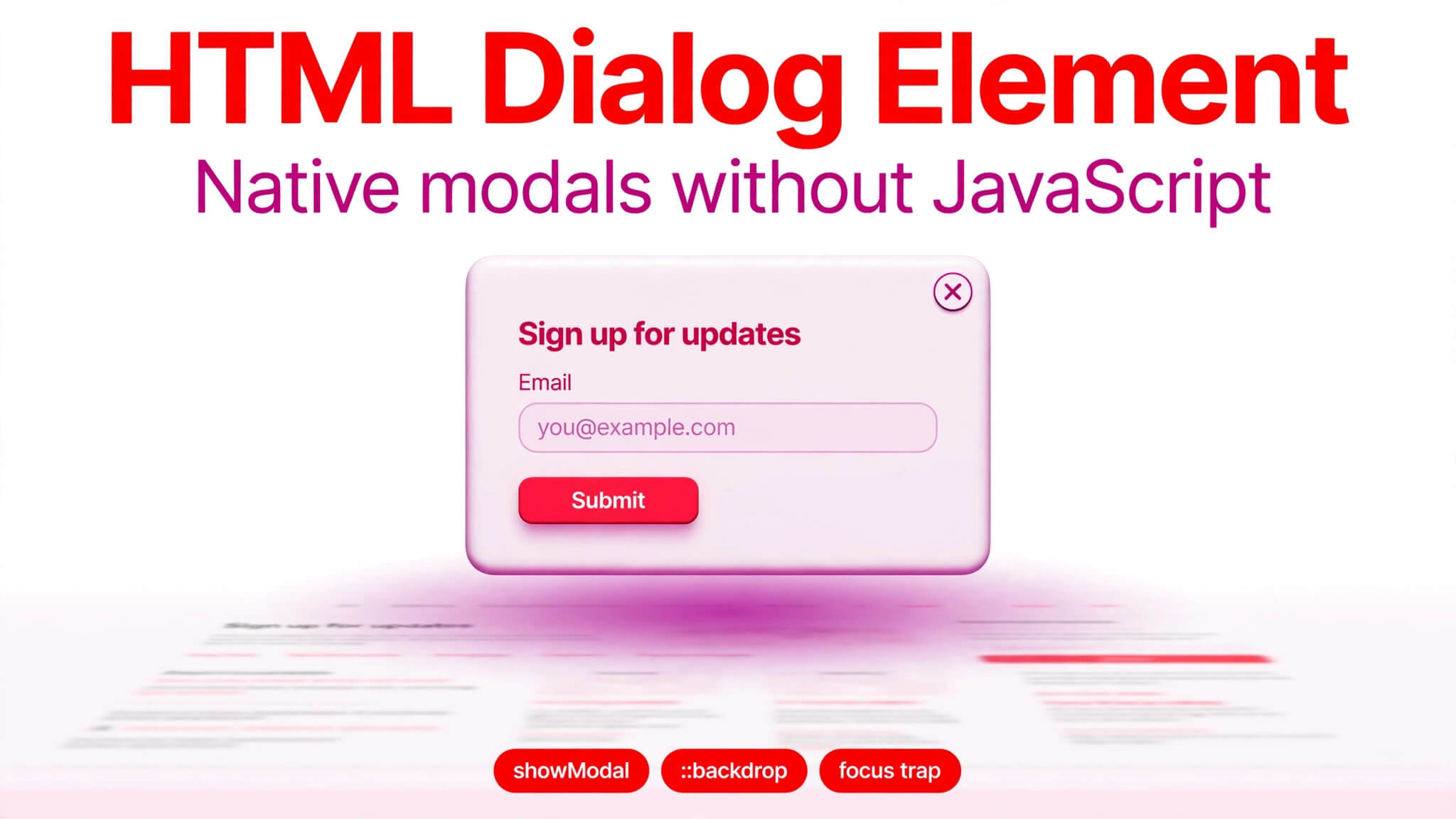
HTML Dialog Element: Ultimate Easy Native Modals Guide 2026
The html dialog element is the browser’s built-in answer to a problem developers used to solve with a JavaScript library: a modal window that sits above the page, blocks interaction with everything behind it, and traps focus inside itself until it is dismissed. No overlay div, no hand-rolled focus trap, no extra dependency — the element, a few lines of JavaScript to open and close it, and some CSS for the backdrop are enough for most confirmation boxes, forms, and alerts.
This guide builds a complete modal from scratch, then covers the three details that separate a working dialog from a good one: styling the backdrop, closing on a click outside, and keeping the dialog accessible. You will also learn where dialog stops and the Popover API begins, so you do not force one tool to do the other’s job. MDN’s <dialog> reference documents showModal, close, returnValue, ::backdrop, and :modal.
Quick Takeaways
- Use
showModal()for a true modal: the rest of the page becomes inert, focus is trapped, and a backdrop is painted behind the dialog. - Use
show()only for a non-modal dialog that lets the visitor keep working on the page — most things people call a “modal” wantshowModal(). - A
<form method="dialog">inside the dialog closes it on submit and puts the clicked button’s value intoreturnValue— no JavaScript needed for the close itself. - Style the backdrop with
dialog::backdrop, not with an extra overlay div. - Do not rely on
closedby="any"alone for close-on-outside-click yet — it is not in shipping Safari, so ship the small JavaScript fallback in this guide too. - Always give the dialog a visible close control. Escape helps keyboard users, but a visitor on a touchscreen has no Escape key.
What the HTML Dialog Element Actually Does
A <dialog> element is hidden by default. It only appears when you open it, either with the open attribute in HTML or, far more commonly, with JavaScript. Once open, a modal dialog is placed in the browser’s top layer, above the rest of the page — even above elements with high z-index values, which is one of the oldest headaches of hand-built modals, solved for free.
Opening a dialog modally does three things at once:
- It paints a backdrop. The
::backdroppseudo-element covers the page behind the dialog. By default it is a semi-transparent dark layer; you style it with CSS. - It makes the rest of the page inert. Visitors cannot click, tab to, or interact with anything outside the dialog while it is open.
- It traps focus. Tabbing cycles through the focusable elements inside the dialog instead of wandering off into the page behind it. When the dialog closes, return focus to the element that opened it — your code should do this explicitly, as shown below.
A non-modal dialog, opened with show(), does none of that: it appears on the page, but the visitor can keep using everything else. That is useful for a floating tool palette or a persistent note, but it is not a modal, and you should not use it for a confirmation that must be answered before anything else happens.
Your First Modal: showModal, Close, and returnValue
Here is the smallest complete modal worth shipping: a delete confirmation that tells your code which button closed it.
<button id="delete-button">Delete project</button>

<dialog id="delete-dialog" aria-labelledby="delete-title">
  <h2 id="delete-title">Delete this project?</h2>
  <p>This cannot be undone.</p>
  <form method="dialog">
    <button value="cancel">Cancel</button>
    <button value="delete">Delete</button>
  </form>
</dialog>
const dialog = document.querySelector("#delete-dialog");
const opener = document.querySelector("#delete-button");
opener.addEventListener("click", () => {
dialog.showModal();
});
dialog.addEventListener("close", () => {
if (dialog.returnValue === "delete") {
console.log("Delete the project");
}
opener.focus();
});Three things in this example are worth noticing:
method="dialog"on the form is doing real work. Submitting that form closes the dialog instead of submitting anything, and thevalueof the button that was clicked becomesdialog.returnValue. Yourclosehandler reads that value and decides what to do. If the dialog is closed with Escape instead,returnValueis not updated, so treat an empty value as “dismissed”.aria-labelledbypoints at the dialog’s heading. That gives screen reader users the dialog’s name as soon as it opens. If there is no visible heading, usearia-labelwith a short name instead.- Focus returns to the opener. The last line of the
closehandler puts focus back where the visitor was. Without it, a keyboard user is dropped back at the top of the page after every dialog.
You can also close a dialog from JavaScript at any time with dialog.close() — optionally passing a value, as in dialog.close("saved"), which sets returnValue the same way. There is also dialog.requestClose(), which behaves like the user pressing Escape: it fires a cancel event first, and a listener can prevent it — useful when a form inside the dialog has unsaved changes and you want to ask “discard your changes?” before closing.
Styling the Dialog and the Backdrop
A dialog is an ordinary HTML element, so ordinary CSS works on it. What is special is only the backdrop and the top-layer state.
dialog {
width: min(32rem, calc(100% - 2rem));
padding: 2rem;
border: 0;
border-radius: 0.75rem;
}
dialog::backdrop {
background: rgb(0 0 0 / 0.5);
}Two practical notes:
The dialog centres itself
A modal dialog in the top layer is centred by the browser’s default styles (auto margins in the top layer), so you do not need a flexbox wrapper or transform trick to centre it. Keep your own CSS to width, padding, border, and radius, and let the browser handle placement. If you override margins, you take that centring over yourself — usually a step backwards.
Style the backdrop, not a fake overlay
Before <dialog>, every modal tutorial started with an overlay div: a fixed, full-screen, semi-transparent element behind the modal. With dialog, that div is the ::backdrop pseudo-element, painted by the browser behind the dialog and only while it is modal. Styling it is one rule, as above — a dark tint, optionally with backdrop-filter: blur(2px) for a frosted effect. If you find yourself adding an overlay div to a dialog, stop: you are rebuilding the thing the browser already gives you.
The :modal pseudo-class also exists, so you can write rules that apply only when the dialog is open modally, for example dialog:modal { box-shadow: 0 1rem 3rem rgb(0 0 0 / 0.3); }. The :open pseudo-class matches any open dialog, modal or not.
Closing on a Click Outside the Dialog
This is the most-searched dialog behaviour, and the one most often done badly. Visitors expect that clicking the dimmed area around a modal dismisses it — that is called “light dismiss” — but a modal dialog does not do it by itself.
The modern attribute for it is closedby="any", added to the dialog element:
<dialog id="notice" closedby="any">
<!-- content -->
</dialog>That works in current Chrome and Firefox, but at the time of writing it is only in Safari Technology Preview, not in shipping Safari. So if you ship closedby="any" alone, Safari visitors get no light dismiss at all. The fix is a small fallback that works everywhere, and it is safe to keep alongside the attribute — browsers that support closedby handle the click themselves, and the fallback then has nothing left to do:
dialog.addEventListener("click", (event) => {
const rect = dialog.getBoundingClientRect();
const clickedOutside =
event.clientX < rect.left ||
event.clientX > rect.right ||
event.clientY < rect.top ||
event.clientY > rect.bottom;
if (clickedOutside) {
dialog.close();
}
});Why this works: a click on the backdrop is dispatched to the dialog element itself, but with coordinates outside the dialog’s box. The bounding-rect check is just asking “was this click inside the dialog or not?” If it was not, close. One caution: do not use this fallback on a dialog that must not be dismissible — a destructive confirmation, for example — because then a stray backdrop click silently discards the visitor’s work. Light dismiss is a convenience for dismissible content, not a default for every dialog.
Focus Trap, Escape, and Accessibility
Modal dialogs created with the html dialog element handle most of the accessibility work, but three responsibilities stay with you:
1. Put focus somewhere sensible on open
Add autofocus to the element the visitor is most likely to use first — usually the primary action, or the close button if there is no obvious action. If no element has autofocus, the browser focuses the dialog itself, which is acceptable but less helpful. Never leave a modal dialog with no focusable content at all: a visitor using a keyboard would have nowhere to go.
2. Do not break Escape, and do not rely on it alone
Escape closes a modal dialog by default, firing a cancel event you can listen for. That is good for keyboard users. It is not a substitute for a visible close button: a visitor on a touchscreen has no Escape key, and a visitor using a mouse should not have to discover a keyboard shortcut to leave your modal. Every dialog gets a real, visible close control.
3. Label the dialog and keep its content in order
Use aria-labelledby pointing at the dialog’s heading (as in the first example), keep the heading as the first thing in the dialog, and do not move focus around inside it with scripts unless you have a reason. The browser’s focus trap only works if the focusable elements are actually inside the dialog — a dropdown or date picker that renders its popup outside the dialog element can escape the trap, so test any third-party widget inside a dialog before shipping it.
HTML Dialog Element vs Popover: Which One Do You Need?
The html dialog element and the Popover API look similar — both float content above the page — but they solve different problems, and this is the distinction Day 4 will go deeper on:
<dialog> (modal) | Popover | |
|---|---|---|
| Blocks the page | Yes — page becomes inert | No — page stays usable |
| Focus trap | Yes, built in | No |
| Backdrop | Yes, via ::backdrop | No |
| Light dismiss | Only with closedby="any" or the JS fallback | Yes, by default for auto popovers |
| Best for | Confirmations, forms, alerts that must be answered | Menus, tooltips, pickers, teaching callouts |
The rule of thumb: if the visitor must deal with this before doing anything else, it is a dialog. If it is a convenience that can be ignored and left open while the visitor works, it is a popover. Using a modal dialog for a tooltip is the most common version of this mistake — it traps a visitor who only wanted a hint.
Common Mistakes That Break Dialogs
1. Opening With show() When You Mean showModal()
show() opens a non-modal dialog: no backdrop, no inert page, no focus trap. The visitor can click straight past it, which defeats the purpose of a confirmation. If your “modal” is not blocking the page, check first that you called showModal() and not show() — it is the single most common dialog bug.
2. No Close Control for Touchscreen Visitors
Escape works on a keyboard and nowhere else. A dialog with no visible close button strands every touchscreen visitor inside it. Every dialog ships with a close button, even if Escape also works.
3. Relying on closedby=”any” Alone for Light Dismiss
As covered above, closedby="any" is not in shipping Safari yet. Ship the bounding-rect fallback alongside it, and test the outside-click behaviour in a real Safari build, not just in Chrome.
4. Forgetting to Return Focus on Close
When a dialog closes, the browser does not reliably put focus back where it came from in every case, so do it yourself in the close handler (see the first example). Skipping this is invisible to mouse users and disorienting to keyboard and screen reader users, who lose their place on the page after every dialog.
5. Putting the Dialog’s Heading Anywhere but First
A screen reader announces a dialog by its accessible name, then reads its content in order. A heading buried after a form, or missing entirely, leaves the visitor guessing what the dialog is for. Heading first, labelled with aria-labelledby, every time.
Frequently Asked Questions
1. What is the HTML dialog element used for?
The html dialog element creates a native modal or non-modal window in the browser — confirmations, forms, alerts, and other content that floats above the page. A modal dialog (opened with showModal()) blocks interaction with the rest of the page, traps focus, and paints a backdrop, all without a JavaScript library.
2. How do I open and close a dialog in HTML?
Open it with JavaScript: dialog.showModal() for a modal dialog, dialog.show() for a non-modal one. Close it with dialog.close(), by submitting a <form method="dialog"> inside it, or by pressing Escape. A <form method="dialog"> also sets dialog.returnValue to the clicked button’s value, so your code can tell which button closed it.
3. How do I close a dialog when the user clicks outside it?
Add closedby="any" to the dialog and ship the JavaScript fallback in this guide (a click listener that closes the dialog when the click coordinates fall outside its bounding box). The attribute alone is not enough yet because it is not in shipping Safari — the fallback covers every browser.
4. Is the dialog element supported in all browsers?
Yes, for practical purposes: the html dialog element is Baseline Widely Available since September 2024, covering current Chrome, Edge, Firefox, and Safari. The newer additions are the exception, not the rule — closedby="any" and requestClose() are still rolling out, so use them as progressive enhancements with fallbacks, as this guide does.
5. What is the difference between dialog and popover?
A modal dialog blocks the page and traps focus until it is answered, which is what a confirmation or a form needs. A popover floats content above the page without blocking it, which is what a menu, tooltip, or picker needs. If the visitor must answer before continuing, use dialog; if they can ignore it and carry on, use popover.
Complete Working Example: Copy, Paste, and Run
The examples above are shown in pieces so each idea is easy to follow. Here they are all together in one complete, working page — copy the whole file, save it as dialog-example.html, and open it in a browser. No library, no build step, and no other files are needed.
<!DOCTYPE html>
<html lang="en">
<head>
<meta charset="UTF-8">
<meta name="viewport" content="width=device-width, initial-scale=1.0">
<title>HTML Dialog Example</title>
<style>
dialog {
width: min(32rem, calc(100% - 2rem));
padding: 2rem;
border: 0;
border-radius: 0.75rem;
}
dialog::backdrop {
background: rgb(0 0 0 / 0.5);
}
dialog:modal {
box-shadow: 0 1rem 3rem rgb(0 0 0 / 0.3);
}
</style>
</head>
<body>
<button id="delete-button">Delete project</button>
<dialog id="delete-dialog" closedby="any" aria-labelledby="delete-title">
<h2 id="delete-title">Delete this project?</h2>
<p>This cannot be undone.</p>
<form method="dialog">
<button value="cancel">Cancel</button>
<button value="delete">Delete</button>
</form>
</dialog>
<script>
const dialog = document.querySelector("#delete-dialog");
const opener = document.querySelector("#delete-button");

opener.addEventListener("click", () => {
  dialog.showModal();
});

dialog.addEventListener("close", () => {
  if (dialog.returnValue === "delete") {
    console.log("Delete the project");
  }
  opener.focus();
});
dialog.addEventListener("click", (event) => {
  const rect = dialog.getBoundingClientRect();
  const clickedOutside =
    event.clientX < rect.left ||
    event.clientX > rect.right ||
    event.clientY < rect.top ||
    event.clientY > rect.bottom;

  if (clickedOutside) {
    dialog.close();
  }
});
</script>
</body>
</html>Two more examples to try in the same file
- A simple message dialog. Replace the dialog content with a heading, one paragraph, and a single <form method=”dialog”><button>Got it</button></form>. It needs no JavaScript beyond showModal() — the form closes the dialog and Escape still works.
- A name-collection form dialog. Put a text input and a submit button inside <form method=”dialog”>, give the submit button a value such as value=”save”, and read dialog.returnValue in the close handler to tell whether the visitor saved or dismissed. The same outside-click fallback, backdrop styling, and focus-return code from the complete example above works unchanged.
Conclusion
The html dialog element turns the modal from a library feature into a browser feature: showModal() for the modal behaviour, ::backdrop for the dimmed page behind it, a <form method="dialog"> for a close that reports which button was pressed, and a small fallback for close-on-outside-click until closedby="any" lands everywhere. The accessibility wins — focus trap, inert background, Escape handling — come with the element, and the three things you still own are a visible close button, a sensible initial focus, and focus returned to the opener on close.
Try it on one real piece of your own site: replace a hand-built modal with the html dialog element, keep the fallback in place, and test it with a keyboard and on a phone. If the outside-click, the backdrop, and the focus return all behave, you have just deleted a dependency and a whole class of modal bugs.
Next in this series, Day 4 covers the other half of the pair: the HTML Popover API, and when a popover is the right tool instead of a dialog.
No comment