
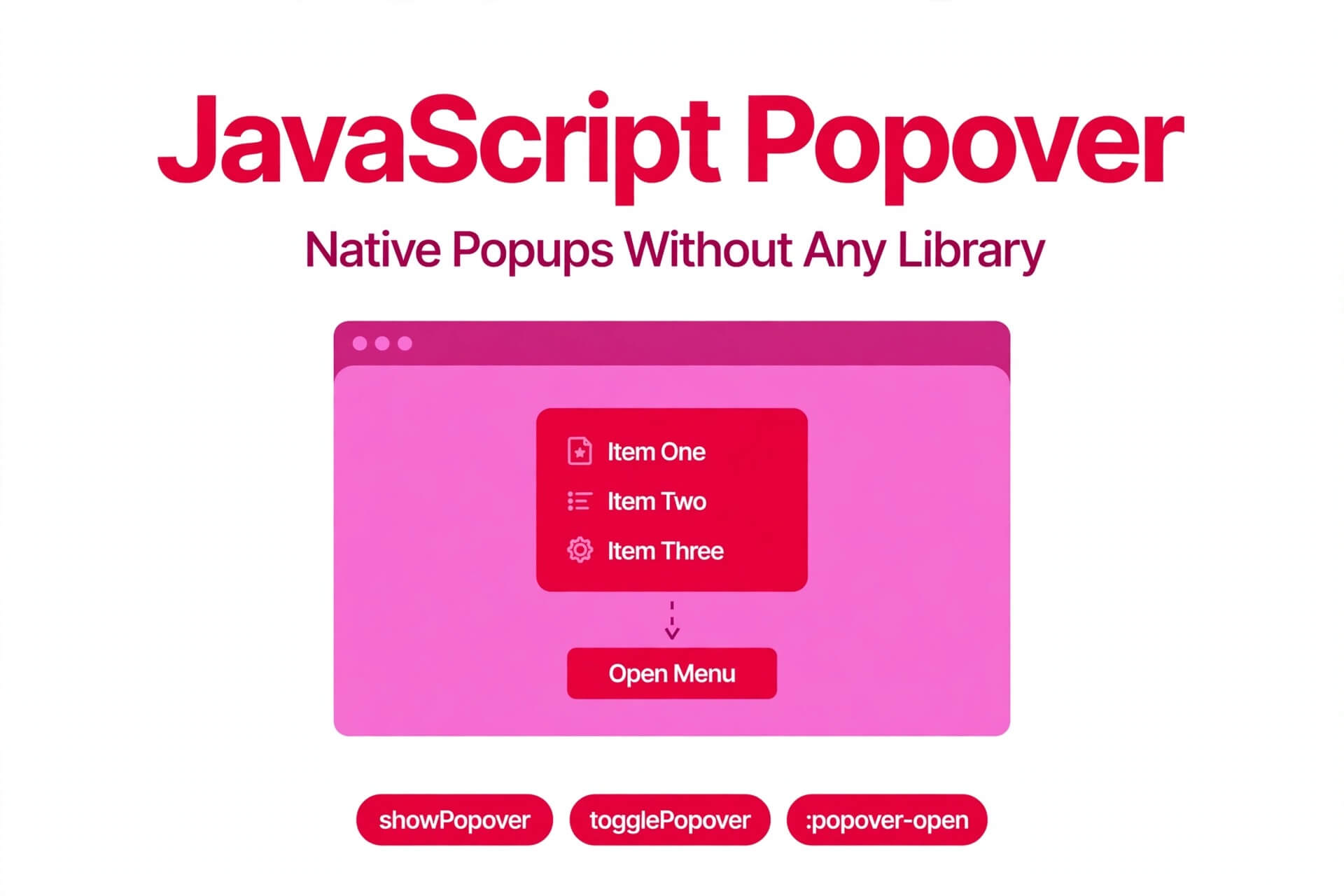
JavaScript Popover: Ultimate Easy Native Popups Guide 2026
A javascript popover is a popup the browser creates, positions, and dismisses for you — a menu, tooltip, picker, toast, or teaching callout that floats above the page without blocking it, and that you control from JavaScript with three methods: showPopover(), hidePopover(), and togglePopover(). No popup library, no overlay div, no hand-rolled positioning stack, no focus-management code for the common cases. The element, its popover attribute, and a few lines of JavaScript are enough for most popups on a real site. MDN’s Popover API reference documents showPopover, hidePopover, togglePopover, auto and manual states, and :popover-open.
This guide takes the JavaScript angle from the start: you will open, close, and react to popovers from code, learn when the declarative popovertarget shortcut is enough and when JavaScript control is the right tool, and cover the details that separate a working popover from a good one — the auto, hint, and manual states, the toggle events, styling in the top layer, and the accessibility work that stays with you. Day 3 covered the dialog half of the pair; this guide covers the popover half, controlled the way most real sites will control it.
Quick Takeaways
- A popover is always non-modal: the page stays usable while it is open. If the visitor must answer before doing anything else, that is a dialog opened with showModal(), not a popover.
- element.showPopover() opens a popover, element.hidePopover() closes it, and element.togglePopover() switches it — and togglePopover() is the method to reach for when one button both opens and closes.
- popover=”auto” (or a bare popover attribute, which means the same thing) gives you light dismiss for free: click outside, or press Escape, and it closes. Usually only one auto popover can be open at a time, except for nested ones.
- popover=”manual” never light-dismisses and can stay open alongside other popovers — use it only when the visitor must dismiss it explicitly, from your code or a button you provide.
- popover=”hint” is for tooltip-like content: it does not close an open auto popover, but it does close other hints. It is the newest state, so test it and fall back to auto where support matters.
- A shown popover sits in the top layer, above the rest of the page, so it is never clipped by a parent’s overflow or buried under a high z-index.
- React to showing and hiding with the beforetoggle and toggle events, whose ToggleEvent tells you the old state, the new state, and which control caused the change.
- The popover element itself carries no semantics, so give it a role that matches its content and label it — the browser does not do that part for you, and JavaScript control does not add it either.
What a JavaScript Popover Actually Does
A javascript popover element is hidden by default. Adding the popover attribute sets display: none on it until it is shown, and when it is shown — whether by a button or by your code — the browser removes that hiding and puts the element in the top layer, the same layer dialogs use. That is why a popover escapes parent overflow and z-index wars for free, and why you never need a stacking-context workaround for a menu that was disappearing behind a header.
Showing a popover from JavaScript does three things at once:
- It floats above everything. Top-layer placement means no positioning hacks. Your CSS job is width, padding, and position, not fighting the page’s layers — and when you do want the popover anchored to its button, CSS anchor positioning (covered later) is the modern way to do it, not absolute positioning with JavaScript math.
- It does not block the page. Unlike a modal dialog, a popover leaves the rest of the page interactive. The visitor can keep scrolling, typing, and clicking elsewhere while the popover stays open, which is exactly what a menu, tooltip, or toast needs and exactly what a confirmation must not do.
- It manages its own dismissal, unless you choose manual. An auto popover closes on an outside click and on Escape, and your code does not have to listen for either. A manual popover closes only when your code or a control button tells it to, which is a deliberate choice with deliberate consequences, not a default.
The JavaScript API is deliberately small, and that is the point. Most popup libraries exist to paper over three problems — showing and hiding, positioning, and dismissal — and the browser now solves all three natively. What remains for your code is the interesting part: when to show the popover, what to put in it, and what to do when it opens or closes.
Your First JavaScript Popover: Three Methods
Here is the smallest complete javascript popover worth shipping: a help callout controlled entirely from code, with one button to show it and one to hide it.
<button id="show-help">What is this?</button>
<button id="hide-help">Close help</button>

<div id="help-popover" popover="auto">
  <h2>About this section</h2>
  <p>This section explains the setting in plain language.</p>
</div>
const popover = document.querySelector("#help-popover");
document.querySelector("#show-help").addEventListener("click", () => {
popover.showPopover();
});
document.querySelector("#hide-help").addEventListener("click", () => {
popover.hidePopover();
});Three things in this example are worth noticing:
- The popover attribute is what makes the element a popover. Without it, showPopover() has nothing to show. The attribute also hides the element on page load, so there is no flash of popover content before your JavaScript runs and no need for a hiding class.
- You do not write the show and hide logic yourself. showPopover() puts the element in the top layer and removes its hiding; hidePopover() takes it out again. There is no class to toggle, no display style to set, and no overlay element to create or destroy.
- A single toggle button is usually simpler. If one button should both open and close the popover, use togglePopover() instead of separate show and hide handlers. It is one listener instead of two, and it cannot drift out of sync with the popover’s actual state the way a manually tracked “is open” variable can.
One rule that catches people out: you cannot show a popover that is already showing, and you cannot hide one that is already hidden — both throw an error. In practice, check the state first with popover.matches(“:popover-open”) before calling either method, or let a single togglePopover() call handle the decision for you. The :popover-open pseudo-class is the browser’s own record of whether the popover is open, so it is always in sync in a way your own boolean may not be.
The Declarative Shortcut: When popovertarget Is Enough
JavaScript control is the angle of this guide, but not every popover needs it. The declarative shortcut — a button with popovertarget — covers the simplest cases with no script at all:
<button popovertarget="menu-popover">Actions</button>

<div id="menu-popover" popover="auto" role="menu">
  <button>Edit</button>
  <button>Share</button>
  <button>Delete</button>
</div>
The button’s popovertarget takes the popover’s id, and the default action is toggle: press once to show, again to hide. Add popovertargetaction=”show” or popovertargetaction=”hide” when you want separate show and hide buttons instead of a toggle.
So when do you reach for JavaScript instead? Whenever the decision to show or hide depends on something other than a click: a timer (a toast that appears after an action and hides itself after a few seconds), a condition (show a teaching callout only the first time a visitor uses a feature), dynamic content (a picker whose options are fetched and rendered before it opens), or a reaction to the popover’s own lifecycle (load data when it opens, clean up when it closes).
The declarative button is a shortcut for “a click toggles this popover”; JavaScript is the tool for everything else, and the two can coexist on the same popover — a button can toggle it declaratively while your code also hides it on a timer.
There is one more difference worth knowing, because it affects accessibility: when a popover is controlled through popovertarget, the browser sets up an implicit aria-details / aria-expanded relationship between the button and the popover, and updates the tab order so the popover’s contents come next after the button. When you control a popover through JavaScript’s showPopover() with a source option instead, only the focus-order change happens, not the implicit ARIA relationship — the source option can point at any element, not just a button, so the browser cannot guarantee the relationship would make sense. If you control popovers from JavaScript and care about screen reader users, set the ARIA relationship yourself, as covered in the accessibility section.
Auto, Hint, and Manual: Choosing the State From Code
The popover attribute takes three values, and you set or read them from JavaScript through the popover property: element.popover = “auto”, “hint”, or “manual”. Picking the wrong state is the most common popover mistake, and it is a mistake you make in one attribute, not in a hundred lines of code.
Auto: the default, for menus and pickers
popover=”auto” is the workhorse. An auto popover light-dismisses on an outside click, closes on Escape, and is usually the only auto popover open at a time — showing a second one hides the first. The exception is nested auto popovers, such as a submenu inside a menu, which may stay open together because of their relationship.
Use auto for action menus, custom pickers, and teaching messages where only one should be visible at once. From JavaScript, auto is also the friendliest state to drive: your code shows it, and the browser handles every dismissal path, so you rarely need a hide call at all except for explicit cases like a timer or a completed action.
Hint: for tooltips and hover-style callouts
popover=”hint” is the tooltip state. A hint popover does not close an open auto popover, so a tooltip can appear while a menu is open without destroying the menu — but it does close other hint popovers, so only one tooltip is visible at a time. That is the behaviour tooltips have always wanted and previously had to fake with scripts and mouse tracking.
Hint is the newest of the three states. Treat it the way Day 3 treated closedby=”any”: use it where it fits, but test in a real browser build, and fall back to auto for tooltip content that must work everywhere. A hint that never appears is worse than an auto tooltip that briefly hides a menu, and a tooltip is precisely the kind of content a visitor may never tell you is missing.
Manual: for popovers that must not disappear on their own
popover=”manual” never light-dismisses: clicking outside does nothing, and Escape does not close it either. Its show, hide, and toggle methods still work, and multiple manual popovers can be open at the same time.
Use manual only when the visitor must dismiss the popover explicitly — a persistent panel, a floating tool, or a notification that should survive an accidental outside click — and when you do, always provide a visible hide control in your code’s interface. Do not use manual for a menu or tooltip: a popover the visitor cannot dismiss by clicking away is a trap, not a convenience, and your code is then responsible for every exit path the browser would otherwise have provided for free.
Reacting to Popovers: beforetoggle and toggle Events
A javascript popover that your code opens and closes is only half the story. The other half is reacting when it opens or closes, whatever caused the change — your code, a declarative button, an outside click, or Escape. That is what the toggle events are for.
A popover fires beforetoggle just before it changes state and toggle just after. Both carry a ToggleEvent with three properties you will actually use: oldState (whether the popover was open or closed before the change), newState (whether it is open or closed after it), and source (the control element that caused the change, when there was one).
const popover = document.querySelector("#picker-popover");

popover.addEventListener("beforetoggle", (event) => {
  if (event.newState === "open") {
    // Load or refresh the picker's options before it appears.
    console.log("Picker is about to open");
  }
});

popover.addEventListener("toggle", (event) => {
  if (event.newState === "closed") {
    // Clean up after the picker: clear a selection, stop a timer.
    console.log("Picker closed, caused by:", event.source);
  }
});
Use beforetoggle to prevent a change (with event.preventDefault()), to prepare content before the popover appears, or to add animation classes. Use toggle to respond once the change has happened — lazy-loading content on first open, clearing a form when a picker closes, or recording that a teaching callout has been seen so it is not shown again.
One caution from the specification, worth memorising: do not call showPopover(), hidePopover(), or togglePopover() from inside a beforetoggle listener while another popover is already changing state — that throws an InvalidStateError. If your reaction to a popover opening is to open another popover, do it in the toggle handler, after the first change has completed, or restructure so the two popovers are nested auto popovers rather than independent ones fighting over the same moment.
Feature Detection and a Safe Fallback
A javascript popover is a browser feature, and like every browser feature it needs a fallback for visitors whose browsers do not have it yet. The core API — auto and manual states, showPopover(), and :popover-open — is supported in current versions of Chrome, Edge, Firefox, and Safari, but “current” is not “every visitor”, and the newer pieces (hint state, interest invokers, anchor positioning) are still rolling out.
Feature detection is one check:
function supportsPopover() {
  return Object.hasOwn(HTMLElement.prototype, "popover");
}

const popover = document.querySelector("#help-popover");
const button = document.querySelector("#show-help");

if (supportsPopover()) {
  button.addEventListener("click", () => {
    popover.togglePopover();
  });
} else {
  // Fallback: hide the popover button, or show the content inline.
  button.style.display = "none";
}
The fallback choice is yours and depends on the content. For a menu, the honest fallback is often a set of plain links shown inline, or a simple details-and-summary disclosure. For a tooltip, the honest fallback is to show the hint text inline next to the control, or to skip it entirely if it is genuinely supplementary. What is not an honest fallback is a button that does nothing when clicked — if the popover cannot work, the button that promises it should not be there. Hide it, replace it, or render the content another way, but do not leave a dead control on the page.
Positioning a Popover Near Its Button
A javascript popover in the top layer is not automatically positioned next to its button — by default it appears in the centre of the viewport, like a dialog. For a menu or tooltip, that is wrong: the visitor expects the popover beside the thing they clicked. There are two honest ways to get there, and the choice between them is a support question, not a taste question.
The modern way is CSS anchor positioning: give the button an anchor-name, point the popover at it with position-anchor, and choose a placement with position-area. The browser then keeps the popover attached to its button, and can flip it to the other side when it would overflow the viewport — behaviour that used to take a positioning library to get right. Anchor positioning is still rolling out across browsers, so treat it as a progressive enhancement: use it where it works, and accept the centred default where it does not, rather than shipping a JavaScript positioning calculation that fights the browser’s own layout.
The older, universally working way is ordinary CSS positioning on the popover itself, accepting that a top-layer element’s position is relative to the viewport, not to its button — which is why anchor positioning exists in the first place. For a teaching callout or a centred toast, that limitation does not matter. For a menu that must sit under its button, it does, and that is the case where anchor positioning earns its place. Do not write JavaScript that measures the button, computes coordinates, and sets inline styles on every scroll and resize unless you have measured that anchor positioning genuinely cannot do the job — that code is exactly the dependency the Popover API was designed to delete.
Styling a Popover: Open State, Backdrop, and Animation
A javascript popover is an ordinary HTML element, so ordinary CSS works on it. What is special is only the top-layer state and the way it appears and disappears.
#help-popover {
  width: min(24rem, calc(100% - 2rem));
  padding: 1.5rem;
  border: 0;
  border-radius: 0.75rem;
  box-shadow: 0 0.5rem 2rem rgb(0 0 0 / 0.2);
}
Two practical notes, both about letting the browser be the source of truth.
Style the open state with :popover-open, not with a class
The :popover-open pseudo-class matches a popover only while it is showing. Use it for open-state styling instead of toggling a class with JavaScript — the browser already knows when the popover is open, so let it be the source of truth, and every dismissal path (your code, a declarative button, an outside click, Escape) stays in sync for free.
The same pattern covers the layer behind the popover:::backdrop lets you style the full-screen element behind a top-layer popover, for example to dim or blur the page behind it. Unlike a dialog’s backdrop, a popover’s backdrop is not a blocking layer — it is styling, not interaction control, and a visitor who clicks the dimmed area will light-dismiss an auto popover, not be blocked by it.
Animate the appearance, or it will snap
By default a popover appears and disappears instantly, because display: none cannot be transitioned. The standard fix is @starting-style for the entry animation combined with transition-behavior: allow-discrete so the exit animation can run before the element is hidden:
#help-popover {
  transition:
    opacity 0.2s ease,
    display 0.2s ease allow-discrete;
  opacity: 0;
}

#help-popover:popover-open {
  opacity: 1;
}

@starting-style {
  #help-popover:popover-open {
    opacity: 0;
  }
}
Without this, a popover that should fade in will snap in — functional, but visibly cheaper than the rest of the page. With it, the popover fades in on open and fades out on close, and the display transition keeps the element in the tree long enough for the exit to be seen. In older browsers without allow-discrete, the popover still works; it simply appears instantly, which is an acceptable fallback, not a broken experience.
Complete Working Examples in JavaScript
Each javascript popover example below is ONE complete file. Copy the whole code block, save it with the filename given, and open it in a browser — no other files, no libraries, and no extra steps are needed. The earlier version of this section was fragments (HTML and JavaScript in separate blocks, with no document wrapper and no script tags), and the toast example defined a function nothing ever called, so pasting them did nothing. Both problems are fixed here.
Example 1: A menu driven by JavaScript — save as menu-popover.html
<!DOCTYPE html>
<html lang="en">
<head>
<meta charset="UTF-8">
<meta name="viewport" content="width=device-width, initial-scale=1.0">
<title>Menu Popover</title>
<style>
  #menu-popover {
    padding: 1rem;
    border: 0;
    border-radius: 0.5rem;
    box-shadow: 0 0.5rem 2rem rgb(0 0 0 / 0.2);
  }
  #menu-popover button {
    display: block;
    width: 100%;
    margin: 0.25rem 0;
    text-align: left;
  }
</style>
</head>
<body>
<button id="menu-button">Actions</button>

<div id="menu-popover" popover="auto" role="menu">
  <button class="menu-option">Edit</button>
  <button class="menu-option">Share</button>
  <button class="menu-option">Delete</button>
</div>

<script>
  const menuButton = document.querySelector("#menu-button");
  const menu = document.querySelector("#menu-popover");

  menuButton.addEventListener("click", () => {
    menu.togglePopover();
  });

  document.querySelectorAll(".menu-option").forEach((option) => {
    option.addEventListener("click", () => {
      console.log("Menu option chosen:", option.textContent);
      menu.hidePopover();
    });
  });

  menu.addEventListener("toggle", (event) => {
    if (event.newState === "closed") {
      menuButton.focus();
    }
  });
</script>
</body>
</html>
Clicking Actions toggles the menu, clicking an option logs it and closes the menu, clicking outside closes it, and Escape closes it. The focus return in the toggle handler keeps keyboard users in a predictable place no matter how the menu was dismissed.
Example 2: A toast notification that dismisses itself — save as toast-popover.html
<!DOCTYPE html>
<html lang="en">
<head>
<meta charset="UTF-8">
<meta name="viewport" content="width=device-width, initial-scale=1.0">
<title>Toast Popover</title>
<style>
  #toast-popover {
    padding: 1rem 1.5rem;
    border: 0;
    border-radius: 0.5rem;
    box-shadow: 0 0.5rem 2rem rgb(0 0 0 / 0.2);
  }
</style>
</head>
<body>
<button id="save-button">Save draft</button>

<div id="toast-popover" popover="manual" role="status">
  <p>Your draft has been saved.</p>
</div>

<script>
  const toast = document.querySelector("#toast-popover");

  function showToast() {
    if (toast.matches(":popover-open")) {
      return;
    }
    toast.showPopover();
    window.setTimeout(() => {
      if (toast.matches(":popover-open")) {
        toast.hidePopover();
      }
    }, 4000);
  }

  document.querySelector("#save-button").addEventListener("click", showToast);
</script>
</body>
</html>
Click Save draft and the toast appears, then hides itself after four seconds. This is the textbook case for JavaScript control: nobody clicks to show a toast in the declarative sense, and nobody should have to click to hide it. Manual state is right here because an auto toast would vanish on the visitor’s next click anywhere on the page, which may be before they have read it. The matches(“:popover-open”) guards matter: without the first, a second save within four seconds would throw by trying to show an already-shown popover; without the second, the timer could try to hide a toast the visitor already dismissed.
Example 3: A picker with content loaded on open — save as picker-popover.html
<!DOCTYPE html>
<html lang="en">
<head>
<meta charset="UTF-8">
<meta name="viewport" content="width=device-width, initial-scale=1.0">
<title>Picker Popover</title>
<style>
  #picker-popover {
    padding: 1.5rem;
    border: 0;
    border-radius: 0.5rem;
    box-shadow: 0 0.5rem 2rem rgb(0 0 0 / 0.2);
  }
</style>
</head>
<body>
<button id="picker-button">Choose a theme</button>

<div id="picker-popover" popover="auto">
  <h2>Choose a theme</h2>
  <ul id="theme-list"></ul>
</div>

<script>
  const pickerButton = document.querySelector("#picker-button");
  const picker = document.querySelector("#picker-popover");
  const themeList = document.querySelector("#theme-list");
  let themesLoaded = false;

  pickerButton.addEventListener("click", () => {
    picker.togglePopover();
  });

  picker.addEventListener("beforetoggle", (event) => {
    if (event.newState === "open" && !themesLoaded) {
      ["Light", "Dark", "System"].forEach((theme) => {
        const item = document.createElement("li");
        const button = document.createElement("button");
        button.textContent = theme;
        button.addEventListener("click", () => {
          console.log("Theme chosen:", theme);
          picker.hidePopover();
        });
        item.append(button);
        themeList.append(item);
      });
      themesLoaded = true;
    }
  });
</script>
</body>
</html>
This is the pattern that justifies JavaScript control on its own: the picker’s options do not exist until the popover is about to open, and choosing an option closes the popover from code. Loading in beforetoggle rather than at page load means the work only happens when a visitor actually opens the picker, and the themesLoaded flag means it only happens once.
Example 4: A manual panel with explicit show and hide — save as notes-popover.html
<!DOCTYPE html>
<html lang="en">
<head>
<meta charset="UTF-8">
<meta name="viewport" content="width=device-width, initial-scale=1.0">
<title>Notes Popover</title>
<style>
  #notes-popover {
    padding: 1.5rem;
    border: 0;
    border-radius: 0.5rem;
    box-shadow: 0 0.5rem 2rem rgb(0 0 0 / 0.2);
  }
</style>
</head>
<body>
<button id="show-notes">Show notes</button>
<button id="hide-notes">Hide notes</button>

<div id="notes-popover" popover="manual">
  <h2>Your notes</h2>
  <p>These stay open until you hide them.</p>
</div>

<script>
  const notes = document.querySelector("#notes-popover");

  document.querySelector("#show-notes").addEventListener("click", () => {
    if (!notes.matches(":popover-open")) {
      notes.showPopover();
    }
  });

  document.querySelector("#hide-notes").addEventListener("click", () => {
    if (notes.matches(":popover-open")) {
      notes.hidePopover();
    }
  });
</script>
</body>
</html>
Two separate buttons, one to show and one to hide, because a manual popover has no light dismiss to fall back on. If you ship a manual popover with only a toggle button and no visible hide control, the visitor’s only way out is that same button — make sure it is always visible, and make sure the show and hide handlers guard on :popover-open so a double click cannot throw.
JavaScript Popover vs Dialog: Which One Do You Need?
Dialog and a javascript popover look similar — both float content above the page — but they solve different problems, and this is the distinction Day 3 introduced, now from the JavaScript side:
| Popover (showPopover()) | dialog modal (showModal()) | |
|---|---|---|
| Blocks the page | No — page stays usable | Yes — page becomes inert |
| Focus trap | No | Yes, built in |
| Backdrop | Styleable via ::backdrop, not a blocking layer | Yes, via ::backdrop |
| Light dismiss | Yes, by default for auto popovers | Only with closedby=”any” or the JS fallback |
| Best for | Menus, tooltips, pickers, toasts, teaching callouts | Confirmations, forms, alerts that must be answered |
The rule of thumb, carried over from Day 3: if the visitor must deal with this before doing anything else, it is a dialog. If it is a convenience that can be ignored and left open while the visitor works, it is a popover. Using a modal dialog for a tooltip is the most common version of this mistake — it traps a visitor who only wanted a hint. The reverse mistake is just as real: using a popover for a destructive confirmation lets the visitor click straight past a decision that should have stopped them, and no amount of JavaScript around the popover will make it modal.
One more combination worth knowing: a dialog element can itself carry the popover attribute (dialog popover is valid). That pairs popover-style control with dialog semantics, for cases where you want the popover’s show and hide behaviour on an element that already has a dialog’s meaning. It does not make the popover modal — popovers are always non-modal, and a modal popover is still a dialog opened with showModal().
Accessibility When You Control Popovers From JavaScript
The declarative popovertarget relationship for a javascript popover gives you two things for free: the implicit aria-details / aria-expanded link between button and popover, and a tab order that puts the popover’s contents next after the button, with focus returning to the invoker on an Escape close. JavaScript control keeps the focus-order behaviour, but it does not automatically give you the ARIA relationship — and that gap is yours to close.
Three responsibilities stay with you:
1. Label the popover’s content
A div popover is still just a div to a screen reader, whether it was opened declaratively or from code. Give the popover a role that matches its content — role=”menu” for a menu, role=”status” for a toast, a labelled heading as the first element inside a callout — and keep that heading first so a visitor arriving in the popover knows what it is before they hear its contents. If you open a popover from JavaScript, set aria-expanded on the controlling button yourself and update it in the toggle handler, so the button’s state stays truthful no matter how the popover was closed.
2. Return focus deliberately
The browser returns focus to the invoker on an Escape close, but a popover closed by your code, by a timer, or by an option button inside it does not automatically return focus anywhere useful. The menu example above shows the pattern: in the toggle handler, when the new state is closed, focus the button that opened the menu. Without that, a keyboard user who picks a menu option is dropped back at the top of the page, and a toast that vanishes on a timer is at least harmless because it never took focus in the first place — which is a good reason to keep toasts non-focusable unless they contain an action.
3. Do not build a focus trap, and do not need one
A popover has no focus trap, and that is by design: the visitor is supposed to be able to tab away from it and keep working on the page. If your design needs the visitor trapped inside until they answer, you have chosen the wrong element — that is a dialog, and no amount of popover scripting will make it one safely. Conversely, do not add a focus trap to a popover to “make it modal”: you would be rebuilding dialog behaviour badly, on top of an element whose dismissal model assumes the visitor can leave at any time.
Common Mistakes That Break JavaScript Popovers
1. Showing an Already-Shown Popover, or Hiding an Already-Hidden One
showPopover() on a shown popover and hidePopover() on a hidden one both throw. This is the single most common JavaScript popover bug, and it appears exactly where two paths can trigger the same action — a save button and a timer, a toggle button and an option button, a keyboard shortcut and a click. Guard every show and hide with matches(“:popover-open”), or use togglePopover() where a single control both opens and closes, and the bug disappears.
2. Using a Popover for Something That Must Be Answered
A confirmation, a destructive action, or a form that must be completed before anything else happens is a dialog, not a popover. A popover lets the visitor click away and carry on, which is the opposite of what a confirmation needs. If your popover contains a “Delete” button that should not be skippable, stop and use Day 3’s dialog instead.
3. Using Manual When You Mean Auto
Manual popovers do not light-dismiss and do not close on Escape. Shipping a menu or tooltip as manual strands the visitor inside it until they find the hide button, and if your code is the only thing that can hide it, a single missed path leaves it stuck open. Unless you have a specific reason the popover must survive an outside click, use auto.
4. Calling Popover Methods Inside beforetoggle
Calling showPopover(), hidePopover(), or togglePopover() from inside a beforetoggle listener while another popover is already changing state throws an InvalidStateError. Move that reaction to the toggle handler, after the first change has completed, or restructure so the two popovers are nested rather than independent. This bug is invisible in a quick manual test — it appears when two popovers change in the same moment, which is exactly the moment a visitor is moving fastest.
5. Leaving the Popover Unlabelled
A div popover with no role, no heading, and no label is invisible in meaning to a screen reader, even though the invoker relationship is wired up declaratively. Every popover gets a role matching its content or a heading as its first element — ideally both — and a JavaScript-controlled popover additionally gets its button’s aria-expanded updated in the toggle handler.
6. Expecting a Backdrop to Block the Page
A popover’s ::backdrop is styling, not interaction control. Dimming the page behind a popover does not make the page inert, and a visitor who clicks the dimmed area will light-dismiss an auto popover, not be blocked by it. If the dimmed area must block clicks, that is a dialog’s backdrop, not a popover’s — and if your JavaScript is dimming the page to imply blocking, you are promising something the element cannot deliver.
Frequently Asked Questions
1. What is a JavaScript popover used for?
A javascript popover is a native popup controlled from JavaScript — menus, tooltips, pickers, toasts, and teaching callouts that float above the page without blocking it. Open it with showPopover(), close it with hidePopover(), toggle it with togglePopover(), and let the browser handle top-layer placement and, for auto popovers, light dismiss.
2. How do I show and hide a popover with JavaScript?
Call element.showPopover() to show it and element.hidePopover() to hide it, or element.togglePopover() to switch it with one call. Guard both with element.matches(“:popover-open”) first, because showing an already-shown popover and hiding an already-hidden one both throw an error.
3. What is the difference between auto, hint, and manual popovers?
Auto popovers light-dismiss on an outside click or Escape, and usually only one can be open at a time. Hint popovers are tooltip-like: they do not close an open auto popover, but they close other hints, and hint is the newest state, so test support before relying on it. Manual popovers never light-dismiss and can stay open alongside others — use them only when explicit dismissal is required.
4. What is the difference between a JavaScript popover and a dialog?
A popover is always non-modal: the page stays usable while it is open, which is what a menu, tooltip, or toast needs. A modal dialog opened with showModal() blocks the page and traps focus until it is answered, which is what a confirmation or form needs. If the visitor must answer before continuing, use dialog; if they can ignore it and carry on, use popover.
5. How do I style a popover and animate it?
Style the element with ordinary CSS, use :popover-open for the open state, and ::backdrop for the layer behind it. For animation, pair @starting-style with transition-behavior: allow-discrete so the popover fades in and out instead of snapping — in older browsers it simply appears instantly, which is a safe fallback.
6. Is the Popover API supported in all browsers?
The core Popover API — auto and manual states, showPopover(), hidePopover(), togglePopover(), top-layer placement, and :popover-open — is supported in current versions of Chrome, Edge, Firefox, and Safari. The newer additions are the exception: hint state, interest invokers, and CSS anchor positioning are still rolling out, so use them as progressive enhancements with an auto fallback and a feature-detection check, as this guide does.
Conclusion
A javascript popover turns the popup from a library feature into a browser feature: showPopover() to open it, hidePopover() to close it, togglePopover() to switch it, beforetoggle and toggle to react to it, and :popover-open plus ::backdrop for styling that stays in sync with every dismissal path. The wins — top-layer placement, light dismiss for auto popovers, focus order, and Escape handling — come with the element, and the three things you still own are guarding your show and hide calls against the popover’s actual state, labelling the popover’s content, and choosing the right state for the job.
Try it on one real piece of your own site: replace a hand-built menu, tooltip, or toast with a javascript popover, drive it from JavaScript where the decision to show or hide depends on more than a click, keep the dialog for anything that must be answered, and test it with a keyboard and on a phone. If the outside-click, the open state, and the focus return all behave, you have just deleted a dependency and a whole class of popup bugs.
Related Articles You’ll Love
- HTML Headings Hierarchy: H1 to H6, SEO Rules, and Common Mistakes — https://allabouthtml.com/html-headings-hierarchy-seo/
- Responsive Images HTML: srcset and Picture Element Guide — https://allabouthtml.com/responsive-images-html/
- HTML Dialog Element: Native Modals Without JavaScript (Complete Guide) — https://allabouthtml.com/html-dialog-element-modal/
- HTML Details and Summary Tags — https://allabouthtml.com/html-details-and-summary-tags-complete-guide/
- Mastering template and slot in HTML — https://allabouthtml.com/mastering-template-and-slot-in-html/
No comment