
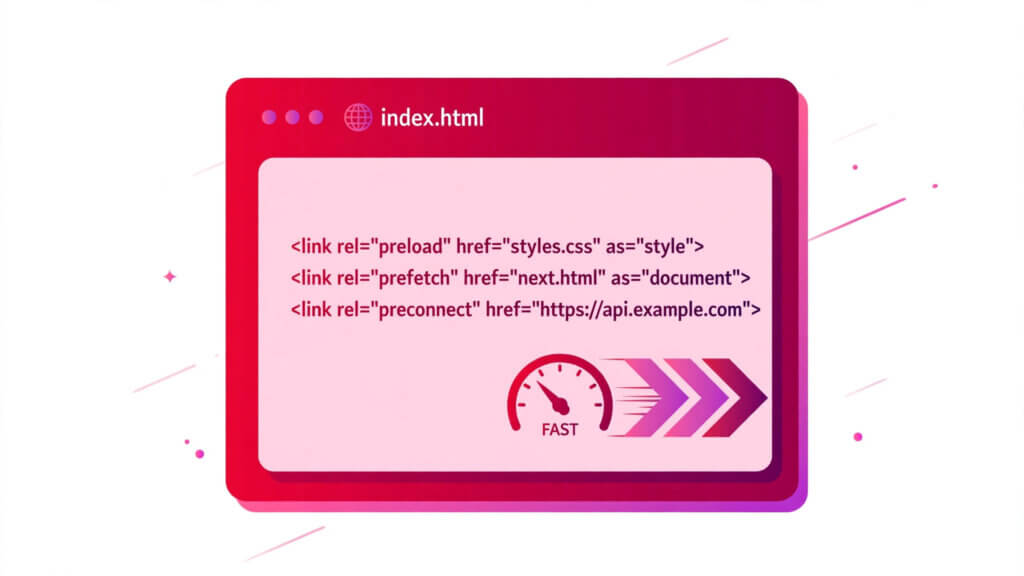
HTML Preload, Prefetch & Preconnect: Resource Hints Guide
HTML preload is the fastest way to tell a browser which resources matter most: a single <link rel="preload"> in your <head> makes the browser fetch a stylesheet, font, script, or hero image early, before it would normally discover it. This guide covers all three HTML resource hints — preload, prefetch, and preconnect — plus their older cousin dns-prefetch, with complete runnable examples for each, a comparison table, and the mistakes that make pages slower instead of faster.
Most pages do not need a performance framework to get faster. They need the browser to stop waiting. A browser reads your HTML top to bottom, and it only discovers some resources late: a font declared inside a stylesheet, a hero image that only appears after CSS loads, a script your JavaScript imports on demand. Resource hints close that gap. They are one-line <link> tags that give the browser a head start — fetch this now, connect to that origin early, or quietly prepare the next page while the user is still reading this one. Used well, they shave real time off the numbers users feel: first paint, largest contentful paint, and the delay before the next page appears. Used badly, they waste bandwidth on resources nobody needs. This guide shows the difference.
Quick Takeaways
- HTML preload fetches a critical resource early, at high priority — use it for the stylesheet, font, or hero image the first screen needs.
- HTML prefetch fetches a resource for a likely next navigation, at the lowest priority — use it for the next page, not this one.
- HTML preconnect sets up the connection (DNS, TCP, TLS) to another origin early — use it for third-party domains you will definitely fetch from, like a font CDN.
- DNS-prefetch only resolves the domain name; preconnect does everything dns-prefetch does, plus the connection and handshake.
- Always add
crossoriginwhen preloading fonts, or the browser fetches the font twice. - Never preload everything: every preload competes with genuinely critical resources, and an unused preload wastes bandwidth.
- Test with Chrome DevTools (Network tab, Priority column) and Lighthouse — both flag missing and wasted hints.
1. What Are Resource Hints?
1.1 A definition first
Resource hints are <link> tags that tell the browser about work it will probably need to do soon, so it can start that work before it is strictly required. They do not change what your page contains. They change when the browser prepares for it. The browser remains in charge: a hint is a strong suggestion, not a command, and the browser may ignore a prefetch on a slow connection or in data-saver mode.
1.2 Why browsers need hints at all
A browser discovers resources in the order it parses your document. That order is often not the order that matters. A font file is only discovered after the stylesheet that references it has been downloaded and parsed. A hero image defined in CSS is only discovered after that CSS is applied. A script loaded by another script is only discovered after the first script runs. Each of those discoveries costs a round trip, and round trips add up — especially on mobile networks, where a single round trip can cost a hundred milliseconds or more. Resource hints let you declare the important resources up front, in the <head>, so the browser can fetch them in parallel with parsing instead of waiting to stumble on them.
1.3 The four hints, in one paragraph each
There are four resource hints you will actually use. Preload says “fetch this resource now, it is critical for this page.” Prefetch says “fetch this resource when you are idle, the user will probably need it next.” Preconnect says “set up a full connection to this origin now, I will definitely fetch from it.” DNS-prefetch says “resolve this domain name now, nothing more.” The rest of this guide takes them one at a time, then shows how to choose between them.
1.4 Hints are not a preloader screen
Do not confuse resource hints with the animated “preloader” screens some sites show while they load — the spinning logo, the progress bar. Those are a design pattern (and usually a bad one: they hide content instead of showing it). Resource hints are invisible infrastructure in the <head>. They make the content appear sooner; a preloader screen makes the user wait longer while pretending to help.
2. Preload: Fetch It Now
2.1 What preload does
Preload tells the browser to start downloading a resource immediately, at high priority, even though nothing on the page has asked for it yet. The browser fetches it in the background while it keeps parsing the HTML, so the resource is already in the cache by the time the page needs it. The classic wins are the three resources browsers discover late: a font declared in CSS, a hero image declared in CSS or in an <img> far down the page, and a stylesheet that a script would otherwise load.
2.2 The as attribute is mandatory
Every preload needs an as attribute telling the browser what kind of resource it is fetching: as="style", as="script", as="font", as="image", as="fetch", as="document", and others. The as value matters for two reasons. First, it sets the right request priority: a font gets font priority, a stylesheet gets stylesheet priority. Second, it lets the browser apply the right security policy — a font fetched without as="font" is treated as a generic fetch and may be blocked or re-fetched. A preload without as is ignored or downgraded, so always include it.
2.3 Fonts: always add crossorigin
This is the single most common preload mistake, and it costs a double download. Fonts are fetched in CORS mode (cross-origin resource sharing), even when they sit on your own domain. If you preload a font without crossorigin, the browser caches the preload as an anonymous fetch, then the CSS requests the same font in CORS mode, finds no matching cache entry, and downloads it a second time. The fix is one attribute:
<link rel="preload" href="fonts/inter.woff2" as="font" type="font/woff2" crossorigin>The type="font/woff2" attribute is optional but useful: it lets the browser skip the preload entirely if it does not support that font format. The crossorigin attribute, with no value, is what makes the cached preload match the later font request. Never preload a font without it.
2.4 Preloading a stylesheet
A stylesheet in the <head> is already discovered early, so preloading your main CSS is usually pointless — the browser finds it on its own. Preload earns its keep for a stylesheet that would otherwise be discovered late: a print stylesheet that also styles the screen, or a stylesheet loaded by JavaScript. The pattern below preloads a stylesheet and applies it as soon as it arrives, which also works as the standard trick for loading non-critical CSS without blocking rendering:
<!DOCTYPE html>
<html lang="en">
<head>
<meta charset="UTF-8">
<title>Preload Stylesheet Example</title>
<link rel="preload" href="non-critical.css" as="style" onload="this.onload=null;this.rel='stylesheet'">
<noscript><link rel="stylesheet" href="non-critical.css"></noscript>
</head>
<body>
  <main>
    <h1>Preloaded stylesheet</h1>
    <p>The stylesheet is fetched early and applied on arrival. The noscript fallback covers users with JavaScript disabled.</p>
  </main>
</body>
</html>
The onload handler swaps rel from preload to stylesheet the moment the file arrives. Without the <noscript> fallback, users with JavaScript off would never get the styles at all — a small detail that audits catch.
2.5 Preloading a hero image
The hero image is often the page’s largest contentful paint (LCP) element — the thing Google’s Core Web Vitals measure as “when did the main content appear?” If the hero image is a plain <img> near the top of the page, the browser finds it quickly and preload is unnecessary. If it is a CSS background, or an <img> with srcset that the browser must evaluate first, preload removes the discovery delay. For a responsive image, the preload must carry the same imagesrcset and imagesizes as the <img>, or the browser will fetch the wrong size and then fetch the right one too:
<!DOCTYPE html>
<html lang="en">
<head>
<meta charset="UTF-8">
<title>Preload Hero Image Example</title>
<link rel="preload" as="image" href="hero-1200.jpg" imagesrcset="hero-600.jpg 600w, hero-1200.jpg 1200w, hero-2000.jpg 2000w" imagesizes="100vw">
</head>
<body>
  <main>
    <h1>Preloaded hero image</h1>
    <img src="hero-1200.jpg" srcset="hero-600.jpg 600w, hero-1200.jpg 1200w, hero-2000.jpg 2000w" sizes="100vw" alt="A mountain lake at sunrise">
    <p>The preload and the image carry identical srcset and sizes, so the browser fetches the right size once.</p>
  </main>
</body>
</html>
If the imagesrcset on the preload does not match the srcset on the image, the browser treats them as different resources and downloads the image twice. Matching them exactly is the whole trick.
2.6 What not to preload
Preload is high priority, which means it competes with the resources the browser already considers critical: the HTML itself, the main stylesheet, the first scripts. Preload a handful of genuinely critical resources and stop. Preloading every font weight, every
3. Prefetch: Fetch It for Later
3.1 What prefetch does
Prefetch tells the browser to download a resource during idle time, at the lowest priority, because the user will probably need it on the next page. The classic case is a multi-page flow: a product page that links to checkout, an article that links to part two, a course page that links to the first lesson. While the user reads the current page, the browser quietly fetches the next one, so the next click feels instant. Prefetch never blocks the current page: the browser only works on prefetched resources when the network and CPU are idle.
3.2 Prefetch a page, not a resource
The most effective prefetch is a whole next page:
<link rel="prefetch" href="/checkout.html">You can also prefetch a specific resource the next page will need — a script, a stylesheet, a JSON file — by adding as:
<link rel="prefetch" href="/lesson-1-data.json" as="fetch">But the page prefetch is the safer default: it pulls the HTML, and the browser then discovers and fetches that page’s own resources in the normal way. Prefetching individual resources for a page the user never visits wastes the bandwidth twice over.
3.3 Complete example: prefetching the next step
<!DOCTYPE html>
<html lang="en">
<head>
<meta charset="UTF-8">
<title>Prefetch Next Page Example</title>
<link rel="prefetch" href="/guide/part-2.html">
</head>
<body>
  <main>
    <h1>Part 1: Getting started</h1>
    <p>Read this page first. While you read, the browser quietly fetches part 2 in the background.</p>
    <p><a href="/guide/part-2.html">Continue to part 2</a></p>
  </main>
</body>
</html>
On a typical article flow, most readers who finish part 1 do click through to part 2 — which is exactly the hit rate prefetch needs to pay off. If only one reader in twenty follows the link, the prefetch is wasted bandwidth for the other nineteen.
3.4 When prefetch backfires
Prefetch has three failure modes. First, prefetching too much: every prefetched page costs bandwidth, and on a metered mobile connection that cost is real money for the user. Second, prefetching the wrong thing: a link in the footer that almost nobody clicks, or a page behind a login the user has not reached. Third, prefetching something with side effects: never prefetch a URL that changes server state — a logout link, a “delete” action, an add-to-cart URL. A prefetch is a real GET request, and the server cannot tell it apart from a click. Prefetch only safe, idempotent pages.
3.5 Prefetch is not prerender
Prefetch downloads a resource; it does not render the page. A separate feature, prerendering (today via speculation rules), actually loads and renders the next page in the background so the navigation is instant. Prerendering is far more expensive than prefetching and far more likely to be wasted, which is why it needs explicit rules and why this guide does not recommend it as a default. Prefetch is the conservative, low-risk version: download only, render on click.
4. Preconnect: Connect Early
4.1 What preconnect does
Preconnect tells the browser to set up a full connection to another origin before it needs one: DNS lookup, TCP handshake, and TLS negotiation, all done early. When the page later requests a font, script, or stylesheet from that origin, the connection is already warm and the request goes out immediately — saving one to three round trips, which on a slow mobile network can be half a second or more. Preconnect does not download anything. It only prepares the connection.
4.2 When preconnect earns its keep
Preconnect pays off for third-party origins you will definitely use: a font CDN, an analytics domain, a video host, a payment provider. The canonical example is Google Fonts, which serves its CSS from one origin and its font files from another — both need preconnecting, and the font origin needs crossorigin because fonts are fetched in CORS mode:
<!DOCTYPE html>
<html lang="en">
<head>
<meta charset="UTF-8">
<title>Preconnect Example</title>
<link rel="preconnect" href="https://fonts.googleapis.com">
<link rel="preconnect" href="https://fonts.gstatic.com" crossorigin>
<link href="https://fonts.googleapis.com/css2?family=Inter:wght@400;700&display=swap" rel="stylesheet">
</head>
<body>
  <main>
    <h1>Preconnected fonts</h1>
    <p>Both font origins are connected before the stylesheet is requested, so the font files arrive sooner.</p>
  </main>
</body>
</html>
4.3 Complete example: preconnecting a video and analytics origin
<!DOCTYPE html>
<html lang="en">
<head>
<meta charset="UTF-8">
<title>Preconnect Video Example</title>
<link rel="preconnect" href="https://cdn.example.com">
<link rel="preconnect" href="https://stats.example.com">
</head>
<body>
  <main>
    <h1>Video lesson</h1>
    <video src="https://cdn.example.com/lesson-1.mp4" controls preload="metadata"></video>
    <p>The video CDN and the analytics origin are connected while the page parses, so the first video request and the first analytics beacon go out without a connection delay.</p>
  </main>
</body>
</html>
4.4 The cost of too many preconnects
Each preconnect opens a connection the browser must hold open, and browsers cap how many connections they keep warm. Preconnecting to six origins you might use is worse than preconnecting to two you definitely will: the extra connections consume sockets and CPU, and the browser may close the ones you actually need to make room. The rule is strict: preconnect only to origins the page will certainly fetch from, and keep the count to two or three at most. Lighthouse flags unnecessary preconnects for exactly this reason.
5. DNS-Prefetch: The Older Cousin
5.1 What dns-prefetch does
DNS-prefetch resolves a domain name to an IP address early, and nothing more. No TCP connection, no TLS handshake — just the DNS lookup, which on a cold connection can itself cost tens of milliseconds. It is the oldest resource hint, supported by every browser, and it is the fallback for the rare browser that does not support preconnect.
5.2 When to use it instead of preconnect
Almost never, on a modern site. Preconnect does everything dns-prefetch does, plus the connection and handshake, for nearly the same cost. The two cases where dns-prefetch still makes sense: an origin you will use only occasionally (where a full preconnect would waste a held-open connection), and as a belt-and-braces fallback alongside preconnect for very old browsers. The syntax is identical in shape:
<!DOCTYPE html>
<html lang="en">
<head>
<meta charset="UTF-8">
<title>DNS-Prefetch Example</title>
<link rel="dns-prefetch" href="https://api.example.com">
<link rel="preconnect" href="https://api.example.com">
</head>
<body>
  <main>
    <h1>DNS-prefetch fallback</h1>
    <p>Old browsers use the dns-prefetch line; modern browsers use preconnect, which covers the DNS lookup and the full connection.</p>
  </main>
</body>
</html>
Including both lines is harmless: a modern browser treats the dns-prefetch as redundant and uses the preconnect. Do not add dns-prefetch for origins you already preconnect to on the assumption that more hints are better — one hint per origin is enough.
6. Preload vs Prefetch vs Preconnect: The Comparison
6.1 One table, four hints
| Hint | What it does | Priority | When to use it | What it costs |
|---|---|---|---|---|
| Preload | Fetches a resource now | High | A critical resource for this page, discovered late | Bandwidth now; competes with critical resources |
| Prefetch | Fetches a resource when idle | Lowest | A resource for a likely next page | Bandwidth later; wasted if the user never goes there |
| Preconnect | Sets up DNS + TCP + TLS to an origin | N/A (no download) | A third-party origin you will definitely fetch from | A held-open connection; wasted if unused |
| DNS-prefetch | Resolves a domain name only | N/A (no download) | An origin used occasionally, or as a preconnect fallback | Almost nothing |
6.2 Choosing in thirty seconds
Ask two questions. First: is this resource for this page or the next page? This page means preload (if critical) or nothing; next page means prefetch. Second: is the delay in the download or in the connection? If the file itself is slow to arrive because the browser discovers it late, preload it. If the connection setup is the slow part — a third-party origin with DNS, TCP, and TLS still to do — preconnect to it. If neither question points at a hint, the page does not need one, and adding one anyway is the most common performance mistake in this whole guide.
6.3 Hints that work together
A fast page usually uses two hints, not four. The most common pairing is preconnect plus preload: preconnect to the font CDN, then preload the font file itself. The connection is warm when the preload fires, so the font arrives as early as physically possible.
The second common pairing is prefetch plus nothing: a content site that prefetches the next article and leaves the current page alone. A page that uses all four hints on every origin it touches is almost certainly over-hinting — and over-hinting is measurable in Lighthouse as wasted work.
7. Resource Hints and Performance: What Actually Improves
7.1 Largest contentful paint
Largest contentful paint (LCP) measures when the largest visible element — usually a hero image or a big heading — finishes rendering. Preloading the LCP image is the single highest-value preload on most pages, because the image is often discovered late and its download is on the critical path. Lighthouse has a dedicated audit for exactly this (“Preload LCP image”), and fixing it is usually one line in the <head>. Preloading a font that renders the LCP heading has the same effect: the heading cannot paint in its real font until the font arrives, so the font is part of the LCP path too.
7.2 What the numbers look like
The honest answer is that the gain depends on the network. On a fast office connection, a preload might save fifty milliseconds — invisible. On a 4G mobile connection, the same preload can save half a second, because each round trip is expensive and the discovery delay is a whole round trip. Preconnect shows the same pattern: it saves one to three round trips, which is trivial on localhost and dramatic on a phone. That is why resource hints matter most for the users who need them most — mobile visitors on ordinary networks — and why testing on a throttled connection, not on your own wifi, is the only honest way to measure them.
7.3 Measuring, not guessing
Never add a hint because a blog post told you to. Add it, measure, keep it only if the measurement improves. Chrome DevTools gives you everything you need: open the Network tab, reload, and check the Priority column and the waterfall. A preloaded resource should show High priority and start early in the waterfall. Lighthouse (in DevTools, under the Lighthouse tab) runs the audits that matter here: “Preload LCP image”, “Preconnect to required origins”, and “Reduce unused JavaScript” for the scripts you preloaded but never used. WebPageTest adds the filmstrip view: watch the page render with and without your hints, and keep only the hints that move the first paint earlier.
8. Common Mistakes on Resource Hints
8.1 Preloading everything
The most common mistake, by far. A page with twelve preloads has not optimized anything: it has told the browser that twelve resources are all equally critical, which means none of them is. Browsers already prioritize well; preload is for the two or three resources the browser’s own discovery order gets wrong. If your <head> has more preloads than you can justify one by one, delete the ones you cannot justify.
8.2 Forgetting crossorigin on fonts
Covered in section 2.3, repeated here because it is that common: a font preload without crossorigin downloads the font twice. The browser console even warns about it — “The resource was preloaded using link preload but not used within a few seconds” — which is the browser telling you the preload did not match the later request. If you see that warning next to a font, crossorigin is the missing attribute.
8.3 Preloading resources the page never uses
A preload the page never uses is pure waste: bandwidth spent, a console warning generated, and a high-priority slot taken from a resource that needed it. This happens most often with preloaded scripts for features below the fold, and with hero images preloaded on pages where the hero is hidden on mobile. If a resource is conditional — only used on desktop, only used after a click — do not preload it unconditionally. Gate it with the media attribute (media="(min-width: 800px)") or load it on demand instead.
8.4 Prefetching pages with side effects
A prefetch is a real request. Never prefetch a logout URL, a delete action, an add-to-cart link, or any URL that changes state on the server. The server cannot distinguish a prefetch from a click, so the action runs. Prefetch only safe GET pages: articles, product pages, documentation. This is not a theoretical risk — it is the first thing a security review flags on a site that prefetches aggressively.
8.5 Preconnecting to origins you never fetch from
A preconnect to an origin the page never uses holds a connection open for nothing, and browsers notice: Lighthouse reports it as wasted work, and the held connection can crowd out one you actually need. Audit your preconnects the same way you audit your preloads: open DevTools, check which origins the page actually requests, and delete the preconnects that match nothing. Third-party scripts are the usual culprit — a chat widget or analytics snippet that was removed from the page while its preconnect stayed in the <head>.
8.6 Confusing preload with “make it load faster”
Preload does not make a resource download faster. It makes the download start earlier. If the resource itself is huge — a 2 MB hero image, an unminified 500 KB script — preloading it only starts the slow download sooner; the page is still slow. Fix the size first (compress the image, minify the script, subset the font), then preload what remains. Hints are a scheduling tool, not a substitute for making resources small.
9. Browser Support and Fallbacks
9.1 What works where
All four hints are supported in every modern browser: Chrome, Edge, Firefox, and Safari all support preload, prefetch, preconnect, and dns-prefetch. Preload is the youngest of the four and the one with the most edge cases — older Safari versions, for example, ignored preload for some resource types — but for any audience in 2026, all four are safe to use. The imagesrcset and imagesizes attributes on preload are newer than preload itself and have narrower support; on a browser that ignores them, the preload still works, it just fetches the href image instead of the responsive one.
9.2 Fallbacks are built in
Resource hints fail gracefully by design. A browser that does not understand rel="preload" treats the <link> as an unknown relation and ignores it — the page still works, just without the head start. A browser that does not support imagesrcset falls back to href. There is nothing to polyfill and no JavaScript shim worth adding: the fallback for an unsupported hint is the normal loading behavior the page already had. That is why hints are low-risk to adopt: the worst case is no improvement, never a broken page.
9.3 Modulepreload for JavaScript modules
One newer hint deserves a mention: modulepreload fetches a JavaScript module and its dependencies early, for pages that use ES modules (<script type="module">). It works like preload with as="script", but it also fetches the module’s imports, which plain preload does not. If your site ships ES modules and the entry module imports several others, modulepreload on the entry module is the right hint. For classic scripts, ordinary preload is the tool.
10. Testing Your Hints
10.1 The five-minute check
Run this after adding any hint: (1) open the page in Chrome DevTools, Network tab, and confirm the hinted resource starts early in the waterfall with the expected priority; (2) check the console for preload warnings — “preloaded but not used” means the preload did not match the real request, usually a missing crossorigin or a mismatched imagesrcset; (3) run Lighthouse and read the “Preload LCP image” and “Preconnect to required origins” audits; (4) throttle the network to “Fast 4G” in DevTools and reload — hints should make the first paint visibly earlier; (5) remove the hint, reload, and compare. If removing it changes nothing, the hint was not earning its keep.
10.2 The complete example: a fast landing page head
This is the whole guide in one <head>: a preconnect to the font CDN, a preload of the font and the hero image, and a prefetch of the next page. Every hint here is justified by a resource the page definitely uses:
<!DOCTYPE html>
<html lang="en">
<head>
<meta charset="UTF-8">
<title>Fast Landing Page Example</title>
<link rel="preconnect" href="https://fonts.googleapis.com">
<link rel="preconnect" href="https://fonts.gstatic.com" crossorigin>
<link rel="preload" href="https://fonts.googleapis.com/css2?family=Inter:wght@400;700&display=swap" as="style">
<link rel="preload" as="image" href="hero-1200.jpg" imagesrcset="hero-600.jpg 600w, hero-1200.jpg 1200w" imagesizes="100vw">
<link rel="prefetch" href="/pricing.html">
</head>
<body>
  <main>
    <h1>Fast landing page</h1>
    <img src="hero-1200.jpg" srcset="hero-600.jpg 600w, hero-1200.jpg 1200w" sizes="100vw" alt="A mountain lake at sunrise">
    <p>Two preconnects, two preloads, one prefetch — each tied to a resource this page actually uses.</p>
    <p><a href="/pricing.html">See pricing</a></p>
  </main>
</body>
</html>
Note what is not in this <head>: no dns-prefetch (preconnect covers it), no preload of the main stylesheet (the browser finds it on its own), and no preconnect to an analytics domain the page does not load. Restraint is part of the pattern.
11. Quick Reference: Choosing the Right Hint
11.1 The decision table
| Situation | Use |
|---|---|
| A font, hero image, or script the first screen needs, discovered late | Preload |
| The next page in a flow most readers follow | Prefetch |
| A third-party origin (fonts, video, analytics) you will definitely fetch from | Preconnect |
| An origin used rarely, or a fallback for old browsers | DNS-prefetch |
| A resource the page might need, or only on some devices | Nothing — load it on demand |
| A page behind a login, or a URL that changes server state | Nothing — never prefetch it |
11.2 The one-line audit
If you remember one rule from this guide, make it this one: every hint in your <head> should answer the question “which exact resource, and when does the page need it?” in a single sentence. “Preload the Inter font because the hero heading renders in it.” “Prefetch the pricing page because most visitors click through.” “Preconnect to the font CDN because every page loads fonts from it.” A hint that cannot answer that question is a hint to delete.
Frequently Asked Questions
1. Does preload make my page load faster, or just start sooner?
It makes the download start earlier — it does not make the download itself faster. A preloaded 2 MB image still takes as long to download as it always did; it just starts downloading while the browser is still parsing, instead of after. That earlier start is worth a lot on slow networks, where the discovery delay is a whole round trip, and almost nothing on fast ones. Shrink the resource first, then preload it.
2. How many preloads is too many?
There is no fixed number, but two or three is the practical ceiling for most pages: the critical font, the hero image, and at most one script or stylesheet. Every preload competes with the resources the browser already treats as critical, so each additional preload dilutes the ones before it. If you have more than five preloads, at least some of them are not genuinely critical — audit them with the one-line test in section 11.2.
3. Should I preload my main stylesheet?
Usually no. A stylesheet linked normally in the <head> is discovered immediately, so preloading it adds nothing. Preload earns its keep for stylesheets discovered late — one loaded by JavaScript, or the non-critical CSS in the async pattern from section 2.4. If your stylesheet is already a normal <link rel="stylesheet"> in the <head>, leave it alone.
4. Why does Chrome warn that my preloaded font was “not used”?
Almost always because the preload did not match the later font request, and the usual cause is a missing crossorigin attribute. Fonts are fetched in CORS mode, so a preload without crossorigin is cached as a different fetch from the one the CSS makes, and the browser reports the preload as unused while downloading the font a second time. Add crossorigin to the preload and the warning disappears. A mismatched imagesrcset on an image preload causes the same warning for the same reason.
5. Is prefetch safe for SEO?
Yes. Search engines understand prefetch and treat it as a hint, not as a visit: prefetching a page does not count as a pageview, does not trigger analytics (the prefetched page’s scripts generally do not run), and does not pass link equity. The one SEO-adjacent risk is server load: aggressive prefetching on a high-traffic site generates real requests for pages most visitors never open, which can show up in server logs and, on a small server, in the hosting bill.
6. Do resource hints help on every page?
No. A small page with no third-party origins, no web fonts, and a hero image at the top of the document has nothing for hints to fix — the browser already discovers everything early. Hints pay off on pages with late-discovered critical resources (fonts in CSS, CSS background images), pages that depend on third-party origins, and multi-page flows where the next step is predictable. On a simple page, the best <head> is the one with no hints at all.
Conclusion
HTML preload, prefetch, and preconnect are small tools with a simple job: remove the waiting from your pages. Preload fetches the critical resource early. Prefetch prepares the next page while the user reads this one. Preconnect warms up the connection to an origin you will definitely use. DNS-prefetch resolves the name for the rare cases where that is all you need. The discipline is the same for all four: hint only what the page definitely uses, measure the result on a throttled connection, and delete the hint if the measurement does not improve. A <head> with two well-chosen hints beats a <head> with twelve hopeful ones, every time.
Your next step: open your own homepage in Chrome DevTools, throttle the network to Fast 4G, and watch the waterfall. Find the resource your largest contentful paint waits for, and add one preload for it — with the right as value and crossorigin if it is a font. Then run Lighthouse before and after, and keep the hint only if the numbers move.
Related Articles You’ll Love
- Lazy Loading Images in HTML: Complete Guide to loading=”lazy”
- Responsive Images HTML: srcset and Picture Element Guide
- Unleashing the Power of the HTML Image Tag: Everything You Need to Know
- HTML Meta Tags: Complete SEO List Every Page Needs 2026
- HTML Web Components: Custom Elements & Shadow DOM Guide
Authoritative reference: Preload — MDN