
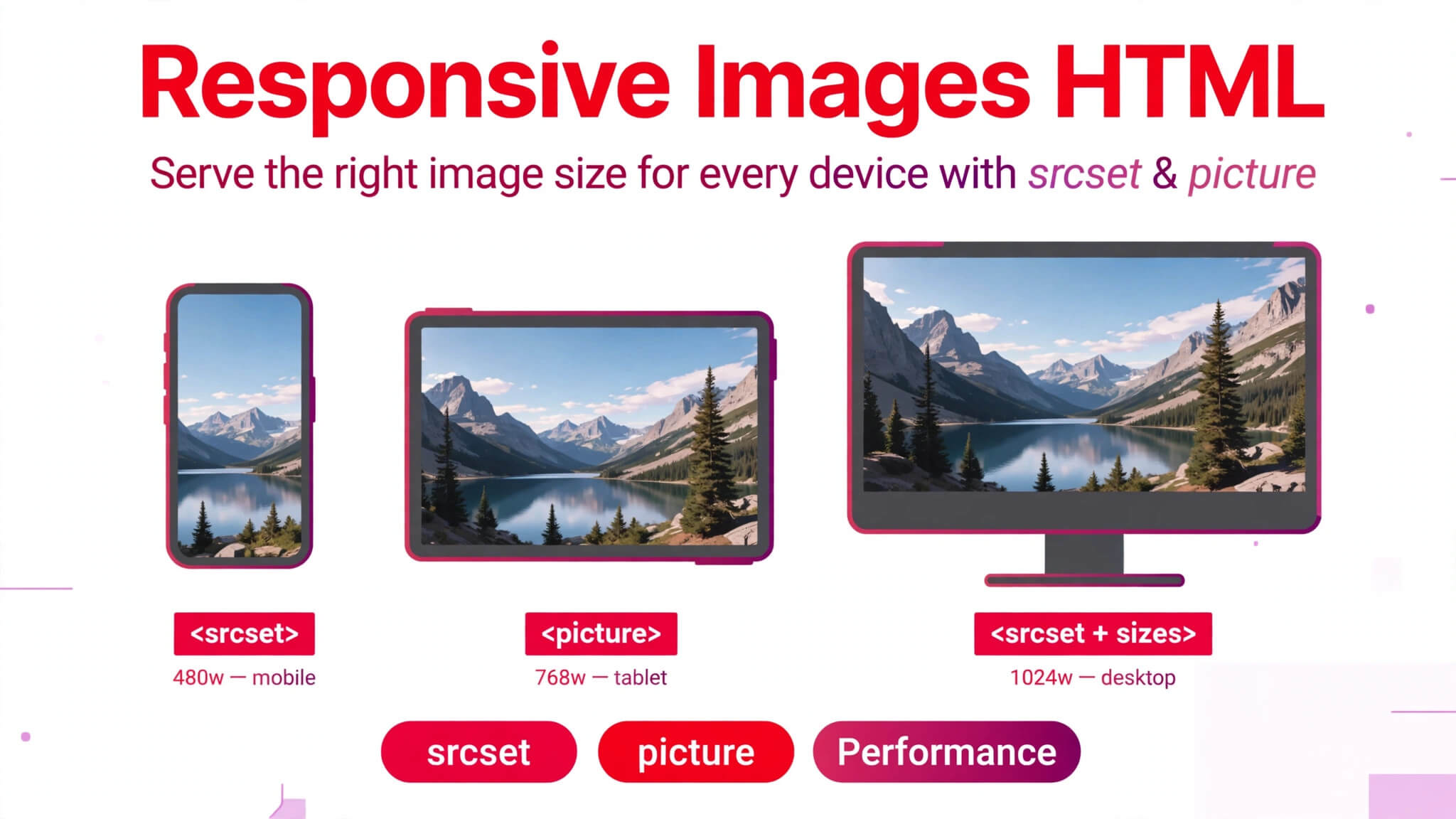
Responsive Images HTML: srcset and Picture Element Guide
Responsive images HTML is how you stop sending the same huge image to every device. A phone on a slow connection should not download a 2000-pixel hero image meant for a desktop monitor, and a large screen should not get a tiny, blurry image stretched to fill it. With two tools — srcset and the picture element — you can give the browser a set of image options and let it pick the right one for the screen, the resolution, and the layout.
This guide explains both tools in plain language, with working code you can copy. You will learn when to use srcset, when you need picture instead, and the mistakes that make responsive images silently fail.
Quick Takeaways
- Use srcset when the same image is shown at different sizes — the browser picks the best file.
- Use the picture element when you need a different image, crop, or format for different screens — that is art direction, not just resizing.
- Always include a normal img tag inside picture, with an alt attribute. Picture without img is broken HTML.
- Add sizes whenever you use width-based srcset, or the browser will guess wrong and download too much.
- Test on a real phone width, not just by shrinking your desktop browser window. That is where bad responsive images show up first.
What Responsive Images Actually Solve
One Image Does Not Fit Every Screen
A normal img tag gives the browser one file and no choice. If that file is 2400 pixels wide, a phone downloads all 2400 pixels even though its screen can only show 400. That wastes data, slows the page, and hurts the visitor’s experience — especially on mobile connections.
Responsive images fix this by offering options. You still write one img or picture element in your HTML, but behind it you list several files. The browser then looks at the screen size, the pixel density, and the space the image will actually take up, and downloads only the file that fits.
This is not a cosmetic improvement. Image weight is usually the biggest part of a page. Cutting it on small screens is one of the fastest ways to make a site feel quicker, and it is also why search engines care about it: a page that loads fast on a phone ranks and converts better than the same page dragging a desktop-sized image behind it.
Resolution Switching vs Art Direction
There are two different problems here, and mixing them up is the most common source of confusion.
Resolution switching means: same image, different sizes. A product photo that is 400 pixels wide on a phone and 1200 pixels wide on a desktop is the same photo, just bigger. That is a srcset job.
Art direction means: different image for different screens. A wide landscape banner on desktop might need a tall, tightly cropped portrait version on a phone, or a simpler version with less detail. That is a picture job, because no amount of resizing a wide banner makes it readable on a narrow screen.
If you remember only one distinction from this guide, remember that one: srcset changes the file size, picture can change the image itself.
srcset: The Same Image at Different Sizes
How srcset Works
The srcset attribute sits on an img tag and lists image files with a descriptor after each one. The browser reads the list, works out which file best matches the current screen, and downloads that one. The other files are never downloaded, so the visitor only pays for what they actually see.
Here is the simplest useful version, using width descriptors:
<img src="photo-800.jpg"
     srcset="photo-400.jpg 400w,
             photo-800.jpg 800w,
             photo-1200.jpg 1200w"
     sizes="(max-width: 600px) 100vw,
            50vw"
     alt="A cat sitting by a window in warm light">
Read it like this: there are three versions of the same photo, 400, 800, and 1200 pixels wide. The sizes attribute tells the browser how wide the image will be displayed — full viewport width on screens up to 600 pixels, half the viewport width on larger screens. From that, the browser picks the smallest file that will still look sharp.
Width Descriptors vs Pixel Density Descriptors
Width descriptors (400w, 800w) are the ones you will use most, because they pair with sizes and let the browser make a smart choice for any layout.
Pixel density descriptors (1x, 2x) are simpler: they say “use this file on a normal screen, this one on a high-density retina screen.” They work, but they do not know anything about layout width, so they are best for small, fixed-size images like icons or avatars:
<img src="logo.png"
     srcset="logo.png 1x, logo@2x.png 2x"
     alt="All About HTML logo">
Do not mix width and density descriptors in the same srcset. Pick one system per image. For most content images, width descriptors with sizes are the right choice.
The sizes Attribute Is Not Optional
This is the mistake that breaks srcset most often. If you use width descriptors but leave out sizes, the browser assumes the image will be displayed at full viewport width (100vw). If your image actually sits in a half-width column, the browser will download a file twice as big as it needs, and your responsive images will look like they are doing nothing.
Write sizes to match your real layout. Start with the mobile case first, then add breakpoints as the layout changes:
sizes="(max-width: 600px) 100vw,
       (max-width: 1000px) 50vw,
       33vw"
That reads: on phones, full width; on tablets, half width; on desktops, one third of the viewport. Match those numbers to your CSS, not to guesses, and re-check them if your layout changes later.
The Picture Element: Different Images for Different Screens
How picture Works
The picture element wraps several source elements and one img element. The browser goes through the sources in order, uses the first one whose media condition matches, and falls back to the img if none match. That fallback is not optional — it is what older browsers and screen readers use, and it is what shows if a source fails.
<picture>
  <source media="(max-width: 600px)"
          srcset="banner-portrait.jpg">
  <source media="(min-width: 601px)"
          srcset="banner-landscape.jpg">
  <img src="banner-landscape.jpg"
       alt="A wide banner photo of a mountain lake at sunrise">
</picture>
On a phone, the visitor gets the portrait crop. On a desktop, the landscape version. Same slot on the page, different image, chosen by the browser before anything is downloaded.
For the formal definitions of these elements, see MDN’s responsive images guide.
Modern Formats Without Breaking Older Browsers
Picture is also how you serve modern image formats safely. You can offer a WebP or AVIF version first, and fall back to JPEG for browsers that do not support it yet:
<picture>
  <source type="image/avif"
          srcset="photo.avif">
  <source type="image/webp"
          srcset="photo.webp">
  <img src="photo.jpg"
       alt="A plate of food on a wooden table">
</picture>
The browser picks the first format it understands. Older browsers skip the sources they do not recognise and use the JPEG in img, so nobody gets a broken image. This is a safe way to cut image weight without leaving anyone behind — just make sure the fallback JPEG actually exists and is not an afterthought.
When to Use picture and When to Use srcset
| Situation | Use |
|---|---|
| Same photo, different sizes for different screens | srcset on img |
| Different crop or composition on mobile vs desktop | picture with media |
| Modern format (WebP/AVIF) with a JPEG fallback | picture with type |
| Fixed-size icon or avatar, normal vs retina | srcset with 1x/2x |
| A decorative background image | CSS, not img or picture |
If you find yourself using picture for a simple resize job, you probably only needed srcset. If you find yourself trying to force a crop change through srcset alone, you need picture. Keep the tool matched to the problem and the markup stays simple.
Common Mistakes That Break Responsive Images
1. Forgetting sizes With Width-Based srcset
Without sizes, the browser assumes 100vw and downloads too much. This is the single most common reason people conclude “srcset does not work” — it does work, it was just given the wrong layout information. Always pair width descriptors with a sizes attribute that matches your CSS.
2. Leaving Out the img Fallback Inside picture
A picture element without an img inside it is invalid and unreliable. Some browsers will show nothing at all. Always write the img last, with a sensible src and a real alt text, even if you expect a source to match every time.
3. Using the Same File in Every srcset Entry
Listing photo.jpg three times with different descriptors does not make it responsive — the browser will still download the same file. Each entry must point to a genuinely different, correctly sized file. Generate the sizes when you export the image, not by renaming the same file.
4. Writing Alt Text for the File, Not the Image
Alt text should describe what the image shows, not which file it is or which breakpoint it serves. “banner-portrait.jpg, mobile version” helps nobody. “A wide banner photo of a mountain lake at sunrise” helps a screen reader user and an image search engine alike, on every screen size.
5. Testing Only by Resizing a Desktop Browser
Resizing a desktop window changes the viewport, but it does not change the network conditions, the pixel density, or the real layout behaviour of a phone. Test at a real mobile width in your browser’s device mode, and check the network panel to see which file actually downloaded. If the phone-width test still pulls the 1200-pixel file, your sizes attribute is wrong.
Frequently Asked Questions
1. Do I need both srcset and picture on every image?
No. Most content images only need srcset. Use picture only when you need art direction (a different crop or image) or a format fallback (WebP/AVIF with JPEG). Adding picture everywhere makes the markup harder to maintain for no benefit.
2. Does the browser download all the files in srcset?
No. The browser picks one file before downloading, based on the screen, the pixel density, and the sizes attribute. The other files are not downloaded. That is the whole point — the visitor only downloads what fits their screen.
3. What happens if a browser does not support srcset or picture?
It uses the plain src on the img tag. That is why src and the img fallback matter so much: they are not just for old browsers, they are the safety net for every visitor. Always set a sensible src, even when you expect srcset or a source to match.
4. Should I still use lazy loading with responsive images?
Yes, and they work well together. Lazy loading (loading=”lazy”) delays off-screen images until the visitor scrolls near them, while srcset and picture make sure the file that does load is the right size. Use both on images below the fold; keep hero images eager so the page’s main image is not delayed.
5. How many sizes should I generate for each image?
Three is a good starting point for most content images — small, medium, and large — matched to your layout’s breakpoints. More sizes give the browser finer choices but add work every time you upload an image. Start with three, measure, and only add more if your layout genuinely needs a size in between.
Conclusion
Responsive images HTML is not about writing more markup for its own sake. It is about giving the browser a choice: srcset for the same image at different sizes, the picture element when the image itself needs to change, and a solid img fallback underneath both. Get sizes right, keep alt text honest, and test at real phone widths, and your pages will load faster on the devices that need it most.
Next, try it on one real image on your own site: add three sizes with srcset and sizes, check the network panel at phone width, and see which file actually downloads. That one test will tell you more than any guide can about whether your layout numbers are right.
Related Articles You’ll Love
- Lazy Loading Images in HTML: https://allabouthtml.com/lazy-loading-images-html/
- HTML Image Tag: https://allabouthtml.com/the-power-of-the-html-image-tag-everything-you-need-to-know/
- HTML Headings Hierarchy: H1 to H6, SEO Rules, and Common Mistakes: https://allabouthtml.com/html-headings-hierarchy-seo/
- Mastering template and slot in HTML: https://allabouthtml.com/mastering-template-and-slot-in-html/
- HTML and WebSockets: https://allabouthtml.com/html-and-websockets-real-time-communication/
- HTML Details and Summary Tags: https://allabouthtml.com/html-details-and-summary-tags-complete-guide/
No comment