
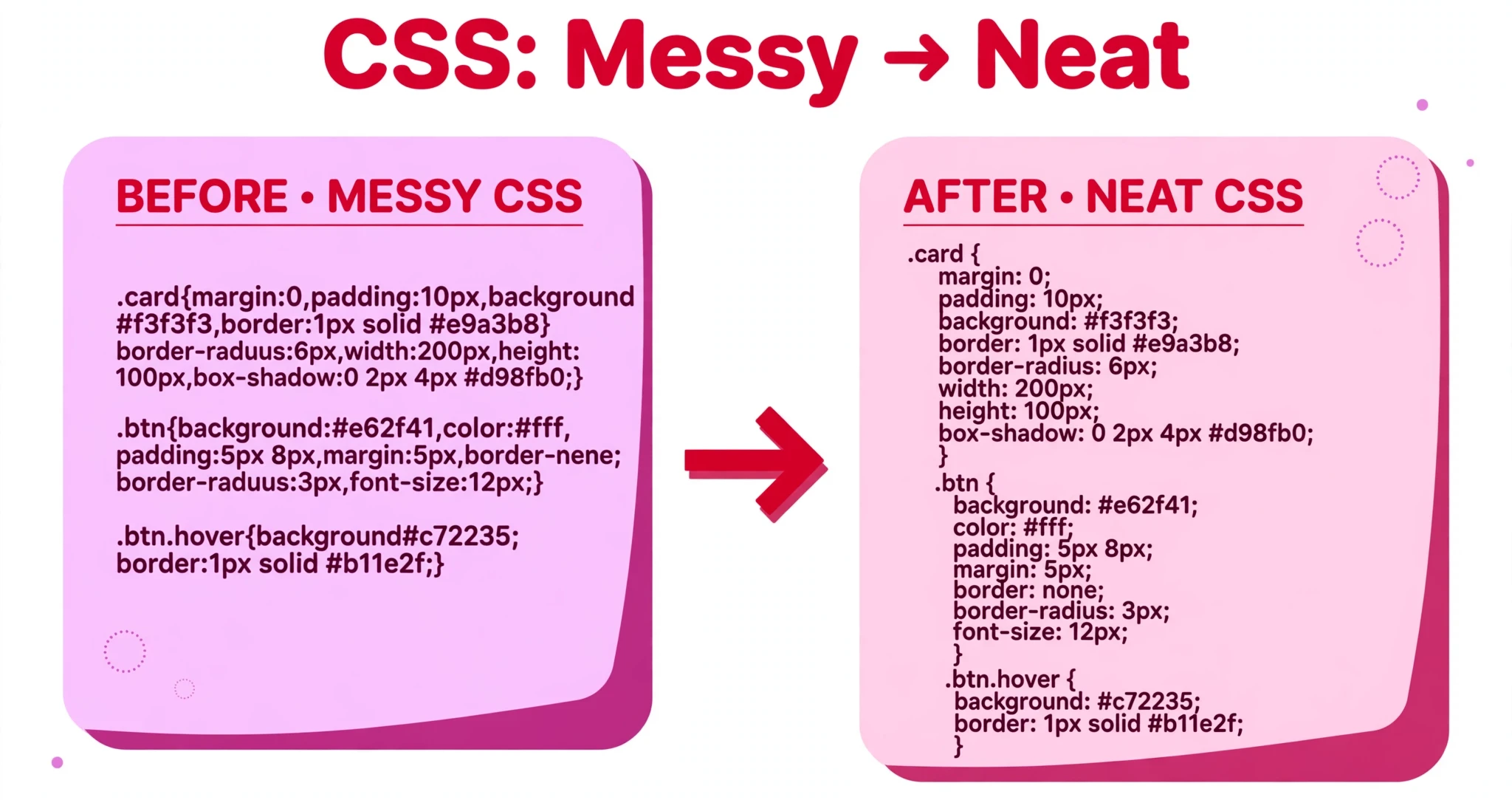
This formatter reads your CSS token by token — it is not a regex find-and-replace. Strings, comments, data URLs, custom properties (--var) and nested rules are preserved exactly, and spaces that CSS requires (for example around + and - inside calc(), and between selectors) are never removed. It does not optimise or rewrite your CSS — it only lays it out — and it does not fix invalid CSS; check the warnings below.
What is the CSS Formatter?
A CSS formatter takes a stylesheet that has been squashed onto a few lines — or written with inconsistent spacing — and lays it out the way a person would write it: one selector per line, one declaration per line, and every block indented. This free CSS Formatter does exactly that, and it does it properly: it reads your CSS token by token, the way a browser reads it, instead of doing a rough find-and-replace with regular expressions.
That matters because CSS is full of places where a careless formatter breaks things. A web address inside url(...), a string with spaces in it, a custom property like --brand, or the spaces around + and - inside calc() all have to survive formatting untouched. This tool understands those pieces, so it preserves them exactly — your strings, comments, data URLs, custom properties, and nested rules all come out the other side identical to how they went in.
It is made for students learning CSS, bloggers showing stylesheet examples, and developers who inherited a minified stylesheet and need to read it. The result is the same CSS, only arranged so you can follow it: which selector sets which properties, where a media query starts and ends, and what each rule actually does.
Everything runs in your browser. Your stylesheet is never uploaded, stored, or sent anywhere, so you can format code from a private or client project without a second thought.
How to use the CSS Formatter
There is no button to press — the tool formats as you type:
- Paste your CSS into the CSS input box. The tool loads with a sample stylesheet already in place, so you will see a formatted result immediately. Replace it with your own code whenever you are ready.
- Choose your Indentation. The dropdown offers 2 spaces, 4 spaces, or a Tab. The output updates the moment you change it, so you can compare the three at a glance.
- Read the result in the Formatted output box. The output appears on the right, and the stats line underneath summarises what happened.
- Copy or download the result. Use Copy to put the formatted CSS on your clipboard, or Download to save it as a file. Clear empties the input, and Reset restores the sample stylesheet.
If your CSS has a problem — an unclosed brace, for example — the tool does not silently guess. It shows a warning underneath, so you know something needs attention. It never rewrites your selectors or declarations, and it does not try to fix invalid CSS; it only lays out what you gave it.
Worked example
Paste this compressed CSS into the input:
body{margin:0;padding:0;color:#232323}.card{padding:16px;border:1px solid #d9d9d9}
The CSS Formatter returns:
body {
  margin: 0;
  padding: 0;
  color: #232323;
}

.card {
  padding: 16px;
  border: 1px solid #d9d9d9;
}
Each rule now has its own block, each declaration sits on its own line, and a blank line separates the two rules. The values are untouched — 1px solid #d9d9d9 still has the spaces it needs, because the formatter knows that removing them would change what the CSS means.
When a CSS formatter earns its keep
Reading a minified stylesheet. Stylesheets served to visitors are often compressed to a single line to save bandwidth. When you need to understand one — to find why a button looks wrong, or to borrow a technique — pasting it through the formatter turns an unreadable wall of text into rules you can scan one by one.
Cleaning up CSS you wrote in a hurry. A stylesheet that grew by pasting snippets from tutorials and forums usually has inconsistent spacing: some rules on one line, others spread out, indentation all over the place. Formatting it once gives the whole file a single, consistent shape, which makes the next edit much easier.
Preparing examples for teaching or writing. If you show CSS in a lesson, a tutorial, or a blog post, your readers need to read it as well as copy it. Formatted CSS teaches the structure of a rule — selector, then declarations, then the closing brace — instead of hiding it. Run your examples through the formatter before you publish them.
Tips for getting the best result
Pick the indentation your project uses and stick to it. Two spaces is the most common choice on the web; four spaces is easier to scan when rules nest deeply inside media queries; tabs suit projects that already indent with tabs. The formatter lets you switch in one click, but your files stay easiest to read when they all use the same setting.
Do not expect the formatter to fix mistakes. A missing closing brace, a typo in a property name, or a declaration without a value will be reported as a warning, not repaired. Read the warning, fix the source, and format again. Formatting and fixing are two different jobs.
Watch out for calc() and data URLs in other tools. Many quick formatters strip the spaces around + and - inside calc(), which breaks the calculation, or mangle the long encoded address inside a url(). This one does neither, because it reads the CSS token by token. If you have ever had a formatter corrupt a background image or a calculation, that is the difference to look for.
Format before you compare two stylesheets. When you are trying to work out what changed between two versions of a stylesheet, format both first. Comparing two minified files tells you nothing; comparing two formatted files shows the real differences line by line.
Keep a formatted copy for reading and a minified copy for serving. Browsers do not care about indentation, and visitors’ connections benefit from smaller files. Use the formatter while you work, then run the finished stylesheet through the CSS Minifier before it goes live — readable in your editor, small on the wire.
Frequently asked questions
Does the CSS Formatter change what my CSS does?
No. It only changes whitespace — line breaks and indentation. Selectors, properties, values, and comments are preserved exactly, including the spaces CSS requires inside calc() and between selectors. A browser renders the formatted stylesheet exactly the same as the original.
Why does it say my CSS is tokenizer-based? What does that mean?
It means the tool reads your CSS the way a browser does: it splits the code into meaningful pieces — selectors, braces, strings, comments, URLs — and then lays those pieces out. A simpler formatter that only searches for characters with regular expressions can easily break a string or a data URL. Tokenizing avoids that.
Will it fix invalid CSS?
No. If your CSS has a structural problem, such as an unclosed brace, the tool reports a warning instead of guessing. Fix the problem in your source code and format again.
Is my CSS uploaded anywhere?
No. Everything runs in your browser, on your own device. Nothing is uploaded, stored, or shared.
What happens to my custom properties and data URLs?
They are preserved exactly. A custom property like --brand: #e62f41; and a data URL such as url("data:image/svg+xml,...") pass through untouched, because the formatter knows they are single values, not formatting to be rearranged.
Conclusion
Compressed CSS is fine for a server and miserable for a person. The CSS Formatter turns it back into code you can read — one selector per line, one declaration per line, indentation of your choice — without changing what any of it does, and without ever sending your stylesheet anywhere.
Try it on the tool above, and when your stylesheet is finished and ready for visitors, shrink it back down with the CSS Minifier.