
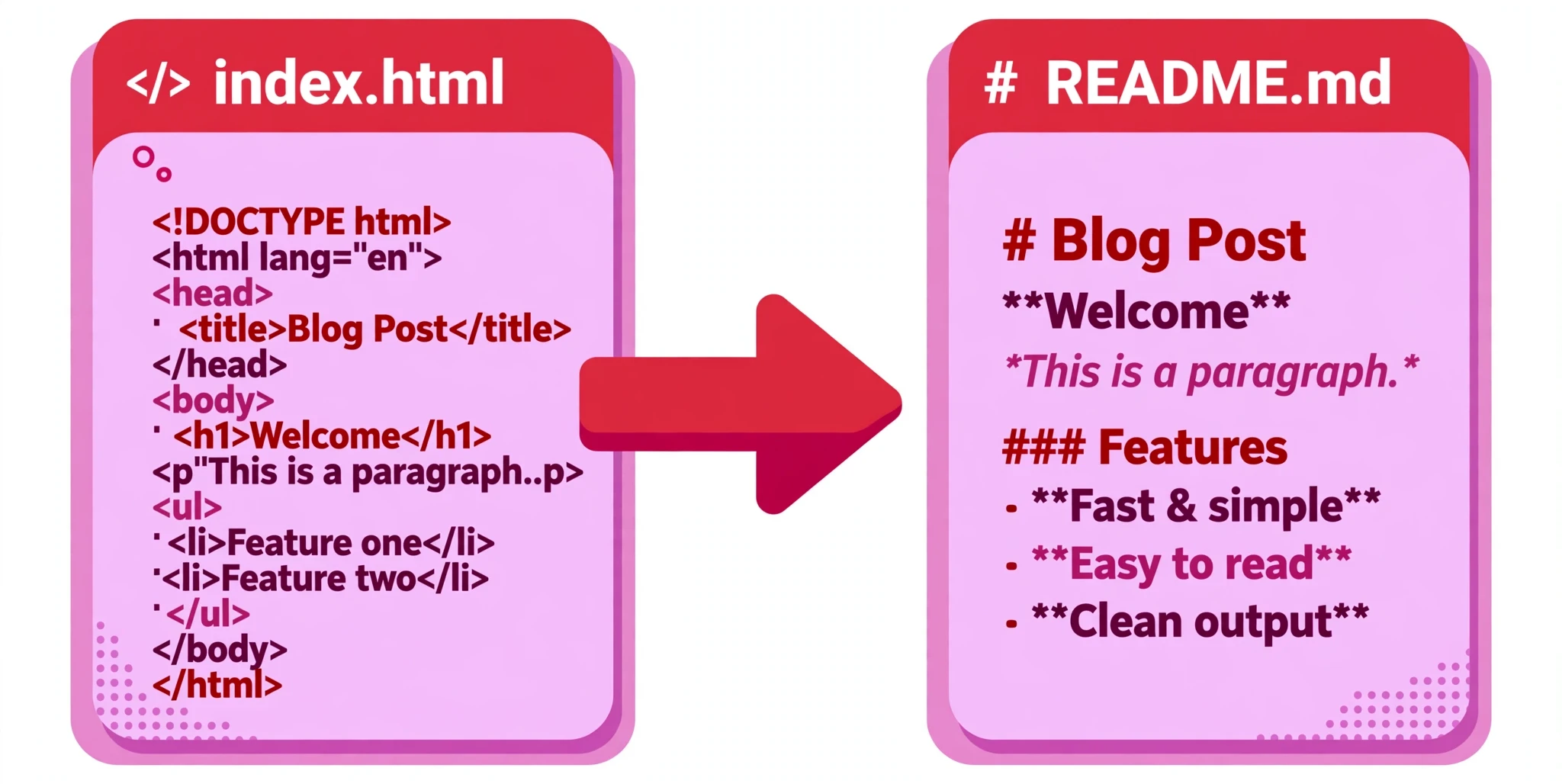
Supported: headings, paragraphs, bold, italic, links, images, ordered and unordered lists (including nested lists), blockquotes, inline code, code blocks, tables and horizontal rules. Not converted: footnotes, definition lists, task lists, raw HTML blocks and list-item continuation paragraphs. Conversion is not a perfect round trip — some formatting may change. The preview runs in a sandboxed frame, so scripts in the HTML never run, and links with unsafe schemes (such as javascript:) are removed.
What is the HTML to Markdown Converter?
An HTML to Markdown converter turns web pages into plain-text Markdown — the lightweight format used by documentation, blogs, and note-taking apps — and back again. This free HTML to Markdown Converter works in both directions: paste in HTML and get Markdown out, or paste in Markdown and get HTML out. One tool, one Direction dropdown, two jobs.
It is made for anyone who moves content between the web and plain text: bloggers copying an article into a Markdown-based site, developers writing documentation, students turning a web page into notes, and anyone who has a Markdown file and needs the HTML for a web page. Markdown is easier to write and easier to read as raw text; HTML is what browsers display. This tool is the bridge between the two.
The conversion covers the elements you actually use: headings, paragraphs, bold, italic, links, images, ordered and unordered lists (including nested lists), blockquotes, inline code, code blocks, tables, and horizontal rules. It is honest about its limits, too: footnotes, definition lists, task lists, raw HTML blocks, and list-item continuation paragraphs are not converted, and converting back and forth is not a perfect round trip — some formatting may change. The tool tells you that up front, so there are no surprises.
Safety is built in. The converted HTML is shown in a sandboxed preview frame, so scripts in the HTML never run, and links with unsafe schemes such as javascript: are removed. The converted HTML is never executed in the page itself. And everything runs in your browser: your content is never uploaded, stored, or sent anywhere.
How to use the HTML to Markdown Converter
- Choose the Direction. The dropdown offers HTML → Markdown (the default) and Markdown → HTML. Pick the direction you need before you paste anything — the input and output labels change to match.
- Paste your content into the input box. The tool loads with an example already in place, so you will see a conversion immediately. Replace it with your own content whenever you are ready.
- Click Convert. The result appears in the output box on the right, and the HTML preview underneath shows you what the HTML side looks like rendered — in a sandboxed frame, so nothing in it can run.
- Copy or download the result. Use Copy output to put the converted text on your clipboard, or Download output to save it as a file. Clear empties the input, and Load example restores an example for whichever direction you have chosen.
Worked example
With the direction set to HTML → Markdown, paste this HTML into the input:
<h1>Welcome</h1>
<p>This is a <strong>bold</strong> paragraph with a <a href="https://allabouthtml.com/">link</a>.</p>
<ul>
  <li>First item</li>
  <li>Second item</li>
</ul>
Click Convert and the HTML to Markdown Converter returns:
# Welcome

This is a **bold** paragraph with a [link](https://allabouthtml.com/).

- First item
- Second item
The heading became # Welcome, the bold text became **bold**, the link became [link](https://allabouthtml.com/), and the list became two lines starting with -. Now switch the Direction to Markdown → HTML, paste the Markdown back in, and Convert returns the HTML again:
<h1>Welcome</h1>
<p>This is <strong>bold</strong> text.</p>
<ul>
<li>First item</li>
<li>Second item</li>
</ul>
When a converter like this earns its keep
Moving an article into a Markdown site. Static site generators, documentation sites, and many blogging platforms store content as Markdown. When you have an article as HTML — copied from a page, exported from an editor — pasting it through the converter gives you Markdown you can drop straight into the new site, headings and links intact.
Turning a web page into notes. A long article is easier to keep as a Markdown note than as saved HTML: it is smaller, it opens in any text editor, and it works in note-taking apps. Convert the page, save the Markdown, and you have notes you can search and edit anywhere.
Writing documentation in Markdown, publishing as HTML. Many teams write docs in Markdown because it is fast to write and easy to review. When the docs need to become a web page, the other direction does the job: paste the Markdown, convert, and you have the HTML to publish — with a safe preview showing you exactly how it will render.
Tips for getting the best result
Check the output before you publish it. Conversion is not a perfect round trip. A table, a nested list, or a code block usually survives; an unusual construct may not. Read the converted text once before you use it, and fix anything that looks wrong — it is far quicker than discovering the problem after publishing.
Use the preview to check the HTML side. When you convert Markdown to HTML, the sandboxed preview shows the rendered result. Headings, lists, and links should look right there. If something looks wrong in the preview, it will look wrong on your page too, so fix the Markdown and convert again.
Know what is not converted. Footnotes, definition lists, task lists, raw HTML blocks, and list-item continuation paragraphs are not converted by this tool. If your content relies on one of those, convert the rest and handle that part by hand — or simplify the content first.
Keep the original. Always keep the source — the HTML or the Markdown you started with. If a conversion loses something, you can go back to the original and try again with a small change, instead of trying to repair the converted output.
Remember the preview is sandboxed for a reason. Scripts in converted HTML never run in the preview, and javascript: links are removed. That keeps the tool safe to use on content you did not write yourself. Do not expect the preview to behave like a live page — it is a safe rendering, not a browser tab.
Frequently asked questions
Can I convert Markdown to HTML as well?
Yes. The Direction dropdown has two options: HTML → Markdown and Markdown → HTML. Switch it before you paste, and the input and output labels change to match the direction you chose.
Will the conversion be perfect?
Not always. The tool converts headings, paragraphs, bold, italic, links, images, lists (including nested lists), blockquotes, code, tables, and horizontal rules. Footnotes, definition lists, task lists, raw HTML blocks, and list-item continuation paragraphs are not converted, and converting back and forth may change some formatting. Check the output before you use it.
Is the preview safe?
Yes. The HTML preview runs in a sandboxed frame, so scripts in the HTML never run, and links with unsafe schemes such as javascript: are removed. The converted HTML is never executed in the page itself.
Is my content uploaded anywhere?
No. Everything runs in your browser, on your own device. Nothing is uploaded, stored, or shared.
What happens to images in the conversion?
An image in HTML becomes  in Markdown, and the other way round. The image itself is not downloaded or copied — only the reference to it is converted. Make sure the image address is one your published page can reach.
Conclusion
Content lives in two worlds — HTML for browsers, Markdown for writing — and moving between them by hand is slow and error-prone. The HTML to Markdown Converter does it in one click, in both directions, with a safe preview of the result and nothing uploaded.
Try it on the tool above, and when your HTML needs tidying before you convert it, run it through the HTML Formatter first.