
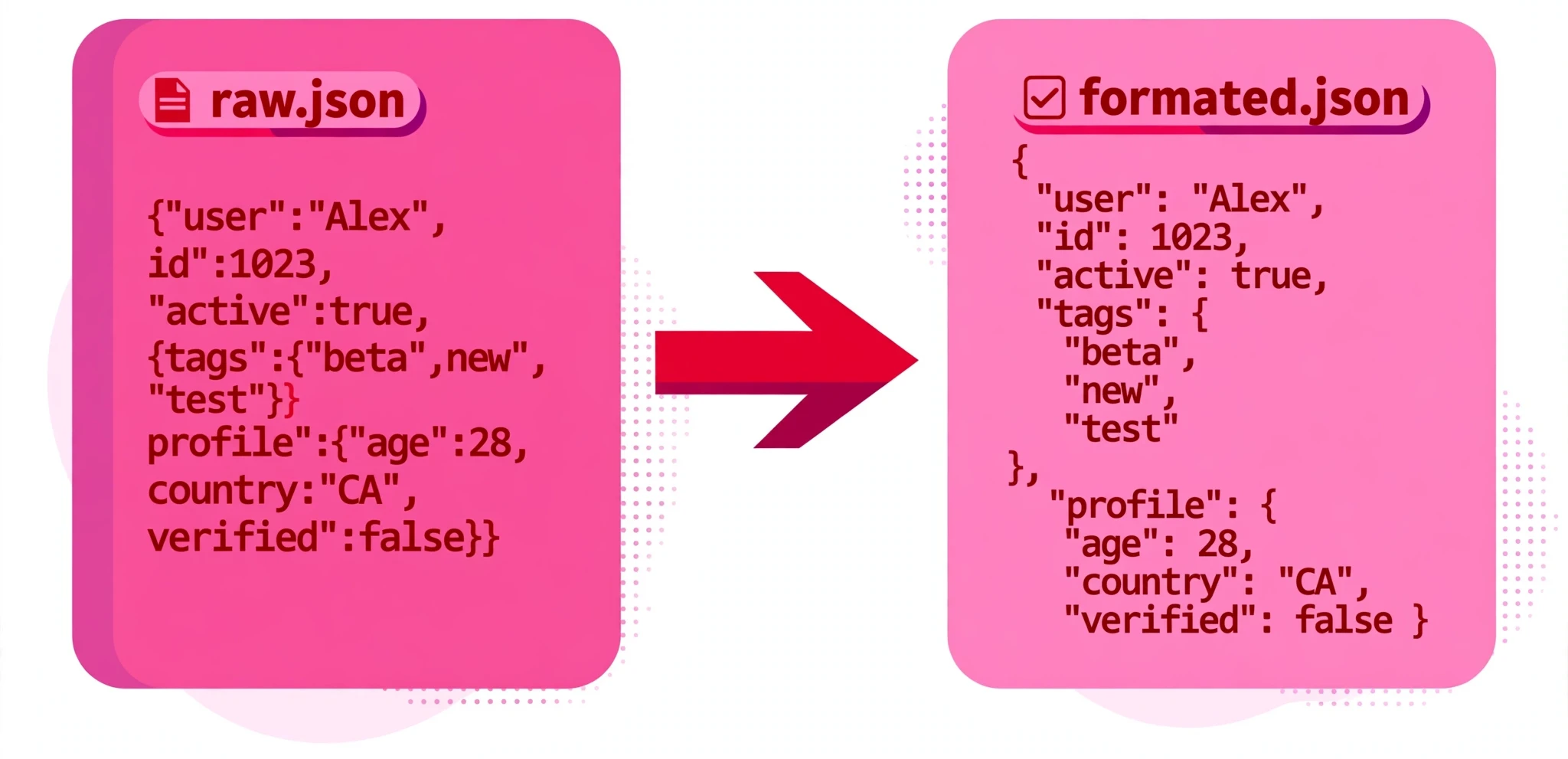
This tool reads your JSON token by token with its own parser — it does not rely on a single "parse failed" message, so it can point at the exact line and column of the first problem. Numbers and strings are kept exactly as you typed them: a large number is never rounded and an escape such as \u0041 is never rewritten, so no value is silently changed. A duplicate key in one object is flagged as a warning, not an error, because the JSON is still valid. Indentation applies to Format mode only.
What is the JSON Formatter and Validator?
A JSON formatter takes JSON that is hard to read — everything on one line, or indented at random — and lays it out neatly, one key per line, with nested objects and arrays indented under their parents. This free JSON Formatter does that, and it also validates your JSON and minifies it, all in one place. Paste in your data, and it will format it, shrink it, or tell you exactly what is wrong with it.
The validation is the part that sets it apart. Instead of a bare “parse failed” message, this tool reads your JSON token by token with its own parser and reports the exact line and column of the first problem: an unterminated string, a bad escape, a bad number, a trailing comma, a missing colon or comma, an unclosed bracket, or content after the top-level value. When your JSON is a thousand lines long, knowing the error is on line 1, column 24 saves you from hunting through the whole file.
It also refuses to change your values silently. Numbers and strings are kept exactly as you typed them: a large number is never rounded, and an escape such as u0041 is never rewritten. A duplicate key inside one object is flagged as a warning, not an error, because the JSON is still valid — but you will know it is there.
It is made for anyone who works with JSON: students learning APIs, bloggers showing data examples, and developers debugging a response from a server. If you have ever stared at a one-line API response wondering why your code cannot read it, this is the tool that shows you the structure — or the exact spot where it breaks.
Everything runs in your browser. Your data is never uploaded, stored, or sent anywhere, so you can format and validate JSON from a private or client project without a second thought.
How to use the JSON Formatter and Validator
There is no button to press — the tool works as you type:
- Paste your JSON into the JSON input box. The tool loads with a sample already in place, so you will see a formatted result immediately. Replace it with your own data whenever you are ready.
- Choose the Mode. The dropdown offers Format (the default) and Minify. Format lays the JSON out neatly; Minify compresses it onto as few lines as possible for sending or storing.
- Choose your Indentation. In Format mode, pick 2 spaces, 4 spaces, or a Tab. The output updates the moment you change it. Indentation applies to Format mode only — minified JSON has no indentation by definition.
- Read the result in the Output box. The output appears on the right, and the stats line underneath summarises what happened. If the JSON is invalid, the output stays empty and the error is reported underneath with its exact line and column.
- Copy or download the result. Use Copy to put the output on your clipboard, or Download to save it as a file. Clear empties the input, and Reset restores the sample JSON.
Worked example
Paste this compact JSON into the input:
{"title":"HTML Basics","author":"Ahmed","tags":["HTML","beginner"],"published":true}
In Format mode with 2-space indentation, the JSON Formatter returns:
{
  "title": "HTML Basics",
  "author": "Ahmed",
  "tags": [
    "HTML",
    "beginner"
  ],
  "published": true
}
Every key now sits on its own line, the tags array is laid out one value per line, and the structure is obvious at a glance. Switch the Mode to Minify and the same data compresses back to a single line.
Finding an error
Now paste JSON with a mistake — a trailing comma after the last value:
{"title":"HTML Basics",}
The tool reports: line 1, column 24 — “Trailing comma in an object.” That is the exact spot: the comma after "HTML Basics" has no key after it. Remove the comma and the JSON formats immediately. That precision is what makes the validator useful on long files, where the error could be hundreds of lines down.
When a JSON formatter earns its keep
Reading an API response. Responses from servers usually arrive as a single line of JSON. Pasting one into the formatter turns it into a readable document: you can see the fields, the nesting, and the values, instead of scrolling sideways through a wall of characters.
Finding why your code cannot read the data. When JSON.parse fails in your script, the browser only tells you something is wrong. Paste the same data here and the validator points at the exact line and column of the first problem — a missing comma, an unclosed bracket, a string that never ends. Fix that spot and you are usually done.
Preparing data to send or store. Minify mode compresses your JSON for sending to a server or saving in a file, while Format mode produces the readable version you keep in your editor. Switching between the two is one click, and neither one changes your values.
Tips for getting the best result
Let the error message guide you — fix one error at a time. The validator reports the first problem it finds, because everything after it may be a knock-on effect. Fix that one spot, and the next error — if there is one — will be reported in turn. Trying to fix them all at once usually wastes time.
Watch out for trailing commas. They are the most common JSON mistake, because JavaScript allows them and JSON does not. A comma after the last item in an object or array is always an error in JSON. The validator catches it instantly and tells you the exact column.
Remember that JSON needs double quotes. Single quotes around strings are valid JavaScript but not valid JSON. If the validator complains about a string, check the quotes first — it is the most common cause after trailing commas.
Use Minify mode before sending data. Format mode is for reading; Minify mode is for transmitting. When you paste JSON into a request or save it to a file, minified JSON is smaller and there is nothing to misread. Keep the formatted version in your editor and the minified version on the wire.
Check the warnings, not just the errors. A duplicate key inside one object does not make JSON invalid, so it is reported as a warning rather than an error. But it usually means a mistake — the second value silently replaces the first when the data is read. If the tool warns you about a duplicate, look at it before you use the data.
Frequently asked questions
What is the difference between Format and Minify mode?
Format lays the JSON out neatly with line breaks and indentation, so a person can read it. Minify does the opposite: it removes all unnecessary whitespace so the JSON is as small as possible for sending or storing. Both produce the same data; only the layout differs.
Does the formatter change my values?
No. Numbers and strings are kept exactly as you typed them. A large number is never rounded, and an escape such as u0041 is never rewritten, so no value is silently changed. The tool only changes whitespace.
How precise is the error reporting?
Very precise. The tool reads your JSON token by token with its own parser, so it can point at the exact line and column of the first problem — for example, line 1, column 24 for a trailing comma. It covers unterminated strings, bad escapes, bad numbers, trailing commas, missing colons and commas, unclosed brackets, and content after the top-level value.
What does a duplicate key warning mean?
It means the same key appears twice inside one object. The JSON is still valid, so it is a warning rather than an error — but when the data is read, the second value replaces the first, so one of them is lost. It is usually a copy-and-paste mistake worth fixing.
Is my JSON uploaded anywhere?
No. Everything runs in your browser, on your own device. Nothing is uploaded, stored, or shared. API keys, tokens, and private data in your JSON never leave your computer.
Conclusion
Unreadable JSON slows everyone down, and invalid JSON stops your code entirely. The JSON Formatter and Validator fixes both: it lays your data out so you can read it, compresses it when you need it small, and points at the exact line and column when something is wrong — free, in your browser, with nothing uploaded.
Try it on the tool above, and when your data needs to become a web page, turn it into tables and lists with the JSON ↔ HTML Converter.