
This tool uses the browser's own XML parser, so malformed XML is reported with the exact line and column of the problem. Declarations, namespaces, attributes, CDATA sections, comments and text content are all preserved. A DOCTYPE that defines entities is refused outright — external entities are never resolved and nothing is fetched from anywhere.
What is the XML Formatter and Beautifier?
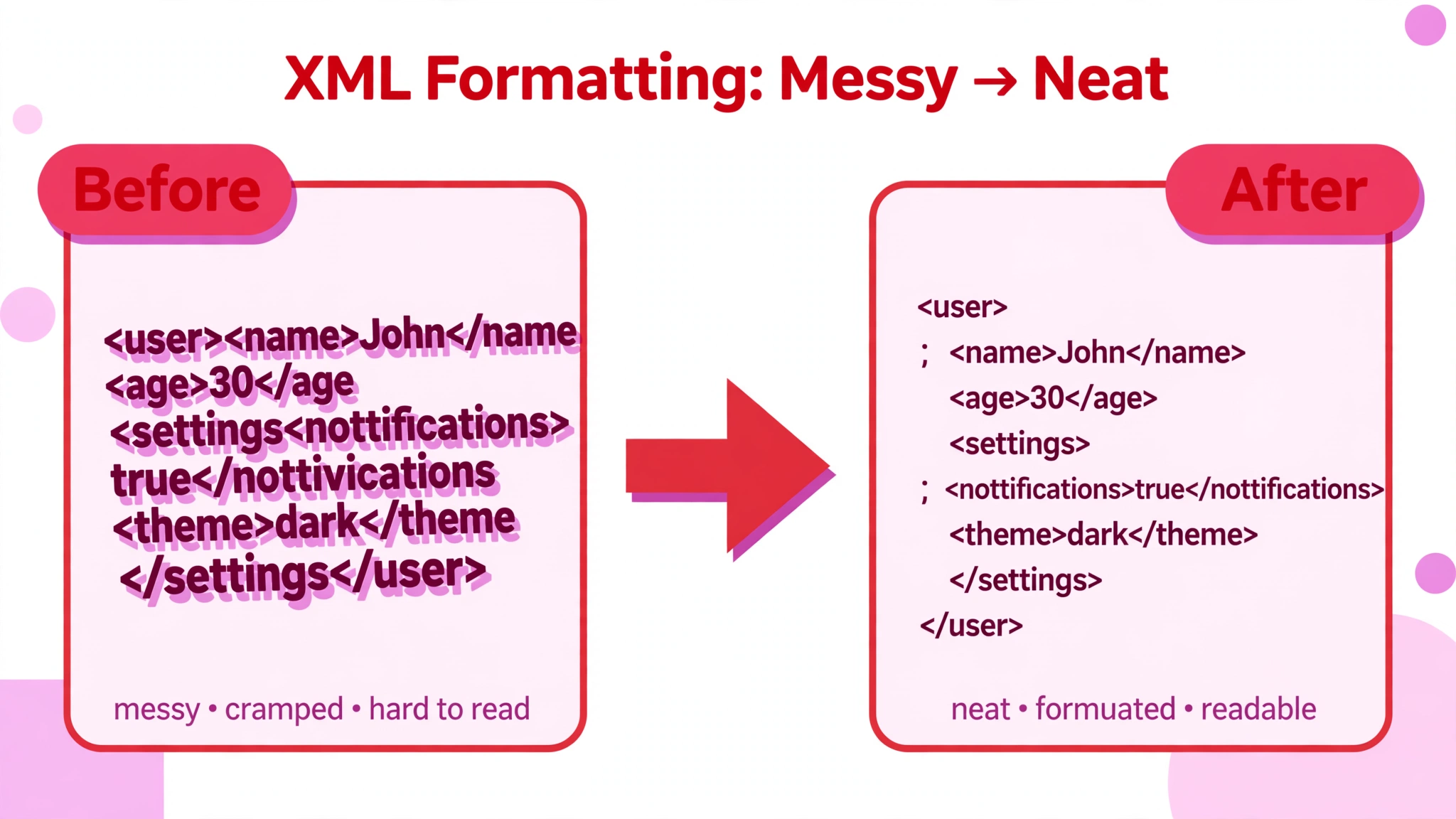
An XML formatter takes XML that is hard to read — everything on one line, or indented at random — and lays it out neatly, one element per line, with each nested element indented under its parent. This free XML Formatter does exactly that, and it also tells you when your XML is broken, and where.
The checking is done by the browser’s own XML parser, the same parser your browser uses to read XML. That means malformed XML is reported with the exact line and column of the problem, instead of a vague error. A missing closing tag in a long feed is no longer a hunt through hundreds of lines — the tool tells you where to look.
It also treats your XML carefully. Declarations, namespaces, attributes, CDATA sections, comments, and text content are all preserved exactly as you wrote them. And it is safe by design: a DOCTYPE that defines entities is refused outright, external entities are never resolved, and nothing is ever fetched from anywhere. Your XML is read, laid out, and shown back to you — nothing else happens to it.
It is made for anyone who works with XML: students learning feeds and sitemaps, bloggers showing configuration examples, and developers debugging an API response or a data export. If you have ever opened an XML file and found a single endless line of tags, this is the tool that turns it back into something readable.
Everything runs in your browser. Your data is never uploaded, stored, or sent anywhere, so you can format XML from a private or client project without a second thought.
How to use the XML Formatter and Beautifier
There is no button to press — the tool formats as you type:
- Paste your XML into the XML input box. The tool loads with a sample Atom feed already in place, so you will see a formatted result immediately. Replace it with your own data whenever you are ready.
- Choose your Indentation. The dropdown offers 2 spaces, 4 spaces, or a Tab. The output updates the moment you change it, so you can compare the three at a glance.
- Read the result in the Formatted output box. The output appears on the right, and the stats line underneath summarises what happened. If the XML is malformed, the output stays empty and the error is reported underneath with its exact line and column.
- Copy or download the result. Use Copy to put the formatted XML on your clipboard, or Download to save it as a file. Clear empties the input, and Reset restores the sample feed.
Worked example
Paste this compact XML into the input:
<feed><title>All About HTML</title><entry><title>HTML Basics</title></entry></feed>
The XML Formatter returns:
<feed>
  <title>All About HTML</title>
  <entry>
    <title>HTML Basics</title>
  </entry>
</feed>
Every element now sits on its own line, indented one level deeper than its parent, and the nesting is obvious: the <entry> belongs to the <feed>, and its <title> belongs to the entry. The tags and the text are untouched — only the whitespace changed.
Finding an error
Now remove a closing tag, for example the </entry>:
<feed><title>All About HTML</title><entry><title>HTML Basics</title></feed>
The browser’s XML parser rejects it, and the tool reports the exact line and column where the problem was found. Put the closing tag back and the XML formats immediately. That precision is what makes the tool useful on long files, where a missing tag could be hundreds of lines down.
When an XML formatter earns its keep
Reading a feed or a sitemap. RSS and Atom feeds, XML sitemaps, and configuration files are often served as a single line to save space. Pasting one into the formatter turns it into a document you can read: you can see the entries, the links, and the metadata, instead of scrolling sideways through a wall of tags.
Finding why a feed will not load. A feed reader or a search engine that rejects your XML rarely tells you why. Paste the same file here and the parser points at the exact line and column of the first problem — an unclosed element, a mismatched tag, a stray character. Fix that spot and you are usually done.
Preparing XML examples for teaching or writing. If you show XML in a lesson, a tutorial, or a blog post, your readers need to read it as well as copy it. Formatted XML teaches the nesting of elements as well as the tags themselves. Run your examples through the formatter before you publish them.
Tips for getting the best result
Fix one error at a time. The parser reports the first problem it finds, because everything after it may be a knock-on effect. Fix that one spot, and the next error — if there is one — will be reported in turn. Trying to fix them all at once usually wastes time.
Check mismatched tags first. The most common XML mistake is an element that opens with one name and closes with another, or a closing tag that is missing entirely. The parser catches both, and the line and column it reports is usually the place where the mismatch becomes visible — look just before it for the tag that never closed.
Do not paste a DOCTYPE that defines entities. The tool refuses those outright, on purpose: resolving external entities would mean fetching things from elsewhere, and this tool never fetches anything. If your XML has such a DOCTYPE, remove it before formatting; the rest of the document will format normally.
Remember that CDATA is preserved, not formatted. Text inside a CDATA section is kept exactly as written, including its line breaks and spacing. That is correct — CDATA means “do not touch this” — but it means a long CDATA block will look the same in the output as it did in the input. That is by design, not a failure.
Pick the indentation your project uses and stick to it. Two spaces is the most common choice; four spaces is easier to scan in deeply nested documents; tabs suit projects that already indent with tabs. The formatter lets you switch in one click, but your files stay easiest to read when they all use the same setting.
Frequently asked questions
Does the XML Formatter change my data?
No. It only changes whitespace — line breaks and indentation. Tags, attributes, namespaces, CDATA sections, comments, and text content are preserved exactly. The meaning of the document is unchanged.
How does it find errors?
It uses the browser’s own XML parser, the same parser your browser uses to read XML. When the parser finds malformed XML, it reports the line and column of the problem, and the tool shows that to you. You get the same strictness a browser or feed reader would apply, with a precise location.
Why does it refuse a DOCTYPE that defines entities?
Because resolving external entities would mean fetching content from elsewhere, and this tool never fetches anything. It is a safety choice: your XML is read locally and nothing is resolved or downloaded. Remove the entity definitions from the DOCTYPE and the rest of the document will format normally.
Is my XML uploaded anywhere?
No. Everything runs in your browser, on your own device. Nothing is uploaded, stored, or shared. Private data in your XML never leaves your computer.
What is the difference between XML and HTML formatting?
XML is stricter than HTML: every element must close, tags are case-sensitive, and attribute values must be quoted. This tool applies those rules through a real XML parser, so it reports problems an HTML formatter would happily ignore. Use this tool for XML files — feeds, sitemaps, configuration — and the HTML Formatter for HTML pages.
Conclusion
Unreadable XML slows everyone down, and malformed XML stops a feed or a sitemap from working at all. The XML Formatter and Beautifier fixes both: it lays your document out so you can read it, and it points at the exact line and column when something is wrong — free, in your browser, with nothing fetched and nothing uploaded.
Try it on the tool above, and when your document is valid and readable, check the page it describes with the HTML Formatter as well.