
This formats your HTML so it is easier to read. It does not check whether your HTML is valid by official standards.
What is the HTML Formatter?
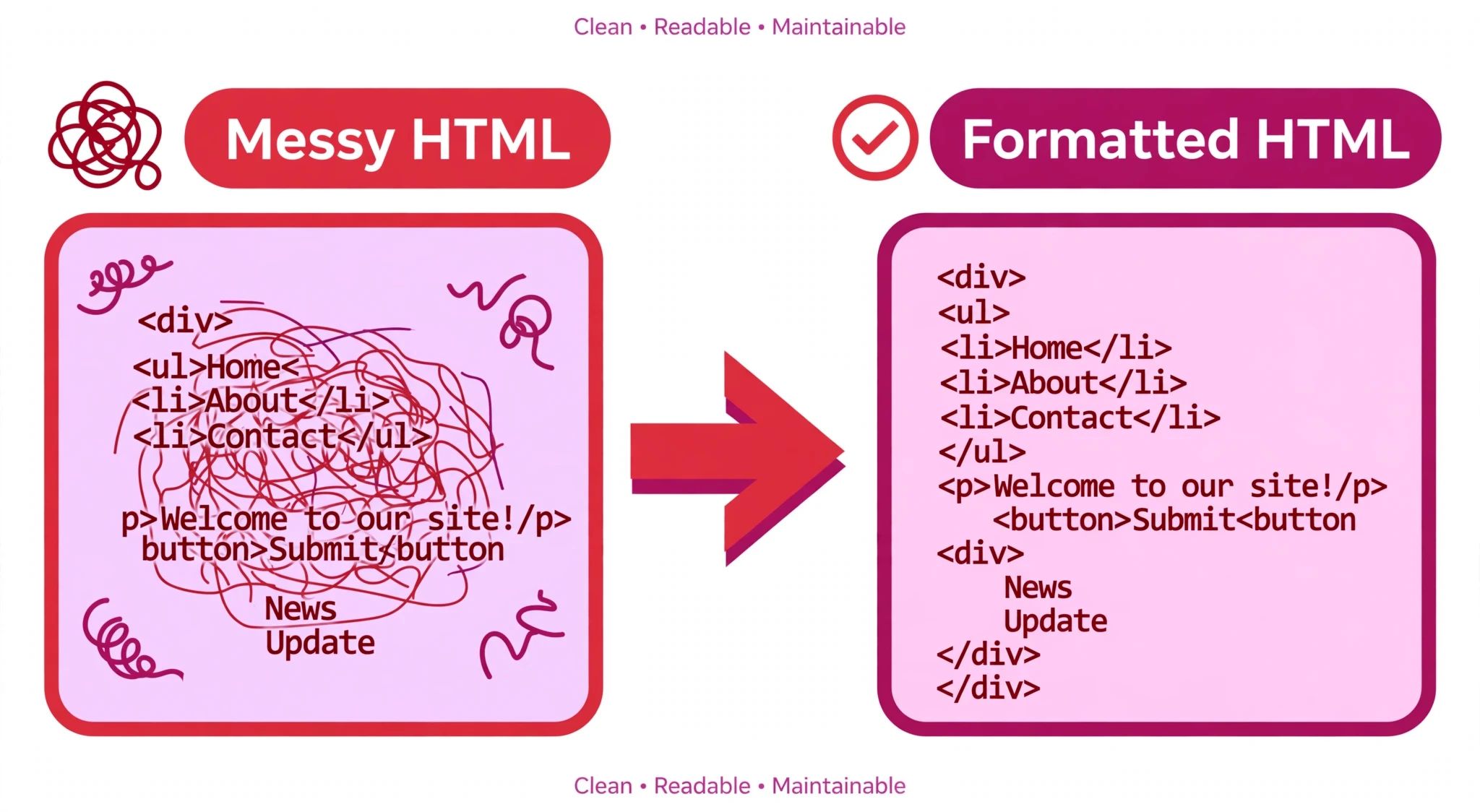
An HTML formatter takes HTML that is hard to read — everything on one line, or indented at random — and lays it out neatly, one element per line, with each nested element indented under its parent. That is exactly what this free HTML Formatter does. Paste in a block of compact or messy markup, choose how much indentation you want, and it returns the same HTML, only arranged so a human can follow it.
It is made for anyone who works with HTML: students learning the language, bloggers pasting a snippet into a tutorial, and developers who copied a chunk of markup out of a page and want to see its structure at a glance. If you have ever opened “view source” on a website and found a single endless line of tags, this is the tool that turns it back into something readable.
The formatter only changes the layout. It never renames a tag, never drops an attribute, never rewrites your text, and never runs your code. Your comments, your <script> and <style> blocks, and your nested lists all come out the other side exactly as they went in — just indented. And everything happens in your browser: your HTML is never uploaded, stored, or sent anywhere, so you can format private or work code with confidence.
How to use the HTML Formatter
Using the tool takes less than a minute:
- Paste your HTML into the HTML input box. The tool loads with a small example already in place, so you can press Format straight away to see how it works. Replace it with your own code whenever you are ready.
- Choose your Indentation. The dropdown offers 2 spaces (the default), 4 spaces, or a Tab. Pick whichever your project or your teacher uses — the choice only affects spacing, never the code itself.
- Decide about blank lines. Tick Keep blank lines if you want the empty lines from your original code to survive in the output. Leave it unticked and the formatter removes them for a tighter result.
- Click Format. The formatted code appears in the Formatted output box on the right, and the status line underneath tells you how many lines it produced, for example “Formatted: 8 lines.”
- Copy or download the result. Use Copy output to put the formatted HTML on your clipboard, or Download output to save it as a file. Clear input empties the input box, and Reset restores the original example.
Changing the Indentation dropdown or the Keep blank lines checkbox re-formats the code straight away, so you can compare 2 spaces against 4 spaces without pressing Format again.
Worked example
Paste this one-line snippet into the input:
<div class="wrap"><h1>Welcome</h1><p>Hello <strong>world</strong>!</p><ul><li>One</li><li>Two</li></ul></div>
With 2-space indentation, the HTML Formatter returns:
<div class="wrap">
  <h1>Welcome</h1>
  <p>Hello <strong>world</strong>!</p>
  <ul>
    <li>One</li>
    <li>Two</li>
  </ul>
</div>
Every nested element now sits on its own line, indented one level deeper than its parent. The <li> items are the easiest to see: before, they were buried inside the line; after, you can count them at a glance. The tags, the class name, the text, and the <strong> emphasis are all untouched — only the whitespace changed.
Why formatting your HTML matters
Formatted code is not just prettier; it is easier to work with, and that saves real time in three common situations.
Reading code you did not write. When you inherit a page, copy a snippet from a forum, or open a minified file, the first problem is simply seeing the structure. A formatted version shows you where each <div> opens and closes, which list belongs to which section, and where a heading sits in the page. Finding a missing closing tag in a wall of one-line HTML is miserable; in formatted HTML, the indentation makes the mismatch obvious.
Writing tutorials and examples. If you teach HTML or write blog posts, your readers learn from the code you show them. A neat, indented example teaches the nesting of elements as well as the tags themselves. Paste your finished snippet through the formatter before you publish it, and your readers get code they can read and copy with confidence.
Reviewing your own work before it goes live. Running your markup through the formatter is a quick final check. When the structure is laid out clearly, a <div> that closes in the wrong place, a list item sitting outside its <ul>, or a section nested one level too deep stands out immediately — problems that are easy to miss when the code is compressed.
Tips for getting the best result
Match the indentation your project already uses. If your team or your course uses 2 spaces, format with 2 spaces; if it uses tabs, pick Tab. Consistent indentation across your files makes every file easier to read, and this tool lets you match it in one click.
Leave “Keep blank lines” off for pasted code. Code copied from a web page often carries stray empty lines. Turning the option off gives you a compact, even result. Turn it on only when the blank lines in your source mean something — for example, when they separate logical sections you want to keep apart.
Format before you share, not after you edit. The formatter is a one-way tidy-up: it arranges your code, but it does not remember your original spacing. If you plan to keep editing, format a copy for reading or sharing, and keep working in your original file.
Remember what the tool does not do. This HTML formatter arranges your code; it does not check whether the code is valid. A page can be beautifully formatted and still have a real mistake in it, such as a <p> closed in the wrong order. If you want your markup checked, run it through the HTML Validator as well — formatting first, validation second, is a good habit.
Use the sample to learn the settings. The example loaded in the tool is a small, complete page fragment with a heading, a paragraph, a comment, a list, and a script. Press Format with 2 spaces, then switch to Tab and watch the output change. It is the fastest way to see exactly what each setting does before you format your own code.
Frequently asked questions
Does the HTML Formatter change my code?
No. It only changes whitespace — line breaks and indentation. Your tags, attributes, text, comments, scripts, and styles come out exactly as they went in. The meaning of the page is unchanged; a browser renders the formatted version exactly the same as the original.
Will it fix broken HTML?
No. The formatter arranges whatever you paste, valid or not. If a tag is unclosed or nested wrongly, the formatter will still indent it as best it can, but it will not repair the mistake. For that, use the HTML Validator, which reports the exact problem.
Is my HTML uploaded to a server?
No. The formatting runs entirely in your browser, on your own device. Nothing is uploaded, stored, or shared. You can safely format code from a private project or a client’s site.
Can I format a whole HTML page?
Yes. Paste the entire page — doctype, <head>, <body>, scripts and styles included — and the formatter handles it. Inline <script> and <style> content is preserved as written, and comments are kept in place.
What is the difference between 2 spaces, 4 spaces, and Tab?
Only the width of each indent level. Two spaces is the most common choice on the web and keeps lines short; four spaces is easier to scan in deeply nested code; a Tab matches editors and projects that indent with tabs. The code itself is identical in all three cases — pick the one your project uses.
Conclusion
Messy HTML slows everyone down: you cannot see the structure, you cannot spot mistakes, and you cannot share the code with confidence. The HTML Formatter fixes that in seconds, turning compressed markup into clean, indented code without touching a single tag — free, in your browser, with nothing to install and nothing uploaded.
Try it on the tool above, then shrink the result back down for production with the HTML Minifier when your page is ready to go live.