
Inline CSS and JavaScript are kept exactly as written — this tool does not rewrite them. Conditional comments (<!--[if ...]>) and important comments (<!--! ... -->) are always kept.
What is the HTML Minifier?
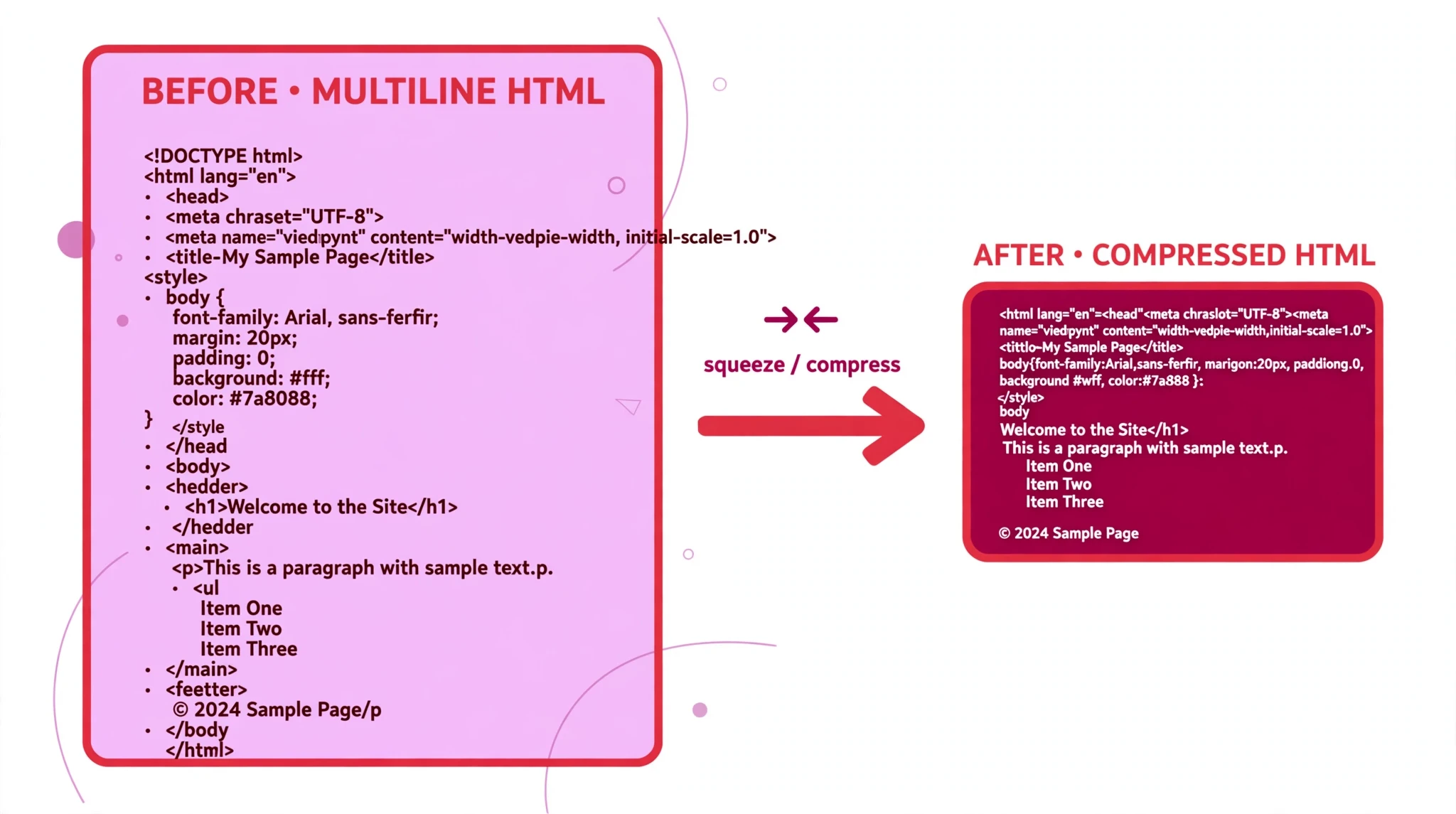
An HTML minifier makes an HTML file smaller by removing the parts a browser does not need: extra spaces, line breaks, indentation, and comments. The page looks and works exactly the same — it simply travels over the internet faster and takes up less room. This free HTML Minifier does that safely: it knows which whitespace is safe to remove and which must stay, so it never corrupts your content.
That distinction matters. Whitespace inside a <pre> block is part of the content — remove it and the text changes. Whitespace inside a <script> or <style> block belongs to that code, not to the HTML. And some comments must survive: conditional comments that target older browsers, and important comments that start with <!--!. This tool preserves all of them. It removes comments and unnecessary whitespace everywhere else, including the optional whitespace inside tags themselves.
It is made for anyone who publishes pages: students finishing a project, bloggers who want their pages to load faster, and developers preparing a site for production. Smaller HTML means faster first paint, less bandwidth, and a better experience for visitors on slow connections.
Everything runs in your browser. Your HTML is never uploaded, stored, or sent anywhere, so you can minify pages from a private or client project without a second thought.
How to use the HTML Minifier
- Paste your HTML into the HTML input box. The tool loads with a sample page already in place, so you can press Minify straight away to see how it works. Replace it with your own code whenever you are ready.
- Choose what to remove. Two options are ticked by default: Remove comments and Remove optional whitespace (inside tags). Untick either one if you want to keep that part of your code.
- Click Minify. The result appears in the Minified output box on the right, and the stats line underneath shows the numbers: the original size in bytes, the minified size, how many bytes you saved, and the reduction as a percentage.
- Copy or download the result. Use Copy output to put the minified HTML on your clipboard, or Download output to save it as a file. Clear input empties the input box, and Reset restores the sample page.
One thing to know: inline CSS and JavaScript are kept exactly as written. This tool shrinks the HTML around them; it does not rewrite the code inside your <style> and <script> blocks. To shrink those too, use the CSS Minifier and the JavaScript Minifier on them separately.
Worked example
Paste this spaced-out snippet into the input:
<div> <h1> Test Title </h1> <p> Hello world </p></div>
With both options ticked, the HTML Minifier returns:
<div><h1>Test Title</h1><p>Hello world</p></div>
The stats line reports the result: 62 bytes down to 48 bytes — 14 bytes saved, a reduction of about 23%. The extra spaces between the tags are gone, the triple space inside “Hello world” is a single space, and the page renders exactly the same. On a real page with hundreds of lines, the same treatment typically saves far more.
Why minify your HTML
Faster pages for your visitors. Every byte of HTML has to travel from your server to the visitor’s browser. On a fast connection the difference is small; on a slow mobile connection it is noticeable. Minified pages start rendering sooner, which matters most for the first visit, when nothing is cached yet.
Less bandwidth, lower costs. If your site serves thousands of pages a day, shaving a few kilobytes off each one adds up to real bandwidth saved — and on metered hosting, real money saved. Minifying is one of the cheapest performance wins available: it costs nothing and changes nothing about how the page looks.
A cleaner production file. Development HTML is full of indentation, blank lines, and comments that helped you while you were building. None of that helps the visitor. Minifying is the step that turns the file you worked on into the file you serve — the same content, without the scaffolding.
Tips for getting the best result
Keep a readable copy and minify a copy. Minified HTML is hard to edit. Always keep your original, formatted file as the one you work on, and treat the minified version as the output you publish. If you need to change the page later, edit the original and minify again.
Leave both options ticked unless you have a reason not to. “Remove comments” and “Remove optional whitespace” are the safe defaults. Untick “Remove comments” only if your comments carry information you need in production — a copyright notice, for example. Note that important comments starting with <!--! and conditional comments are always kept, even with the option on.
Check anything inside <pre> after minifying. The tool preserves preformatted text exactly, but it is worth a glance: if your page shows code samples or poetry inside <pre>, open the minified page and confirm the spacing looks right. The tool is built to leave it alone, and a quick visual check costs nothing.
Minify the CSS and JavaScript too. This tool leaves inline <style> and <script> content untouched, and it cannot shrink separate .css and .js files at all. For the full saving, run your styles through the CSS Minifier and your scripts through the JavaScript Minifier as well — the three together are what makes a page genuinely light.
Do not minify code you are still debugging. A minified file is one long line, which makes browser error messages harder to follow. Minify at the end, when the page works. While you are still fixing things, keep the readable version.
Frequently asked questions
Will minifying change how my page looks?
No. The tool only removes whitespace and comments that browsers ignore. The tags, attributes, and text are unchanged, and the page renders exactly the same. The one exception it protects is <pre> content, where whitespace is part of what the visitor sees — that is preserved exactly.
What happens to my comments?
Ordinary comments are removed when “Remove comments” is ticked. Two kinds are always kept, even then: conditional comments such as <!--[if ...]> and important comments that start with <!--!. If you need a comment in production, make it an important comment.
Does it minify the CSS and JavaScript inside my page?
No. The content of <style> and <script> blocks is kept exactly as written. Use the CSS Minifier for your styles and the JavaScript Minifier for your scripts.
Is my HTML uploaded anywhere?
No. Everything runs in your browser, on your own device. Nothing is uploaded, stored, or shared.
How much smaller will my page get?
It depends on how the page was written. Heavily indented HTML with lots of comments can shrink by 20–30% or more; a page that is already tight may only save a few percent. The stats line under the output tells you the exact numbers for your file — original bytes, minified bytes, bytes saved, and the percentage.
Conclusion
Minifying is one of the simplest performance wins on the web: same page, fewer bytes, faster load — and it takes seconds. The HTML Minifier does it safely, preserving your preformatted text, your scripts and styles, and the comments that must survive, while showing you exactly how much you saved.
Try it on the tool above, and when your page is ready to publish, format a readable copy first with the HTML Formatter so you always have a clean original to work from.