
Structured Data in HTML: JSON-LD Schema Basics 2026
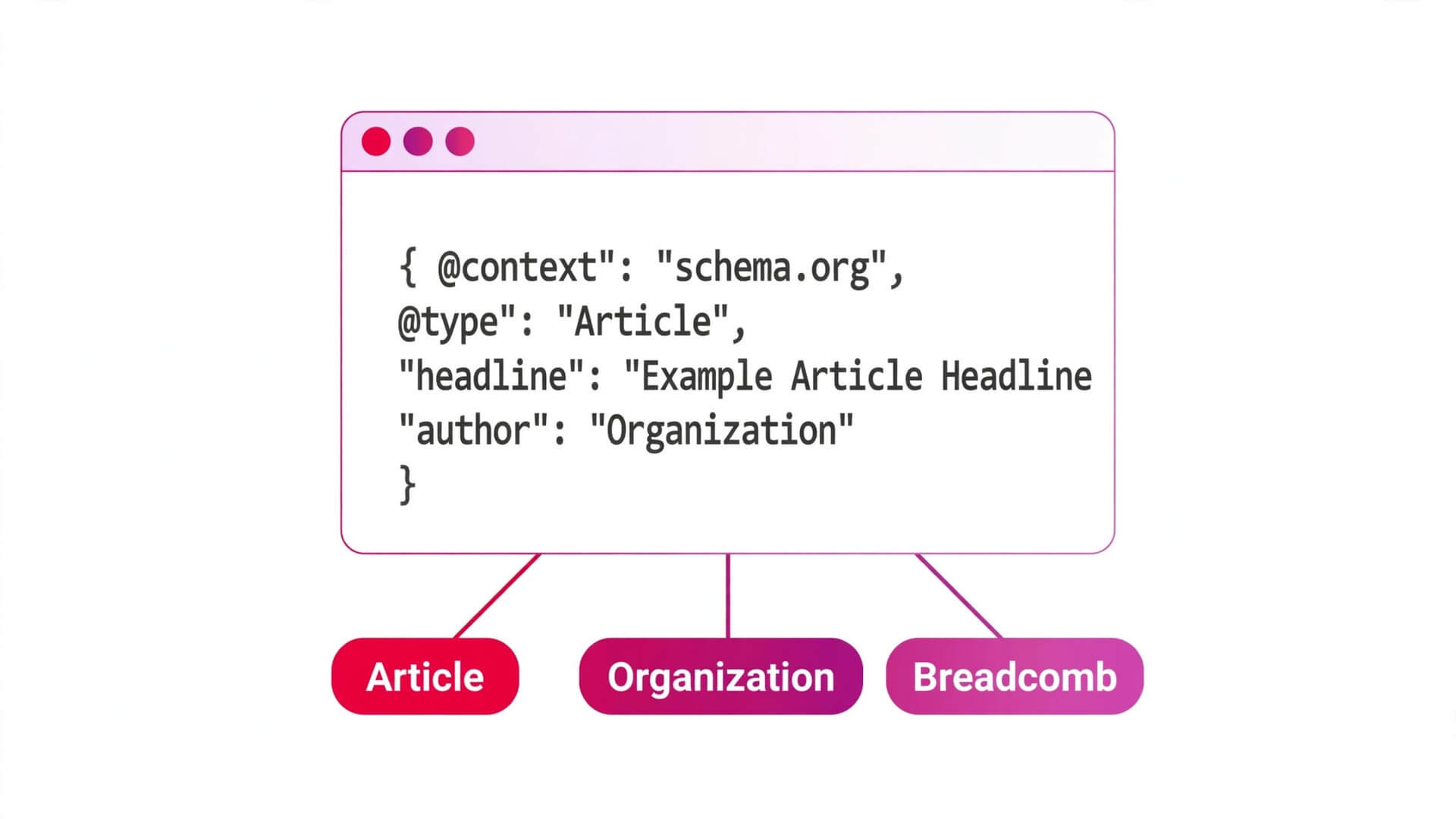
Structured data is the part of your HTML that nobody sees and every search engine reads. It is a small block of code that tells Google, Bing, and other search engines exactly what your page contains — this is an article, written by this author, published on this date — in a format machines can parse without guessing from your headings and paragraphs. It lives in a <script> tag, it never changes how the page looks, and it is the difference between a plain blue link in the search results and a richer listing with breadcrumbs, dates, and images.
Most HTML guides skip it entirely, which is a mistake. Structured data does not change your ranking — Google says so plainly — but it makes your page eligible for rich results: the enhanced listings that take up more space on the results page and earn more clicks. Google’s own documentation cites Rotten Tomatoes, which measured a 25% higher click-through rate on pages with structured data than on pages without it. That is not a ranking boost. It is a visibility boost, and for a new site fighting for attention, it is one of the cheapest wins in SEO.
This guide covers structured data the way it actually works in 2026: what it is, the three formats you can write it in and why JSON-LD is the one Google recommends, the schema types that still earn a rich result (and the two famous ones that no longer do), complete copy-paste JSON-LD blocks for articles, breadcrumbs, and organizations, how to test your markup before you publish, and the mistakes that get markup ignored. Every example is a complete, runnable HTML document.
Quick Takeaways
- Structured data is machine-readable labelling for your page, written in the schema.org vocabulary. It makes a page eligible for rich results — it does not guarantee them, and it is not a ranking factor.
- JSON-LD is the format Google recommends: a
<script type="application/ld+json">block, usually in the<head>, that you can add or change without touching your visible HTML. - Every JSON-LD block needs
@context(always"https://schema.org"), a@type(such asArticleorOrganization), and the properties that type requires. - In 2026 the rich results that still work include Article, Breadcrumb, Organization, Product, Event, Recipe, and Video. FAQ rich results stopped appearing on 7 May 2026 and HowTo rich results were removed in 2023 — the markup is still valid, but it no longer earns the enhanced listing.
- Markup must describe content that is actually visible on the page. Marking up invisible content is the fastest way to have your structured data ignored.
- Test every block before publishing with Google’s Rich Results Test, and use the Schema Markup Validator for types Google has no rich result for.
1. What Structured Data Actually Is
A web page is written for humans. Search engines read it anyway, and they are good at it — but reading is not the same as understanding. When Google sees the text “Published 14 November 2026” on your page, it has to guess whether that is the publication date, an event date, or a date mentioned inside the article. When it sees a name at the top of a post, it has to guess whether that is the author, a person quoted in the text, or the name of the site.
Structured data removes the guessing. It is a second, machine-readable layer on top of the page that states facts directly: this page is an article, its headline is this, its author is this person, it was published on this date. The vocabulary for those facts comes from schema.org, a shared dictionary launched in 2011 by Google, Microsoft, Yahoo, and Yandex, and still maintained today (version 30.1 shipped on 16 September 2026). Schema.org defines hundreds of types — Article, Product, Event, Recipe, Person, Organization, LocalBusiness — and the properties each type can carry.
Three things structured data is not:
- It is not a ranking factor. Google has said repeatedly that adding structured data does not move you up the results. What it can do is change how your listing looks once you are already ranking.
- It is not a guarantee. Valid markup makes a page eligible for a rich result. Google decides whether to show one, and it does not show one for every eligible page.
- It is not visible content. Structured data never renders on the page. A reader never sees it. It exists only for parsers: search engines, AI assistants, and knowledge graphs.
Think of it this way: your HTML tells the browser how to display the page, your CSS tells it how to style it, and your structured data tells search engines what the page means. All three are part of the same document, and a complete page in 2026 has all three.
1.1 What you get from it
When structured data works, the search result changes. An article can show its headline with a large image and a byline date. A product can show its price, availability, and review stars. A recipe can show its cooking time and rating. A breadcrumb trail can replace the raw URL in the listing, so the result shows allabouthtml.com › HTML › Structured Data instead of a long address.
None of this is cosmetic trivia. The enhanced listing is bigger, more informative, and easier to trust at a glance — which is why click-through rates go up. The Rotten Tomatoes figure Google cites, 25% higher click-through on marked-up pages, is the most-quoted number in SEO, and it is the reason structured data is worth the thirty minutes it takes to learn.
There is a second, newer benefit. AI search engines and assistants — Google’s AI Overviews, ChatGPT, Perplexity — read structured data too, and a page whose facts are labelled cleanly is easier for them to cite accurately. Google has said structured data is not required for AI search and that there is no special markup for it, but clean, consistent labelling of your organization and articles helps any system tie your pages to a single entity instead of treating each one as a stranger.
2. The Three Formats: JSON-LD, Microdata, and RDFa
Schema.org markup can be written in three formats. Google accepts all three, but it recommends one of them, and the industry has converged on it. Here they are, side by side.
| Format | How it works | Where it lives | Verdict |
|---|---|---|---|
| JSON-LD | A JSON object inside a <script> tag | Separate block, usually in <head> | Google’s recommendation — use this |
| Microdata | Attributes (itemscope, itemtype, itemprop) added to your HTML tags | Woven through your visible markup | Works, but hard to maintain |
| RDFa | Attributes (typeof, property, vocab) added to your HTML tags | Woven through your visible markup | Works, but rarely used now |
2.1 Why JSON-LD won
JSON-LD (JavaScript Object Notation for Linked Data) is a JSON object inside a script tag with the type application/ld+json. Browsers ignore the tag entirely — it is not JavaScript that runs, it is data that parsers read. Because the markup sits in its own block, separate from your content, you can add it, change it, or remove it without touching a single line of visible HTML. That is the whole reason Google recommends it: on a real site, the people who maintain the templates and the people who maintain the SEO data are often different people, and JSON-LD lets them work independently.
Microdata and RDFa do the opposite. They annotate your existing HTML with extra attributes, so the markup and the content are the same thing. Change the layout and you risk breaking the markup; change the markup and you risk breaking the layout. They still work — Google parses them — but there is no reason to choose them for a new page in 2026.
JSON-LD became a W3C Recommendation (version 1.1) on 16 July 2020, so it is a settled standard, not a Google-only invention. Bing reads it, AI systems read it, and every major SEO plugin generates it. If you learn one format, learn JSON-LD.
2.2 The same fact in all three formats
Here is the same piece of information — an article with a headline and an author — written three ways, so you can see the difference.
JSON-LD (the recommended way):
<script type="application/ld+json">
{
  "@context": "https://schema.org",
  "@type": "Article",
  "headline": "Structured Data in HTML: JSON-LD Schema Basics 2026",
  "author": {
    "@type": "Organization",
    "name": "All About HTML"
  }
}
</script>
Microdata (the same facts, woven into the HTML):
<article itemscope itemtype="https://schema.org/Article">
  <h1 itemprop="headline">Structured Data in HTML: JSON-LD Schema Basics 2026</h1>
  <p>By <span itemprop="author" itemscope itemtype="https://schema.org/Organization">
    <span itemprop="name">All About HTML</span>
  </span></p>
</article>
RDFa (the same facts, different attributes):
<article vocab="https://schema.org/" typeof="Article">
  <h1 property="headline">Structured Data in HTML: JSON-LD Schema Basics 2026</h1>
  <p>By <span property="author" typeof="Organization">
    <span property="name">All About HTML</span>
  </span></p>
</article>
All three say the same thing. Only the first one can be pasted into a page without touching the article itself. That is why the rest of this guide uses JSON-LD exclusively.
3. JSON-LD Syntax: @context, @type, and Properties
Every JSON-LD block has the same skeleton. Learn it once and every example in this guide — and every schema type on schema.org — follows from it.
<script type="application/ld+json">
{
  "@context": "https://schema.org",
  "@type": "Article",
  "headline": "Structured Data in HTML: JSON-LD Schema Basics 2026",
  "author": {
    "@type": "Person",
    "name": "Ahmed Haseeb"
  },
  "datePublished": "2026-11-15",
  "dateModified": "2026-11-15"
}
</script>
Three parts, none optional:
@context— always"https://schema.org". This tells every parser which vocabulary you are using. It is the same value in every JSON-LD block on the web. Use thehttps://form, nothttp://.@type— the schema type. This is the single most important choice in the block. It says what kind of thing the page is:Article,Product,Event,Recipe,Organization, and hundreds more. Pick the type that matches the page, not the rich result you hope to win — a type that does not match the content is ignored.- Properties — the facts. Each type has properties:
headline,author,datePublished,image,url, and so on. Properties take strings, numbers, dates, or nested objects (an author can be aPersonor anOrganization, each with its own properties).
3.1 The rules that keep your JSON valid
JSON-LD is JSON, and JSON is strict. A block that is not valid JSON is not structured data at all — parsers discard it silently, and you get no error on the page to tell you. Four rules cover almost every failure:
- No trailing commas.
{"name": "All About HTML",}is invalid. The comma after the last property breaks the whole block. - Double quotes only. JSON uses
", never'. Single-quoted strings are invalid. - Escape quotes inside strings. If a headline contains a double quote, write it as
\". - Dates use ISO 8601. Write
2026-11-15, or with a time2026-11-15T10:00:00+05:00. Never write “15 November 2026” inside JSON-LD.
The safest habit is to write the block in a JSON validator or a code editor that highlights JSON errors before you paste it into a page — and then to test it with the tools in Section 9. A single misplaced comma can silently delete your entire block.
3.2 Where the script tag goes
Put the <script type="application/ld+json"> block in the <head> of the page, next to your other metadata. Google processes it identically in the <head> or the <body>, so placement does not affect the result — but the head is where metadata belongs, it keeps the block out of the way of your content, and it is where every plugin and generator puts it. If your page is generated by a CMS, the head is also the one place you can reliably inject a block without touching templates.
A complete, runnable page with JSON-LD in the head looks like this. Save it as structured-data-example.html and open it in a browser: the page shows an ordinary article, and the structured data is invisible — exactly as it should be.
<!DOCTYPE html>
<html lang="en">
<head>
  <meta charset="UTF-8">
  <meta name="viewport" content="width=device-width, initial-scale=1.0">
  <title>Structured Data in HTML: JSON-LD Schema Basics 2026</title>
  <meta name="description" content="Learn structured data in HTML with JSON-LD examples, schema types and testing tools. A complete 2026 guide to rich results for developers.">
  <script type="application/ld+json">
  {
    "@context": "https://schema.org",
    "@type": "Article",
    "headline": "Structured Data in HTML: JSON-LD Schema Basics 2026",
    "author": {
      "@type": "Organization",
      "name": "All About HTML",
      "url": "https://allabouthtml.com/"
    },
    "publisher": {
      "@type": "Organization",
      "name": "All About HTML",
      "url": "https://allabouthtml.com/"
    },
    "datePublished": "2026-11-15",
    "dateModified": "2026-11-15",
    "mainEntityOfPage": "https://allabouthtml.com/structured-data/"
  }
  </script>
</head>
<body>
  <header>
    <h1>Structured Data in HTML: JSON-LD Schema Basics 2026</h1>
    <p>Published 15 November 2026 by All About HTML</p>
  </header>
  <main>
    <p>Structured data is the part of your HTML that nobody sees and every search engine reads.</p>
  </main>
</body>
</html>
Notice what the block does that the visible page does not: it states, in a form a machine can parse, that this is an Article, who published it, and when. The reader sees the same facts in plain text. The machine sees them as data. That duplication — visible text plus machine-readable labelling of the same facts — is the entire idea. Never mark up a fact that is not on the page: Section 10 explains why that is the most common way to get markup ignored.
3.3 @id: giving things a permanent address
As your markup grows, you will want to refer to the same thing from more than one block — the same organization on every page, the same author on every article. The @id property gives a node a permanent URL identifier, so other blocks can point at it instead of repeating it.
<script type="application/ld+json">
{
  "@context": "https://schema.org",
  "@type": "Organization",
  "@id": "https://allabouthtml.com/#organization",
  "name": "All About HTML",
  "url": "https://allabouthtml.com/"
}
</script>
Another block can then say "author": {"@id": "https://allabouthtml.com/#organization"} and every parser knows it means the same organization. The #organization fragment is a convention, not a rule — any stable URL works — but the convention is worth following because tools and plugins recognise it. Use @id from the start: it costs one line and it makes your markup join up into a graph instead of a pile of disconnected blocks.
4. The Schema Types That Still Earn a Rich Result in 2026
Not every schema.org type earns a rich result. Google supports a specific list of features, and it changes the list — usually by removing things. Two famous types were removed recently, and building a guide around them in 2026 would be building on retired ground. Here is the honest picture, verified against Google’s own documentation in November 2026.
| Schema type | Rich result in Google, 2026 | What it shows |
|---|---|---|
Article / BlogPosting / NewsArticle | Yes | Headline, large image, byline date, Top Stories eligibility |
BreadcrumbList | Yes | Breadcrumb trail instead of the bare URL |
Organization | Yes (knowledge panel) | Logo, name, contact details, official profiles |
Product | Yes | Price, availability, review stars, merchant listings |
Review / AggregateRating | Yes (review snippet) | Stars on a product, recipe, or business — not on your own business |
Event | Yes | Date, time, location, ticket information |
Recipe | Yes | Cooking time, ingredients, rating, images |
VideoObject | Yes | Video thumbnail, duration, upload date |
LocalBusiness | Yes | Address, hours, phone, map listing |
JobPosting | Yes | Salary, location, posting date |
FAQPage | No — retired 7 May 2026 | Still valid schema.org; no enhanced listing in Google |
HowTo | No — removed 2023 | Still valid schema.org; no enhanced listing in Google |
4.1 FAQ and HowTo: what actually happened
FAQ rich results were the most overused schema on the web, so Google first restricted them in August 2023 to well-known government and health websites, then stopped showing them entirely on 7 May 2026, and removed the documentation in June 2026. HowTo rich results were removed in 2023. Other types were retired in 2025 and early 2026 as well: Course info, Vehicle listing, Estimated salary, Learning video, Special announcement, and Practice problems.
None of this means the markup is broken. FAQPage and HowTo remain valid schema.org types, Google says unused structured data causes no problems, and other systems — Bing, AI assistants — can still read them. It means you should not add FAQ schema expecting a bigger listing, and you should not build a content strategy around a rich result that no longer exists. The types that still earn something are the ones this guide builds examples for.
4.2 Which types to add first
For a content site, the order is simple and it matches how often each type pays off:
- Article (or
BlogPosting) on every post — headline, author, dates, image. This is the type this site’s own posts use, and it is the one in every example below. - BreadcrumbList on every page — cheap, reliable, and it replaces the raw URL in the listing.
- Organization once, on the home page or every page — name, logo, URL, and
sameAslinks to your official profiles. This is the identity block that ties the site together. - Product, Event, Recipe, or VideoObject only on pages that genuinely are those things. Never force a type onto a page that is not one.
If you add only the first three, you have covered the structured data that matters for most sites. Everything else is a bonus for specific page types.
5. Article Schema: the Complete Working Example
Article is the type you will use most, so it deserves a full example. Google recommends headline, image, datePublished, and author for articles, and its byline-date guidance uses the dates in your markup. BlogPosting is a subtype of Article for blog posts, and NewsArticle is the subtype for news — use BlogPosting for a blog like this one, or plain Article if you are unsure. They behave the same way in search.
Here is a complete Article block for a blog post, with every property a real post should carry. Copy it, change the values, and it is ready to use.
<script type="application/ld+json">
{
  "@context": "https://schema.org",
  "@type": "BlogPosting",
  "headline": "Structured Data in HTML: JSON-LD Schema Basics 2026",
  "description": "Learn structured data in HTML with JSON-LD examples, schema types and testing tools. A complete 2026 guide to rich results for developers.",
  "image": "https://allabouthtml.com/wp-content/uploads/2026/11/structured-data.jpg",
  "author": {
    "@type": "Organization",
    "name": "All About HTML",
    "url": "https://allabouthtml.com/"
  },
  "publisher": {
    "@type": "Organization",
    "name": "All About HTML",
    "url": "https://allabouthtml.com/",
    "logo": {
      "@type": "ImageObject",
      "url": "https://allabouthtml.com/wp-content/uploads/2026/11/all-about-html-logo.png"
    }
  },
  "datePublished": "2026-11-15T10:00:00+05:00",
  "dateModified": "2026-11-15T10:00:00+05:00",
  "mainEntityOfPage": {
    "@type": "WebPage",
    "@id": "https://allabouthtml.com/structured-data/"
  }
}
</script>
Property by property:
headline— the article title, exactly as it appears on the page. Keep it under 110 characters; Google truncates longer headlines in rich results.description— a one-sentence summary. Your meta description works well here, and it should match the visible introduction, not invent new claims.image— a representative image URL. Use the featured image. Google prefers images at least 1200 pixels wide for the large-image treatment.author— aPersonor anOrganization. On a single-author site, anOrganizationwith the site name is honest and simple; on a multi-author site, usePersonwith the author’s name and profile URL.publisher— almost always the same organization as the author on a small site. Thelogomust be a real image URL; a text name alone is not enough for the publisher logo treatment.datePublishedanddateModified— ISO 8601, with a timezone. UpdatedateModifiedwhenever you change the post, and show both dates visibly on the page so the markup and the text agree.mainEntityOfPage— the canonical URL of the page. It ties the block to this exact page, which matters when the same article is syndicated or quoted elsewhere.
One rule covers all of it: every property must be true of the visible page. If the article has no author byline on the page, do not invent one in the markup. If the image is not on the page, do not list it. Google’s general guidelines are explicit — structured data must be a true representation of the page content — and markup that invents facts is the first thing a manual review flags.
6. BreadcrumbList: the Cheapest Rich Result on the Web
A breadcrumb trail is the small navigation line at the top of a page — Home › HTML › Structured Data — and BreadcrumbList is its machine-readable twin. It is the cheapest rich result in this guide: five minutes of work, one block per page, and the reward is that Google shows the trail in the search result instead of the raw URL. Readers trust a clean trail more than a long address, and it tells them where the page sits in the site before they click.
<script type="application/ld+json">
{
  "@context": "https://schema.org",
  "@type": "BreadcrumbList",
  "itemListElement": [
    {
      "@type": "ListItem",
      "position": 1,
      "name": "Home",
      "item": "https://allabouthtml.com/"
    },
    {
      "@type": "ListItem",
      "position": 2,
      "name": "Web Development",
      "item": "https://allabouthtml.com/category/web-development/"
    },
    {
      "@type": "ListItem",
      "position": 3,
      "name": "Structured Data in HTML: JSON-LD Schema Basics 2026",
      "item": "https://allabouthtml.com/structured-data/"
    }
  ]
}
</script>
Three rules:
positionstarts at 1 and counts up, no gaps. The last item is the current page.- Every item except the last should link to a real page with a
nameand anitemURL. The last item — the current page — can carry anitemURL too, as here, or just aname. - The trail must match the visible breadcrumbs on the page. If your theme shows Home › Web Development › this post, the markup must say the same three steps in the same order. A breadcrumb block that disagrees with the visible navigation is ignored.
Most WordPress themes and SEO plugins generate this block automatically — RankMath, which this site uses, adds breadcrumb markup itself. If your plugin already does it, do not add a second, hand-written block: duplicate or conflicting breadcrumb markup is worse than none. Check what your plugin outputs first, and only write this block by hand when nothing generates it.
7. Organization and WebSite: Your Site’s Identity Card
Every site should have one Organization block. It is the identity card of the site: name, URL, logo, and links to official profiles. It feeds knowledge panels and helps search engines — and AI systems — treat your pages as belonging to one entity instead of a set of unrelated pages.
<script type="application/ld+json">
{
  "@context": "https://schema.org",
  "@type": "Organization",
  "@id": "https://allabouthtml.com/#organization",
  "name": "All About HTML",
  "url": "https://allabouthtml.com/",
  "logo": "https://allabouthtml.com/wp-content/uploads/2026/11/all-about-html-logo.png",
  "description": "Learn HTML from zero to hero with practical guides, complete code examples, and WordPress security checklists.",
  "sameAs": [
    "https://www.youtube.com/@allabouthtml",
    "https://x.com/allabouthtml",
    "https://www.linkedin.com/company/allabouthtml"
  ]
}
</script>
Google says there are no required properties for Organization, but recommends adding every property that applies: name, URL, logo, address, telephone, and sameAs links to official profiles. The sameAs array is the part most sites skip and the part that does the most work — it is how a search engine knows that your YouTube channel, your X account, and your site are the same organization, and it is what keeps a knowledge panel accurate.
A companion block, WebSite, belongs on the home page. It describes the site itself rather than the organization behind it, and it can carry a potentialAction for the sitelinks search box — though note that Google retired the sitelinks search box rich result in November 2024, so add WebSite for identity, not for that feature.
<script type="application/ld+json">
{
  "@context": "https://schema.org",
  "@type": "WebSite",
  "@id": "https://allabouthtml.com/#website",
  "url": "https://allabouthtml.com/",
  "name": "All About HTML",
  "description": "Learn HTML from zero to hero.",
  "publisher": {
    "@id": "https://allabouthtml.com/#organization"
  },
  "inLanguage": "en"
}
</script>
See how the publisher property points at the Organization block with @id instead of repeating it. That is the graph in action: two blocks, one organization, no duplication. Put the Organization block on every page (or let your SEO plugin do it — RankMath generates it from the site settings) and the WebSite block on the home page, and the identity of the site is settled.
8. Multiple Blocks on One Page: @graph
A real page usually needs more than one type of markup: an article, its breadcrumbs, and the organization behind it. You have two options — three separate <script> blocks, or one block with @graph. Both are valid, and Google reads both. @graph is the tidier choice: one script tag, one array, and every node in the same place.
<script type="application/ld+json">
{
  "@context": "https://schema.org",
  "@graph": [
    {
      "@type": "Organization",
      "@id": "https://allabouthtml.com/#organization",
      "name": "All About HTML",
      "url": "https://allabouthtml.com/",
      "logo": "https://allabouthtml.com/wp-content/uploads/2026/11/all-about-html-logo.png"
    },
    {
      "@type": "WebSite",
      "@id": "https://allabouthtml.com/#website",
      "url": "https://allabouthtml.com/",
      "name": "All About HTML",
      "publisher": {
        "@id": "https://allabouthtml.com/#organization"
      },
      "inLanguage": "en"
    },
    {
      "@type": "WebPage",
      "@id": "https://allabouthtml.com/structured-data/",
      "url": "https://allabouthtml.com/structured-data/",
      "name": "Structured Data in HTML: JSON-LD Schema Basics 2026",
      "isPartOf": {
        "@id": "https://allabouthtml.com/#website"
      },
      "about": {
        "@id": "https://allabouthtml.com/#organization"
      }
    },
    {
      "@type": "BlogPosting",
      "headline": "Structured Data in HTML: JSON-LD Schema Basics 2026",
      "author": {
        "@id": "https://allabouthtml.com/#organization"
      },
      "publisher": {
        "@id": "https://allabouthtml.com/#organization"
      },
      "datePublished": "2026-11-15T10:00:00+05:00",
      "dateModified": "2026-11-15T10:00:00+05:00",
      "mainEntityOfPage": {
        "@id": "https://allabouthtml.com/structured-data/"
      }
    },
    {
      "@type": "BreadcrumbList",
      "itemListElement": [
        {
          "@type": "ListItem",
          "position": 1,
          "name": "Home",
          "item": "https://allabouthtml.com/"
        },
        {
          "@type": "ListItem",
          "position": 2,
          "name": "Web Development",
          "item": "https://allabouthtml.com/category/web-development/"
        },
        {
          "@type": "ListItem",
          "position": 3,
          "name": "Structured Data in HTML: JSON-LD Schema Basics 2026",
          "item": "https://allabouthtml.com/structured-data/"
        }
      ]
    }
  ]
}
</script>
This is the shape that SEO plugins generate — RankMath, Yoast, and most others output a single @graph block exactly like this one. If you ever look at the source of a WordPress page and wonder what the long JSON-LD block is, this is it. Notice how @id does all the joining: the article’s author and publisher both point at the same #organization node, and the web page points at the same #website node. Nothing is repeated, nothing can drift out of sync, and adding a new type later means adding one object to the array.
One caution: do not mix a @graph block with separate blocks that describe the same things. Two Organization blocks with different names, or two BreadcrumbList blocks with different trails, are conflicting markup, and a conflict is worse than a missing block — Google may ignore both. One source of truth per page, generated in one place.
9. Testing Your Markup Before You Publish
Structured data fails silently. A page with broken JSON-LD looks exactly like a page with perfect JSON-LD, because the block is invisible either way. The only way to know is to test. Two free tools cover everything, and you should use both.
9.1 Google’s Rich Results Test
The Rich Results Test (search.google.com/test/rich-results) is Google’s official tool for structured data. Paste a URL or a code snippet, and it tells you which rich results the page is eligible for, and lists errors and warnings for each one. Errors mean the markup cannot produce that rich result; warnings mean it can, but a recommended property is missing.
Test in this order: first the code snippet, before you publish, then the live URL after the post is up. A block that passes as a snippet and fails as a URL usually means the CMS changed something on the way in — a plugin escaping a character, a theme stripping the script tag, or a caching layer serving an old version. That is a deployment problem, not a markup problem, and the test is how you catch it.
9.2 Schema Markup Validator
The Schema Markup Validator (validator.schema.org) checks your markup against the full schema.org vocabulary, not just the types Google has rich results for. Use it when the Rich Results Test says nothing — which happens for types like FAQPage that have no Google rich result — and when you want to confirm that a property actually belongs to the type you used. A property that is valid schema.org but misspelled in your block will be caught here, because the validator knows the vocabulary and your block does not match it.
9.3 After publishing: Search Console
Testing before launch is only half the job. After the post is live, Google Search Console’s enhancement reports show how many of your pages carry valid markup, and flag any that break later. Template changes are the usual cause: a theme update that moves the script tag, a plugin update that changes the @graph output, or a bulk edit that rewrites dates. Check the enhancement reports once a month. A site whose structured data quietly broke six months ago has been losing rich-result eligibility the whole time without any visible symptom.
10. Common Mistakes That Get Structured Data Ignored
Most structured data on the web is valid and still earns nothing, because the mistakes are not syntax errors — they are judgement errors. This table is the checklist to run before you publish.
| Mistake | Why it fails | The fix |
|---|---|---|
| Marking up content that is not on the page | Google requires markup to be a true representation of the visible content; invisible facts are ignored or flagged | Only mark up what a reader can see on the page |
Choosing the wrong @type | A Product block on an article page, or an Event block on a page with no event, does not match the content | Pick the type that matches the page, not the rich result you want |
| Invalid JSON — trailing commas, single quotes | The whole block is discarded silently; there is no error on the page | Validate the JSON in an editor before pasting, then test with the Rich Results Test |
| Two conflicting blocks for the same thing | A hand-written block plus a plugin block that disagree — Google may ignore both | One source of truth per page; check what your plugin outputs before adding your own |
Adding FAQPage and expecting a rich result | FAQ rich results stopped appearing on 7 May 2026 | Keep FAQPage only for AI systems and other parsers, not for a Google listing |
| Review stars for your own business | Google only accepts reviews of an Organization on sites that collect reviews about other businesses | Never mark up your own reviews; use AggregateRating only for products or content you genuinely review |
datePublished that disagrees with the page | The visible date says one thing, the markup says another, and the byline treatment breaks | Keep the dates in the markup and the dates on the page identical, and update dateModified on every edit |
Forgetting the image on an Article | The large-image article treatment needs an image at least 1200 pixels wide | Always include the featured image URL in the Article block |
Marking up every page as an Article | Category pages, tag pages, and the home page are not articles | Use Article only on posts; use WebSite, Organization, and CollectionPage elsewhere |
| Treating structured data as a ranking tactic | It is not a ranking factor, and keyword-stuffed markup does not rank | Write honest markup, then earn the ranking with the content itself |
The pattern behind the table is one sentence: structured data is a label for what the page already is, not a costume you dress it in. Label honestly, test before publishing, and the rich results follow on their own schedule.
11. Structured Data in WordPress: Let the Plugin Do It
If your site runs on WordPress, you will almost never write JSON-LD by hand. SEO plugins generate it from the post itself: RankMath, which this site uses, outputs an Article block with the headline, author, dates, and featured image, a BreadcrumbList from the site’s breadcrumbs, and an Organization block from the site settings. The Schema setting on each post lets you change the type — Article, BlogPosting, NewsArticle, and others — without writing a line of JSON.
That does not make this guide useless for WordPress users. It makes it more useful, for three reasons. First, you need to know what the plugin is generating so you can spot it when it is wrong — a missing author, a stale date, or a logo URL that points at an image you deleted. Second, you need to know what the plugin cannot do: custom types, such as a HowTo block for a tutorial, still need to be added by hand or with a dedicated schema plugin. Third, you need to know when to leave the plugin alone. The most common WordPress structured-data bug is a site owner pasting a hand-written block into a page that already has a plugin-generated one, and ending up with two conflicting Article blocks. Check the page source first. If the plugin’s block is there and correct, your work is done.
To check what your site actually outputs, open any post, view the page source, and search for application/ld+json. You will see the block — probably a @graph — and you can paste it into the Schema Markup Validator to confirm it is valid. Do that once for a post, once for a page, and once for the home page, and you will know exactly what your site tells search engines about itself.
FAQ
1. What is structured data in HTML?
Structured data is machine-readable labelling added to a web page, written in the schema.org vocabulary, that tells search engines what the page contains — an article, a product, an event — instead of leaving them to guess from the text. The most common format is JSON-LD, a block of JSON inside a <script type="application/ld+json"> tag.
2. Does structured data improve Google rankings?
No. Google says structured data is not a ranking factor. It makes a page eligible for rich results — enhanced listings with images, breadcrumbs, prices, or dates — which can earn more clicks, but it does not move the page up the results. A page still needs to earn its ranking with content.
3. Is JSON-LD better than Microdata?
Yes, for new pages. Google accepts JSON-LD, Microdata, and RDFa, but it recommends JSON-LD because the markup sits in a separate script block instead of being woven through your HTML, so you can change it without touching your content. JSON-LD 1.1 is a W3C Recommendation, and every major SEO plugin generates it.
4. Where do I put the JSON-LD script tag?
In the <head> of the page, next to your other metadata. Google processes the block identically in the head or the body, but the head is where metadata belongs and where every plugin and generator puts it. Never put JSON-LD in an external file — it must be in the HTML of the page it describes.
5. Why is my structured data valid but showing no rich result?
Valid markup makes a page eligible, it does not guarantee a rich result. Google decides whether to show one, and it may not show one for a new page, a low-authority page, or a type it has retired — FAQ rich results, for example, stopped appearing on 7 May 2026 even though the markup is still valid. Check the Rich Results Test for errors first, then be patient: eligibility is the win, display is Google’s call.
Conclusion
Structured data is one of the smallest investments in SEO and one of the most durable. A single JSON-LD block — an Article with its headline, author, and dates, a BreadcrumbList with the trail, an Organization with the site’s identity — takes minutes to write, never changes how the page looks, and keeps working for as long as the page exists. It does not rank your page. It makes the ranking you earn more visible, and on a results page where every listing competes for the same click, visibility is the whole game.
Start with the three blocks in this guide. Add Article to every post, BreadcrumbList to every page, and Organization to the site. Test each one with the Rich Results Test before you publish, and check Search Console once a month to make sure a theme or plugin update has not broken them. Then get back to the part that actually ranks: writing the best page on the topic.
The next post in this series is Day 15, HTML email templates — tables, inline CSS, and what actually works in an inbox.
Related Articles You’ll Love
- HTML Meta Tags: Complete SEO List Every Page Needs 2026 — https://allabouthtml.com/html-meta-tags-seo/
- Debugging HTML: W3C Validator Errors and How to Fix Them — https://allabouthtml.com/w3c-validator/
- HTML Headings H1 to H6: Hierarchy, SEO Rules, and Common Mistakes — https://allabouthtml.com/html-headings-hierarchy-seo/
- HTML Accessibility Checklist: Landmarks, ARIA, and Keyboard Navigation — https://allabouthtml.com/html-accessibility-checklist/
- HTML Resource Hints: preload, prefetch, and preconnect Explained — https://allabouthtml.com/html-preload-prefetch-preconnect/

No comment