
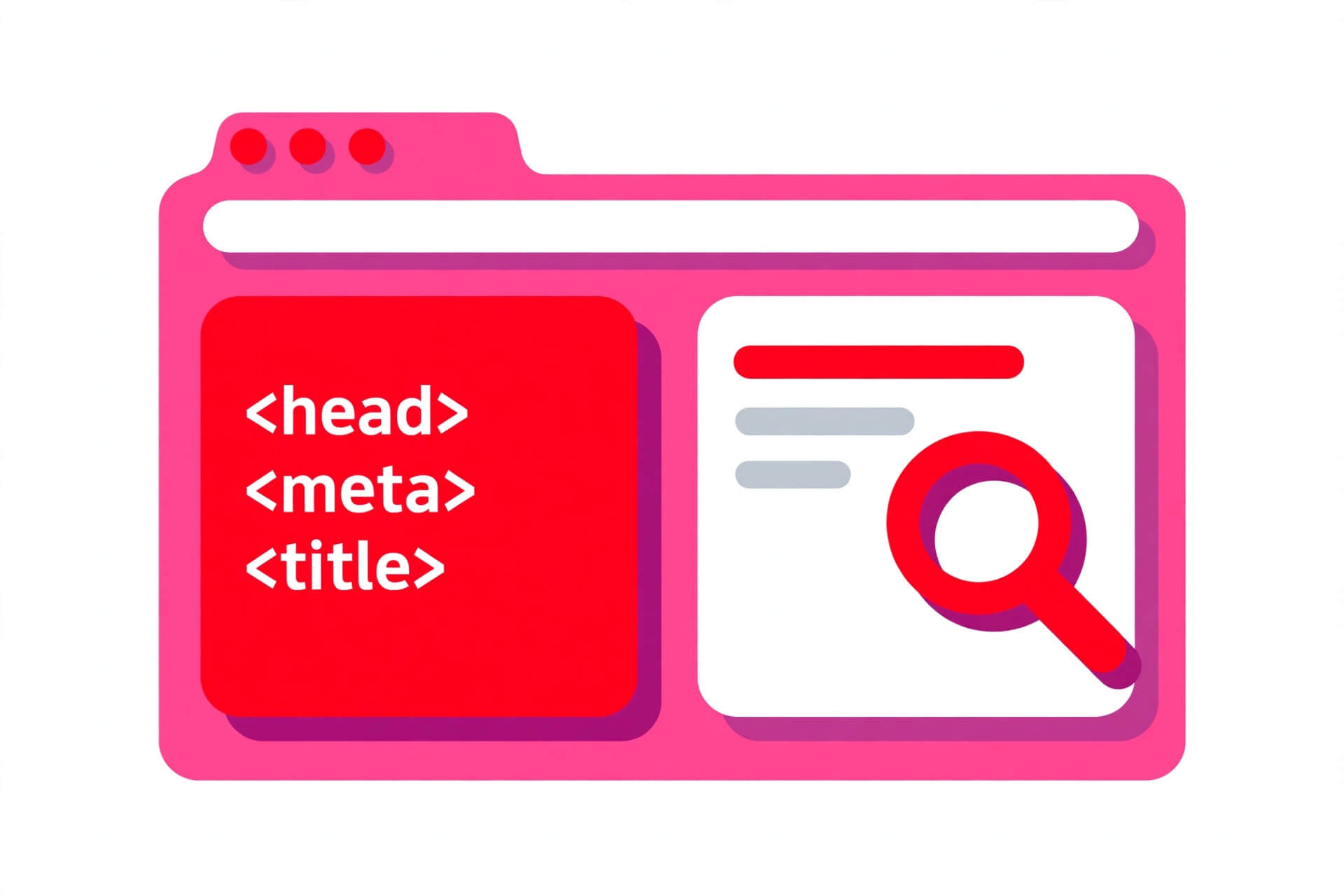
HTML Meta Tags: Complete SEO List Every Page Needs 2026
html meta tags are the quiet lines of code sitting at the top of every web page, inside the head section, where visitors never see them but browsers and search engines read them first. They tell a browser which character set to use, tell a phone how wide the page should be, tell Google what snippet to show in search results, and tell Facebook and X what title and image to show when someone shares your link. Get them right and your pages look correct everywhere, load sensibly on mobile, and present themselves well in search and social feeds. Get them wrong and you get garbled characters, a desktop layout squeezed onto a phone screen, a blank or random snippet in Google, and a shared link with no image at all.
This guide gives you the complete list: the tags every page genuinely needs, the tags that help with SEO and social sharing, the tags you can skip, and the mistakes that cause the most trouble. Every example is a complete, runnable HTML document, so you can copy it, paste it into a file, open it in a browser, and see it work. Nothing here requires JavaScript, a framework, or a plugin.
Quick Takeaways
- Meta tags live in the
<head>of your page. They describe the page; they are not shown to visitors. - Every page needs at least four things in its head: a charset declaration, a viewport tag, a title, and a description.
<meta charset="UTF-8">must be the first thing in the head and sit entirely within the first 1024 bytes of the document, because the browser has to know the encoding before it reads anything else.- The viewport tag
<meta name="viewport" content="width=device-width, initial-scale=1.0">is what makes a page render properly on phones. Without it, mobile browsers show the desktop layout zoomed out. - The meta description is not a Google ranking factor, but it often becomes the snippet under your link in search results, so it directly affects whether people click.
- The meta keywords tag is ignored by Google and has been for years. Do not spend time on it, and never stuff it.
- Canonical is not a meta tag. It is a
<link>element. It still belongs in this guide because it is the tag people most often confuse with one, and it matters for SEO. - Open Graph tags (
og:title,og:description,og:image) and Twitter Card tags control how your page looks when shared. They do not affect Google rankings, but they affect clicks from social media. - Meta refresh redirects are a last resort. A server-side redirect is faster, cleaner, and better for SEO whenever you have access to the server.
What Are HTML Meta Tags?
1. Metadata: data about your page
A meta tag is a short element that provides information about the document itself rather than content for the reader. Think of it like the label on the outside of a parcel: the label is not the gift, but without it the parcel cannot be delivered to the right place. In the same way, meta tags tell software what the page is, how to display it, and how to describe it to other people.
Meta tags are void elements, which means they have no closing tag and no content between tags. All of their information sits in attributes. Most meta tags use a name and content pair, like this: the name says what kind of information it is, and the content gives the value. A few use a different attribute instead of name: charset for the character encoding, and http-equiv for instructions that imitate HTTP headers.
2. Where meta tags live: inside the head, in the right order
Every meta tag belongs inside the <head> element, which sits between the opening <html> tag and the opening <body> tag. The head also holds the title, links to stylesheets, and script references. Nothing in the head is rendered as visible page content, but everything in it shapes how the page behaves.
Order matters for one tag above all others: charset. The browser reads the document from the top, byte by byte, and it needs to know the character encoding before it can make sense of any non-ASCII character. That is why the charset declaration must come first in the head and must sit entirely within the first 1024 bytes of the document. In practice, that means it is the very first line inside <head>, before the title and before anything else. Put it later and the browser may have to guess the encoding, reparse the page, or show broken characters.
A sensible head order looks like this: charset first, then viewport, then title, then description, then the rest. You do not need to obsess over the order of the remaining tags, but starting with charset and viewport is a habit that prevents real bugs.
3. The four kinds of meta tag
It helps to know that not every meta tag works the same way. There are four forms, and each uses a different attribute:
- Charset declarations use the charset attribute:
<meta charset="UTF-8">. There is only one valid value for HTML documents, and that is UTF-8. - Named metadata uses name and content:
<meta name="description" content="...">. This is the most common form, and it covers description, viewport, robots, author, and theme-color. - Pragma directives use http-equiv and content:
<meta http-equiv="refresh" content="...">. These imitate HTTP headers, and refresh is the one you will meet most often. - Microdata metadata uses itemprop and content. This is rarer in everyday pages and mostly appears alongside structured data. You can ignore it unless you are working with microdata specifically.
One rule from the specification is worth remembering: exactly one of name, http-equiv, charset, and itemprop may appear on a single meta element. You cannot combine them, so charset and viewport are always two separate tags, never one tag doing both jobs.
The Essential HTML Meta Tags Every Page Needs
1. Charset: tell the browser how to read your text
The charset tag declares the character encoding of the document. For HTML, the only valid value is UTF-8, which covers virtually every language and symbol in use today, from English to Urdu to emoji. Without it, characters outside basic English can turn into question marks or strange symbols, and that damage happens before any of your content is even read.
<meta charset="UTF-8">That is the whole tag. It must be the first child of the head, and it must sit within the first 1024 bytes of the file. If your server already sends a Content-Type header with a charset, that header wins, but the meta tag is still worth including because it protects the page when it is saved, previewed, or served without that header. Older pages sometimes use the longer http-equiv form for the same purpose. It still works, but the short form is the modern standard, and there is no reason to use the old one in new pages.
2. Viewport: tell phones how wide the page is
The viewport tag controls how a page is laid out on mobile devices. Without it, a phone browser assumes the page was designed for a desktop screen, renders it at desktop width, and then shrinks the whole thing down to fit. The result is tiny text that forces the reader to pinch and zoom. With the tag, the browser lays the page out at the device’s own width, and your responsive CSS can do its job.
<meta name="viewport" content="width=device-width, initial-scale=1.0">The two values here do most of the work. width=device-width sets the layout width to the width of the device screen. initial-scale=1.0 sets the starting zoom level to normal, so the page is neither zoomed in nor zoomed out when it first loads. This single line is the standard setting for almost every site, and you should include it on every page without exception.
One thing to avoid: do not disable user zooming by adding maximum-scale=1.0 or user-scalable=no. Some older templates still include those values, but they stop people with poor eyesight from zooming in to read your content, and accessibility checkers will flag them. Leave zoom control with the reader.
3. Title: not a meta tag, but inseparable from them
Strictly speaking, <title> is not a meta tag. It is its own element. But no discussion of head metadata is complete without it, because the title is the single most important piece of text in the head for both search and sharing. It becomes the clickable headline in Google results, the text on the browser tab, and the fallback title when a page is shared without Open Graph tags.
<title>HTML Meta Tags: Complete SEO List Every Page Needs 2026</title>Keep titles honest, specific, and reasonably short. A title of around 50 to 60 characters displays fully in most search results. Put the most important words near the front, because Google may cut off the end, and because readers scan from the left. Every page needs exactly one title, and every page needs a different one. Duplicated titles across pages confuse both readers and search engines.
4. Description: the snippet under your link
The meta description is a short summary of the page, written for humans, that search engines may show as the snippet underneath your link in results. It does not directly change your ranking. Google has been clear that the description is used as snippet text, not as a ranking signal. But the snippet is what a person reads before deciding whether to click, so a good description earns clicks and a missing or sloppy one loses them.
<meta name="description" content="HTML meta tags explained: the complete SEO list every page needs, with copy-paste code, Open Graph tags, and mistakes to avoid.">Write each description by hand, one per page, and make it match what the page actually delivers. Aim for roughly 120 to 155 characters so it is not cut off mid-sentence in most results. Put the main keyword near the front, because Google bolds matching search terms, which makes your result stand out. And accept that Google sometimes rewrites descriptions: if your description does not match the searcher’s query, Google may build a snippet from your page content instead. That is normal, not a sign that your description is broken. A unique, accurate description still gives Google the best material to work with.
5. Robots: only needed when you want something different
The robots meta tag tells search engines whether they may index a page and follow its links. The default behaviour, when you include no robots tag at all, is to index the page and follow its links. That means most pages do not need a robots tag. You add one only when you want to change the default, for example to keep a page out of search results.
<meta name="robots" content="noindex, nofollow">That example tells search engines not to index the page and not to follow its links. Typical uses are staging pages, thank-you pages, internal search results, and login pages: pages that exist for a purpose but should never appear in Google. For a normal article, leave the robots tag out entirely rather than writing index, follow, which only restates the default. Adding it does no harm, but it adds noise to every page for no benefit.
HTML Meta Tags for SEO
1. Writing descriptions that earn clicks
The description is the one meta tag where copywriting skill directly pays off. Treat it like a short advertisement for the page: one clear sentence about what the page covers, one reason it is worth reading, and nothing that overpromises. Avoid keyword stuffing, because a description crammed with repeated keywords looks spammy in results and Google is likely to replace it. Avoid duplicating the same description across pages, because then every result from your site shows the same snippet and none of them looks specific to the query.
A useful test is to read your description in isolation and ask whether a stranger would know what the page is about and why it is different from the ten other results on the same topic. If the answer is no, rewrite it. And remember that the description supports the title, it does not repeat it. If your title already says what the page is, use the description to say what the reader will get from it: the examples, the checklist, the mistakes to avoid.
2. Robots values, and what each one does
The robots tag accepts a comma-separated list of values. The ones you will actually use are:
| Value | What it does |
|---|---|
| index | The page may be indexed (this is the default). |
| noindex | The page must not appear in search results. |
| follow | Links on the page may be followed (this is the default). |
| nofollow | Links on the page must not be followed. |
| noarchive | Search engines must not show a cached copy of the page. |
| nosnippet | Search engines must not show a text snippet for the page. |
| none | A shortcut for noindex, nofollow. |
| noimageindex | Images on the page must not be indexed. |
A few practical notes. First, noindex only works if the search engine can crawl the page to read the tag, so do not block the same page in robots.txt and expect the tag to work: a blocked page cannot be crawled, so the tag is never seen. Second, nofollow on a whole page is a blunt tool; if you only want to mark one link as untrusted, use rel="nofollow" on that link instead. Third, the noindex directive is per page, so a tag on your homepage does not deindex the rest of the site. Each page that should stay out of search needs its own tag.
3. Canonical: a link element, not a meta tag, that you still need
Canonical deserves a place in this guide precisely because it is so often mistaken for a meta tag. It is not. It is a <link> element, and it tells search engines which URL is the official version of a page when similar or duplicate content exists at more than one address. Common cases are product pages reachable with and without tracking parameters, printer-friendly versions, and the same article served over HTTP and HTTPS or with and without www.
<link rel="canonical" href="https://allabouthtml.com/html-meta-tags-seo/">Every page should carry a canonical tag pointing to itself, using the full URL exactly as you want it to appear in search results. That self-referencing canonical is harmless on a unique page and protective on a page that later gains duplicate versions. It does not redirect visitors, and it does not replace a redirect when a page has genuinely moved. For a moved page, use a server redirect. For a page that legitimately exists at several URLs, use canonical to point them all at one version.
Social Sharing Meta Tags: Open Graph and Twitter Cards
1. Open Graph: how your page looks when shared
Open Graph is a set of meta tags, created by Facebook and now used widely, that controls the title, description, and image shown when a page is shared on social media and in messaging apps. Without them, the sharing platform guesses from your page content, and the guess is often a random image or the first paragraph of text. With them, you decide exactly what people see.
The four tags that matter most are:
<meta property="og:title" content="HTML Meta Tags: Complete SEO List Every Page Needs 2026">
<meta property="og:description" content="The complete list of HTML meta tags every page needs, with copy-paste code and common mistakes to avoid.">
<meta property="og:image" content="https://allabouthtml.com/wp-content/uploads/2026/10/html-meta-tags.jpg">
<meta property="og:url" content="https://allabouthtml.com/html-meta-tags-seo/">
Note the difference: Open Graph tags use the property attribute, not name. That is the one structural detail people get wrong most often, and it is why copied examples sometimes fail silently. Two more tags complete the set: og:type, which is usually website for a normal page or article for a blog post, and og:site_name, which names your site. The image deserves care: use a large, clear image, at least 1200 by 630 pixels for the best display, hosted at a public URL that any platform can fetch. A missing or broken og:image is the most common reason a shared link looks empty.
2. Twitter Cards: the same idea, for X
X (formerly Twitter) has its own card tags, but in practice X falls back to Open Graph tags when Twitter-specific tags are absent. So a page with good Open Graph tags will usually share acceptably on X already. Adding the Twitter tags gives you control over the card style, and the most useful one is the card type:
<meta name="twitter:card" content="summary_large_image">
<meta name="twitter:title" content="HTML Meta Tags: Complete SEO List Every Page Needs 2026">
<meta name="twitter:description" content="The complete list of HTML meta tags every page needs, with copy-paste code and common mistakes to avoid.">
<meta name="twitter:image" content="https://allabouthtml.com/wp-content/uploads/2026/10/html-meta-tags.jpg">
summary_large_image produces the big image card that most articles use. The plain summary card shows a small thumbnail instead, which suits short updates better than articles. Unlike Open Graph, Twitter tags use the name attribute, which is another detail worth getting right. You do not need to duplicate every Open Graph value if you are short on time, but title, description, and image are worth setting on both sets so that each platform shows what you intended.
3. Testing before you publish
Social tags fail quietly: the page still loads, nothing looks broken in the browser, and the problem only appears when someone shares the link. So test them before publishing. Facebook’s Sharing Debugger and X’s Card Validator both fetch your live URL and show exactly what card will be produced, including whether the image loaded. If you change tags after a page has already been shared, use the debugger’s scrape-again function to clear the platform’s cached version, because social platforms cache link previews and will keep showing the old card until you force a refresh.
Other Useful Meta Tags
1. Theme-color: colour the browser chrome on mobile
The theme-color tag sets the colour of the browser toolbar and address bar on mobile devices that support it, which makes your site feel more polished when someone visits on a phone. You can also set different colours for light and dark mode using the media attribute:
<meta name="theme-color" content="#ffffff">
<meta name="theme-color" media="(prefers-color-scheme: dark)" content="#1a1a1a">
This tag has no SEO effect, and it is purely cosmetic. It is still worth adding because it costs one line and it makes the mobile experience feel deliberate rather than default. Match the colour to your site’s header or brand colour rather than picking something unrelated.
2. Author: who wrote the page
The author tag names the person or organisation behind the page. It has no effect on Google rankings, and Google does not use it to identify authorship for search. It is still a reasonable piece of housekeeping on a personal blog or a site with several writers, because other tools and readers can read it, and because it costs nothing:
<meta name="author" content="Ahmed Haseeb">If your site already shows author information visibly on the page and in structured data, the author meta tag is optional. Do not treat it as a substitute for a proper author byline or author page, which readers actually see.
3. Format-detection: stop phones turning numbers into links
On iOS Safari, phone numbers in page text are automatically turned into clickable telephone links. That is usually helpful, but on pages where a number is not a phone number, such as a product code or a year, it produces a confusing link. The format-detection tag switches that behaviour off:
<meta name="format-detection" content="telephone=no">This is a vendor-specific tag rather than a web standard, so it only affects browsers that implement it. It is harmless elsewhere, and it solves a real annoyance on pages with lots of numbers. Use it when you need it, not on every page by default.
4. Referrer: control what the next site sees
The referrer tag controls how much information about your page is sent to the next site when a visitor clicks an outbound link. The strictest useful setting, strict-origin-when-cross-origin, sends the full URL for same-site navigation but only the origin (the domain, not the full path) when the visitor leaves your site:
<meta name="referrer" content="strict-origin-when-cross-origin">Most browsers already use this behaviour as their default, so the tag is mainly a way to state your policy explicitly rather than relying on the default. It matters for privacy rather than SEO, and it is worth setting on sites that link out to third parties regularly. Avoid the loosest setting, unsafe-url, which sends the full URL everywhere, including to other sites, unless you have a specific reason for it.
Meta Refresh and Redirects: A Last Resort
1. How refresh works
The refresh directive, delivered through http-equiv, tells the browser to load a different page after a delay measured in seconds. A value of zero means immediately, and a larger value means a timed redirect, which is sometimes used for “you will be redirected in 5 seconds” pages:
<meta http-equiv="refresh" content="5;url=https://allabouthtml.com/html-meta-tags-seo/">This tag is part of the HTML specification, and it works in every browser. But it has real drawbacks. The delay is visible to the reader, the back button behaves oddly after a refresh redirect, and search engines treat it less cleanly than a proper server redirect. It is also an accessibility problem when the delay is short, because readers using assistive technology may not have time to read the page before it vanishes.
2. Why a server redirect is almost always better
If you have any access to your server or hosting settings, use a server-side redirect (a 301 for a permanent move, a 302 for a temporary one) instead of a meta refresh. A server redirect happens before any page content is sent, so it is faster, it preserves search ranking signals more reliably, and it does not trap the reader’s back button. Reserve meta refresh for the narrow case where you genuinely cannot change the server configuration, for example on a static host with no redirect feature, and keep the delay at zero so the reader is not left waiting on an intermediate page.
The Meta Keywords Tag: Skip It
1. Google ignores it, and has done for years
In 2009, Google stated publicly that its web search disregards the keywords meta tag completely, because the tag had been abused for so long by people stuffing it with terms their pages did not cover. That position has not changed. The tag plays no part in Google’s ranking, and other major search engines have taken the same position. If a theme, plugin, or old tutorial still offers you a keywords field, you can safely leave it empty.
<!-- Do not bother with this: Google ignores it -->
<!-- <meta name="keywords" content="html, meta tags, seo, html meta tags"> -->
2. What to do instead of keywords
The time once spent filling in keywords is better spent on the things that actually influence whether a page is found and clicked: a clear title containing the words people search for, a first paragraph that answers the query directly, headings that describe the sections honestly, and a description written for the human who will read it in search results. Those are the places where keywords belong, used naturally, once each, in context. A page that covers its topic thoroughly will contain the relevant terms on its own, without a hidden list stapled to the head.
Common Meta Tag Mistakes
1. Duplicated descriptions and titles across pages
The most common meta mistake on real sites is also the dullest: every page carries the same description, often the site’s tagline, because a theme filled it in by default. The result is that every search result from the site shows the same snippet, none of them specific, and Google is more likely to replace them with text it picks itself. Write a unique title and description for every page, even if it takes an extra minute. On a site with hundreds of pages, prioritise the pages that actually receive search traffic.
2. Charset in the wrong place, or missing entirely
Charset problems are silent until they are not. A page that only contains English text can survive without a charset tag, because ASCII is a subset of UTF-8 and the browser’s guess will usually be right. The moment the page contains an accented name, a currency symbol, or a word in another language, the guess can fail and characters break. Put the charset tag first in the head on every page, and this whole class of bug disappears.
3. Forgetting the viewport tag
A missing viewport tag is the single most common reason a site looks broken on phones despite having responsive CSS. The CSS media queries are fine; the browser simply never applies the mobile layout because it is rendering at desktop width. If a site looks perfect on desktop and tiny on mobile, check the viewport tag before touching any CSS. It is a one-line fix that solves a problem people sometimes spend hours chasing in stylesheets.
4. Confusing canonical with redirect, and noindex with blocking
Two pairs of concepts get mixed up regularly. Canonical is not a redirect: it suggests which URL search engines should prefer, but visitors still land on the URL they requested. If a page has truly moved, only a redirect moves visitors. And noindex is not the same as blocking a page in robots.txt: a blocked page cannot be crawled, so its noindex tag is never read, and the page can still appear in results as a bare URL. To keep a page out of search, use noindex and allow crawling. To save crawl budget on pages that do not matter, use robots.txt, but do not expect those pages to vanish from results on the strength of the block alone.
5. Stuffing, exaggerating, or mismatching the description
A description that promises something the page does not deliver earns a click and an immediate bounce, which is worse than no click at all. The same applies to descriptions stuffed with repeated keywords, descriptions copied from another page, and descriptions left at a default value from a template. Write what the page is, in the words a reader would use, and let the content do the persuading. If Google rewrites your description for a particular query, that is Google matching the snippet to the searcher, not a failure of your tag.
6. Broken or missing social images
A shared link with no image gets fewer clicks than one with a clear, relevant image, and a broken og:image URL is worse than none at all because the platform may cache the failure. Always use an absolute URL for og:image, meaning the full address starting with https, not a relative path, because the fetching platform is not browsing your site and cannot resolve relative paths. Check that the image actually loads at that URL, and that it is large enough to display well. The same applies to the Twitter image tag.
Complete HTML Meta Tags Checklist
Use this table as a copy checklist for every new page. The “every page” column is the non-negotiable set; the rest are added when they apply.
| Tag | Every page? | Purpose |
|---|---|---|
<meta charset="UTF-8"> | Yes | Character encoding, first in head |
<meta name="viewport" content="width=device-width, initial-scale=1.0"> | Yes | Mobile layout width and zoom |
<title> | Yes | Search headline, browser tab, share fallback |
<meta name="description"> | Yes | Search snippet and click appeal |
<link rel="canonical"> | Yes | Official URL for the page |
<meta name="robots"> | Only to change the default | Keep a page out of search or stop link following |
<meta property="og:title"> | Yes for shared content | Social share title |
<meta property="og:description"> | Yes for shared content | Social share description |
<meta property="og:image"> | Yes for shared content | Social share image |
<meta property="og:url"> | Yes for shared content | Canonical share URL |
<meta property="og:type"> | Recommended | Content type, usually website or article |
<meta name="twitter:card"> | Recommended | X card style, usually summary_large_image |
<meta name="twitter:title"> | Recommended | X share title |
<meta name="twitter:description"> | Recommended | X share description |
<meta name="twitter:image"> | Recommended | X share image |
<meta name="theme-color"> | Optional | Mobile browser chrome colour |
<meta name="author"> | Optional | Page author name |
<meta name="format-detection"> | Only if needed | Stop phone numbers becoming links on iOS |
<meta name="referrer"> | Optional | Referrer privacy policy |
<meta http-equiv="refresh"> | Only as a last resort | Timed redirect when no server redirect is possible |
<meta name="keywords"> | No | Ignored by Google; skip it |
Complete Runnable Examples
Example 1: A starter page with the essential head
This is a complete HTML document. Save it as a file, open it in a browser, and view the page source to see the head in action. It contains every tag from the essential set and nothing extra, which makes it a good starting template for any new page.
<!DOCTYPE html>
<html lang="en">
<head>
<meta charset="UTF-8">
<meta name="viewport" content="width=device-width, initial-scale=1.0">
<title>HTML Meta Tags: Complete SEO List Every Page Needs 2026</title>
<meta name="description" content="HTML meta tags explained: the complete SEO list every page needs, with copy-paste code, Open Graph tags, and mistakes to avoid.">
<link rel="canonical" href="https://allabouthtml.com/html-meta-tags-seo/">
</head>
<body>
<h1>HTML Meta Tags: Complete SEO List Every Page Needs 2026</h1>
<p>html meta tags live in the head of this page. You cannot see them here, but your browser read them before it showed you this sentence.</p>
</body>
</html>
Example 2: A full page with SEO and social sharing tags
This second document adds the Open Graph and Twitter Card tags, a theme colour, and an author tag to the essential set. It is the head you would use for a real blog post that you expect people to share. Replace the image URL with your own featured image before using it, and make sure that image loads at its full address.
<!DOCTYPE html>
<html lang="en">
<head>
<meta charset="UTF-8">
<meta name="viewport" content="width=device-width, initial-scale=1.0">
<title>HTML Meta Tags: Complete SEO List Every Page Needs 2026</title>
<meta name="description" content="HTML meta tags explained: the complete SEO list every page needs, with copy-paste code, Open Graph tags, and mistakes to avoid.">
<link rel="canonical" href="https://allabouthtml.com/html-meta-tags-seo/">
<meta name="author" content="Ahmed Haseeb">
<meta name="theme-color" content="#ffffff">
<meta property="og:title" content="HTML Meta Tags: Complete SEO List Every Page Needs 2026">
<meta property="og:description" content="The complete list of HTML meta tags every page needs, with copy-paste code and common mistakes to avoid.">
<meta property="og:image" content="https://allabouthtml.com/wp-content/uploads/2026/10/html-meta-tags.jpg">
<meta property="og:url" content="https://allabouthtml.com/html-meta-tags-seo/">
<meta property="og:type" content="article">
<meta property="og:site_name" content="All About HTML">
<meta name="twitter:card" content="summary_large_image">
<meta name="twitter:title" content="HTML Meta Tags: Complete SEO List Every Page Needs 2026">
<meta name="twitter:description" content="The complete list of HTML meta tags every page needs, with copy-paste code and common mistakes to avoid.">
<meta name="twitter:image" content="https://allabouthtml.com/wp-content/uploads/2026/10/html-meta-tags.jpg">
</head>
<body>
<h1>HTML Meta Tags: Complete SEO List Every Page Needs 2026</h1>
<p>Share this page on social media and the title, description, and image above are what people will see.</p>
</body>
</html>
Frequently Asked Questions
1. Do HTML meta tags directly improve Google rankings?
Most of them do not, and it is important to be honest about that. The description is used as snippet text, not as a ranking signal. Open Graph and Twitter tags affect social sharing, not search rankings. The tags that genuinely affect search are narrower: robots controls indexing, canonical resolves duplicate URLs, and viewport and charset affect whether the page works properly on mobile and displays correctly, which affects the experience of visitors who arrive from search. The value of a good head section is that your pages display correctly, describe themselves accurately, and get clicked when they appear, not that the tags themselves push you up the rankings.
2. What is the difference between the title tag and the meta description?
The title is the clickable headline in search results and the text on the browser tab. The description is the short paragraph underneath that headline. The title says what the page is; the description says why it is worth opening. Both are written by you, both should be unique to the page, and Google may rewrite either of them if it thinks other text matches the searcher’s query better. A good title is short and specific; a good description is a sentence or two that a human would find persuasive.
3. How long should a meta description be?
Aim for roughly 120 to 155 characters. Google does not publish a fixed limit, and the visible length varies by device and by query, so there is no exact number that guarantees full display. Descriptions longer than that range are usually cut off with an ellipsis, which is not a disaster but wastes the words at the end. Descriptions much shorter than that range waste an opportunity to persuade. Write a complete thought in one or two sentences, check the character count, and do not pad it to reach a number.
4. Do I need a robots meta tag on every page?
No. When no robots tag is present, search engines index the page and follow its links, which is what you want for a normal article. Add a robots tag only when you want to change that default, most often with noindex for pages that should not appear in search, such as staging pages, thank-you pages, and internal search results. Writing index, follow on every page only restates the default and adds clutter to your head section.
5. Why does my page look fine on desktop but tiny on mobile?
The most likely cause is a missing viewport tag. Without it, a phone browser renders the page at desktop width and shrinks it to fit the screen, which makes everything look small regardless of your CSS. Add <meta name="viewport" content="width=device-width, initial-scale=1.0"> to the head and test again before changing any styles. If the page still looks wrong after that, the problem is in the CSS, but the viewport tag is the first thing to check.
6. Should I still use the meta keywords tag?
No. Google has stated that it disregards the keywords meta tag completely in web search ranking, a position it has held since 2009, and other search engines have followed the same path. Filling it in costs time, tempts people into keyword stuffing, and buys nothing. Put the relevant words in your title, headings, first paragraph, and description instead, where they are visible to readers and genuinely useful.
Conclusion
html meta tags are small, but they are the first thing every browser and search engine reads about your page, and they decide how that page is displayed, described, and shared. The essential set is short: charset first in the head, viewport for mobile, a unique title, a hand-written description, and a self-referencing canonical tag. Around that core, Open Graph and Twitter Card tags take care of social sharing, robots handles the pages that should stay out of search, and theme-color and author add polish. Everything else is either situational or, in the case of the keywords tag, best left in the past.
The practical next step is simple. Open the head section of your most visited page and check it against the checklist in this guide. If the charset is not first, move it. If the viewport tag is missing, add it. If the description is duplicated from another page, rewrite it. Those three fixes take minutes and they fix the most common head problems on real sites. Then use the starter template in Example 1 as the head for your next new page, and add the social tags from Example 2 whenever you expect the page to be shared. For a deeper look at how the head section fits into a whole page, read the companion guides below, and for the official reference on the meta element itself, see the MDN documentation linked at the end of this article.
Further reading: MDN: The meta element — the official reference for every attribute covered in this guide.
Related Articles You’ll Love
- HTML Headings Hierarchy: H1 to H6, SEO Rules, and Common Mistakes — how heading structure works with your title and description to tell search engines what a page is about.
- Responsive Images HTML: srcset and Picture Element Guide — the viewport tag gets mobile layout right; responsive images make sure the pictures inside that layout load at the right size.
- HTML Dialog Element: Ultimate Easy Native Modals Guide 2026 — another modern native element that replaces JavaScript, this time for modals and dialogs.
- JavaScript Popover: Ultimate Easy Native Popups Guide 2026 — native popups, menus, and tooltips, and how they sit alongside the head tags that describe the page.
- HTML Search Element: Easy Native Search Forms Guide 2026 — the semantic search landmark, and how a well-described page helps visitors find what they came for.

No comment