
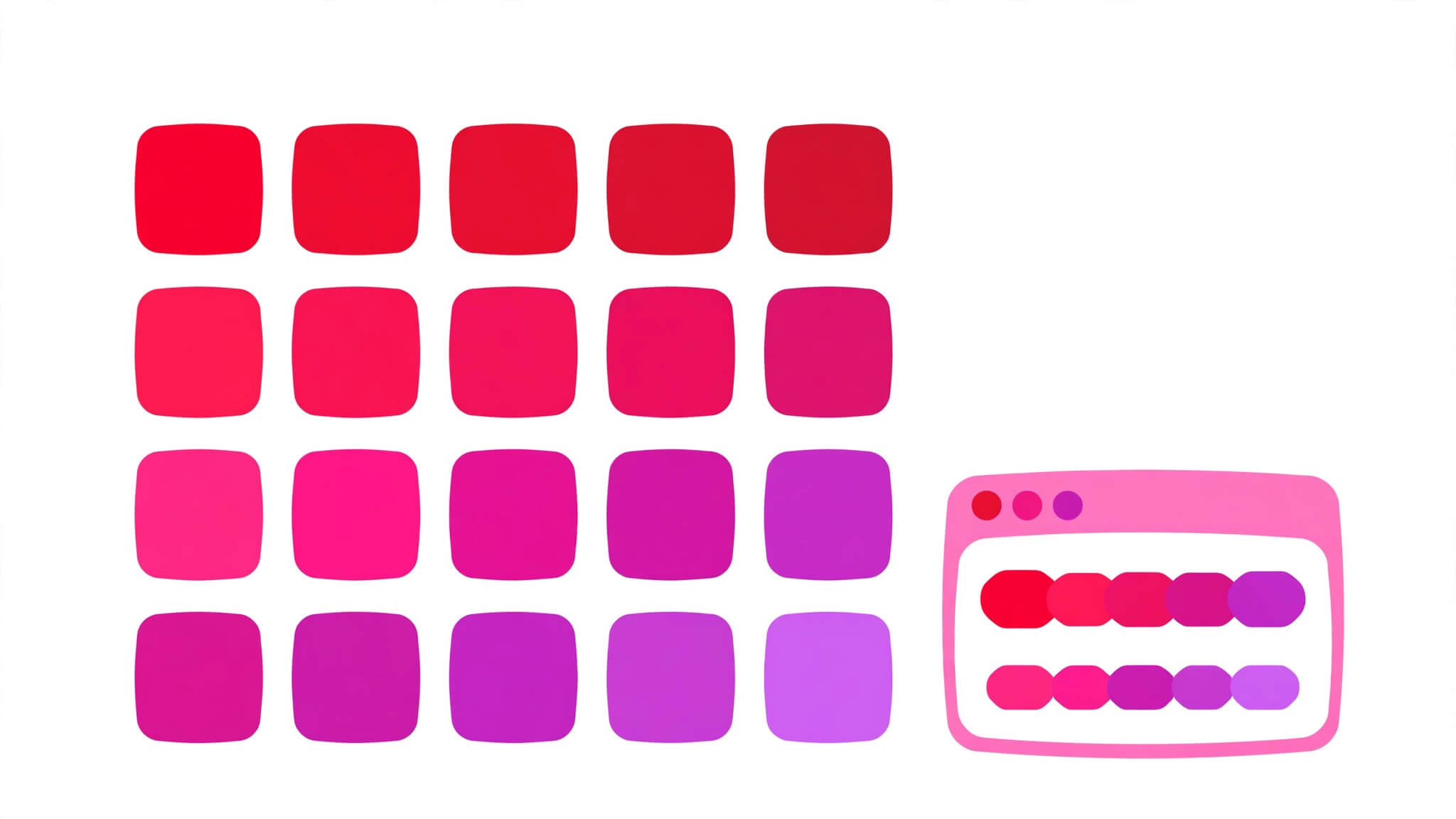
HTML Color Codes: Complete Chart, Names & Examples 2026
HTML color codes are the values you write in your markup and stylesheets to tell the browser exactly which color to paint text, backgrounds, borders, and every other colored part of a page. A color code can be a plain English name like red, a six-digit hex value like #FF0000, an RGB triplet like rgb(255, 0, 0), or an HSL value like hsl(0, 100%, 50%) — and all four of those examples produce exactly the same red. If you have ever copied a hex code from a design tool and wondered what the letters mean, or stared at rgb() and hsl() and wondered which one to use, this guide answers both questions with working code you can run.
One important fact up front: HTML itself does not have a color element or a color attribute in modern HTML. Colors in a web page come from CSS, written either in a style attribute, in a <style> block, or in an external stylesheet. When people say “HTML color codes,” they mean the CSS color values used inside HTML documents — and that is exactly what this guide covers, with every example shown as a complete document you can save and open in your browser.
Quick Takeaways
- An HTML color code is a CSS color value: a name, a hex code, an RGB value, or an HSL value.
- Hex is the most common format in real code:
#RRGGBB, with a three-digit shorthand (#RGB) and an eight-digit version with transparency (#RRGGBBAA). - RGB describes a color by its red, green, and blue light levels, each from 0 to 255; RGBA adds an alpha (opacity) channel from 0 to 1.
- HSL describes a color by hue (0–360 degrees on a color wheel), saturation, and lightness — it is the easiest format for building shades and palettes by hand.
- There are 148 named colors in CSS, including
rebeccapurple; names are easy to read but limited. - For readable text, aim for a contrast ratio of at least 4.5:1 against its background (3:1 for large text).
- Never use the old
bgcoloror<font color>attributes — they are obsolete in HTML5. Use CSS instead.
1. What Are HTML Color Codes?
An HTML color code is a value that identifies one exact color for the browser to render. Every pixel on a screen is made of red, green, and blue light mixed in different amounts, and every color format in this guide is simply a different way of writing down that mixture — or, in the case of HSL, a different way of thinking about it.
The four formats you will meet in real code are:
- Named colors — plain words:
red,tomato,steelblue,rebeccapurple. - Hex codes — a
#followed by hexadecimal digits:#FF0000,#0F0,#FF000080. - RGB values — three numbers for red, green, and blue:
rgb(255, 0, 0), plus an alpha channel inrgba(255, 0, 0, 0.5). - HSL values — hue, saturation, and lightness:
hsl(0, 100%, 50%), plus alpha inhsla(0, 100%, 50%, 0.5).
All four formats work anywhere CSS accepts a color: the color property for text, background-color for backgrounds, border-color for borders, and anywhere else a color is needed. The browser does not care which format you choose — it converts them all to the same internal color. Your choice is about readability, convenience, and what your team or your design tool already uses.
Here is the same red written four ways, in one complete document you can run:
<!DOCTYPE html>
<html lang="en">
<head>
<meta charset="UTF-8">
<title>Same Red, Four Formats</title>
<style>
  .named { color: red; }
  .hex { color: #FF0000; }
  .rgb { color: rgb(255, 0, 0); }
  .hsl { color: hsl(0, 100%, 50%); }
</style>
</head>
<body>
  <p class="named">This red uses a color name.</p>
  <p class="hex">This red uses a hex code.</p>
  <p class="rgb">This red uses RGB.</p>
  <p class="hsl">This red uses HSL.</p>
</body>
</html>
Open that file and all four lines are identical. Keep that equivalence in mind throughout this guide: formats are interchangeable, so pick the one that makes each job easiest.
2. HTML Color Names: The Readable Option
2.1 What color names are
CSS defines 148 named colors, each one a fixed color with a fixed code behind it. The original set of 16 colors (black, white, red, green, blue, yellow, and so on) comes from the earliest days of the web; the extended set adds descriptive names like tomato, steelblue, mediumseagreen, and rebeccapurple — the last one named in honor of Eric Meyer’s daughter Rebecca, and the only named color with a person’s name in it.
2.2 When to use names
Color names are the best choice when readability matters more than precision: teaching examples, quick prototypes, and code you want a beginner to understand at a glance. color: tomato; tells a human reader far more than color: #FF6347;, even though both are the same color.
2.3 The limits of names
Names have two real limits. First, there are only 148 of them, so you cannot express an arbitrary brand color — your company’s exact blue almost certainly has no name. Second, names hide the actual values: you cannot look at steelblue and know its hex code without checking, which makes matching colors across a design harder. For production work, teams almost always settle on hex or HSL, and keep names for examples and drafts.
A few names every beginner should know, with their hex equivalents:
| Name | Hex code | What it looks like |
|---|---|---|
| black | #000000 | Pure black |
| white | #FFFFFF | Pure white |
| red | #FF0000 | Pure red |
| green | #008000 | Dark green (not pure green light) |
| lime | #00FF00 | Pure green light |
| blue | #0000FF | Pure blue |
| yellow | #FFFF00 | Pure yellow |
| tomato | #FF6347 | Warm reddish-orange |
| steelblue | #4682B4 | Muted blue |
| rebeccapurple | #663399 | Medium purple |
Notice the trap in that table: CSS green is #008000, a dark green — not the brightest green light, which is lime (#00FF00). This is the single most common color-name surprise for beginners, and it is a good reason to check a name’s actual value before trusting it in a design.
3. Hex Color Codes: The Format You Will See Most
3.1 How hex works
A hex color code starts with # and follows it with hexadecimal digits — the digits 0–9 plus the letters A–F, where A means 10 and F means 15. The six digits form three pairs: the first pair is red, the second is green, the third is blue, each ranging from 00 (none of that light) to FF (full strength, 255 in decimal).
So #FF0000 means red at full strength, green at zero, blue at zero: pure red. #00FF00 is pure green light. #0000FF is pure blue. #FFFFFF turns all three lights fully on, which your eye reads as white, and #000000 turns them all off, which reads as black. Every other color is a mixture: #FFA500 (orange) is full red, about two-thirds green, and no blue.
3.2 The three-digit shorthand
When each pair has two identical digits, you can write the code with three digits instead of six: #F00 means #FF0000, #0F0 means #00FF00, and #FFF means #FFFFFF. The browser expands each digit by doubling it. This shorthand only works when the pairs double up — #F0A is valid shorthand for #FF00AA, but #F3A has no shorthand problem either, since it expands to #FF33AA. What you cannot do is shorten a code like #FF6347, because its pairs (FF, 63, 47) are not all doubles.
3.3 Eight-digit hex with transparency
Modern browsers also accept eight-digit hex, where the last pair is the alpha (opacity) channel: #FF000080 is red at about 50% opacity, because 80 in hex is 128 out of 255. This is handy when you want a semi-transparent overlay without switching to rgba().
3.4 Complete example: hex in action
<!DOCTYPE html>
<html lang="en">
<head>
<meta charset="UTF-8">
<title>Hex Colors Example</title>
<style>
  body { font-family: Arial, sans-serif; }
  .heading { color: #1A3C6E; }
  .accent { color: #FF6347; }
  .box {
    background-color: #F0F4FA;
    border: 2px solid #1A3C6E;
    padding: 16px;
  }
  .overlay { background-color: #1A3C6E80; color: #FFFFFF; padding: 16px; }
</style>
</head>
<body>
  <h1 class="heading">Hex colors in a real layout</h1>
  <p class="accent">This accent text uses tomato hex, #FF6347.</p>
  <div class="box">This box has a pale blue-grey background and a dark blue border.</div>
  <p class="overlay">This line sits on a semi-transparent dark blue background.</p>
</body>
</html>
4. RGB and RGBA: Colors as Light Levels
4.1 How RGB works
RGB describes a color as three numbers: how much red light (0–255), how much green light (0–255), and how much blue light (0–255). rgb(255, 0, 0) is pure red, rgb(0, 0, 0) is black, and rgb(255, 255, 255) is white. Every hex code has an exact RGB equivalent — #FF6347 is rgb(255, 99, 71) — because both formats describe the same three light levels, one in hexadecimal and one in decimal.
4.2 RGBA and transparency
rgba() adds a fourth number, alpha, from 0 (fully transparent) to 1 (fully opaque): rgba(255, 0, 0, 0.5) is red at half opacity. Modern CSS also allows the space-separated form without commas, rgb(255 0 0 / 0.5), which means the same thing. Both forms are widely supported; the comma form is the one you will see in older code and most tutorials.
4.3 When RGB beats hex
RGB shines when a color is computed or adjusted in code — for example, when JavaScript builds a color from user input, or when a designer hands you values from a tool that reports RGB. It is also the clearest format when you need to explain what a color is made of: rgb(70, 130, 180) (steelblue) reads as “a fair amount of red, more green, the most blue,” which matches the muted blue you see.
5. HSL and HSLA: Colors as a Wheel
5.1 How HSL works
HSL describes a color by three different ideas: hue, saturation, and lightness. Hue is an angle on a color wheel from 0 to 360 degrees — 0 (and 360) is red, 120 is green, 240 is blue, and every other color sits somewhere around the wheel. Saturation is how vivid the color is, from 0% (grey) to 100% (fully vivid). Lightness is how bright it is, from 0% (black) through 50% (the pure color) to 100% (white).
So hsl(0, 100%, 50%) is pure red: hue 0, full saturation, middle lightness. Drop the lightness to 25% and you get a dark red, hsl(0, 100%, 25%). Raise it to 75% and you get a light pink-red, hsl(0, 100%, 75%). Drop the saturation to 0% and hue stops mattering — hsl(0, 0%, 50%) is plain grey.
5.2 HSLA and transparency
Like RGBA, HSLA adds an alpha channel: hsla(0, 100%, 50%, 0.5) is red at half opacity. The modern space-separated form is hsl(0 100% 50% / 0.5).
5.3 Why designers love HSL
HSL is the best format for building palettes by hand. Want five shades of your brand blue? Keep the hue fixed and walk the lightness up and down: hsl(210, 70%, 25%), hsl(210, 70%, 40%), hsl(210, 70%, 55%), hsl(210, 70%, 70%), hsl(210, 70%, 85%). That is one hue with five lightness steps — a coherent palette in five lines, with no guessing at hex values. Try doing the same thing in hex and you will be reaching for a color picker. This is why many design systems define their palette in HSL even when the final code ships hex.
6. Color Formats Compared
| Format | Example | Best for | Watch out for |
|---|---|---|---|
| Name | tomato | Readable examples, prototypes | Only 148 colors; values hidden |
| Hex | #FF6347 | Everyday production code, design handoff | Hard to adjust shades by hand |
| Hex + alpha | #FF634780 | Semi-transparent overlays in one value | Alpha pair is easy to misread |
| RGB | rgb(255, 99, 71) | Computed colors, tool output | Verbose; shades need arithmetic |
| RGBA | rgba(255, 99, 71, 0.5) | Transparency in any element | Old code uses commas, new code may not |
| HSL | hsl(9, 100%, 64%) | Building palettes, shades, tints | Less familiar to beginners |
| HSLA | hsla(9, 100%, 64%, 0.5) | Transparent palette colors | Same unfamiliarity as HSL |
There is no format that wins every job. A practical rule used by working developers: hex for static colors from a design, HSL when you are inventing a palette, RGB when a tool or script gives you numbers, and names only when a human needs to read the code quickly.
7. How to Use Color Codes in HTML
7.1 Text color, background, and borders
The three properties you will use most are color (text), background-color (backgrounds), and border-color (borders). They accept any format from this guide, and you can mix formats freely in one stylesheet.
7.2 Inline styles versus stylesheets
For a quick test, the style attribute works fine. For anything real, put colors in a <style> block or an external stylesheet — one change then updates every element that uses the class, instead of hunting through dozens of inline styles. The old presentational attributes (bgcolor, text, and <font color="...">) are obsolete in HTML5 and should never be used in new code; browsers still render them in some cases, but they are not valid HTML and they mix presentation into markup that CSS is meant to handle.
7.3 Complete example: a styled card
<!DOCTYPE html>
<html lang="en">
<head>
<meta charset="UTF-8">
<title>Styled Card with HTML Color Codes</title>
<style>
  body { font-family: Arial, sans-serif; background-color: #F4F6F8; }
  .card {
    background-color: #FFFFFF;
    border: 1px solid #D0D7DE;
    border-top: 6px solid hsl(210, 70%, 45%);
    padding: 24px;
    max-width: 520px;
  }
  .card h2 { color: #1A3C6E; }
  .card p { color: rgb(60, 60, 60); }
  .card a { color: tomato; }
</style>
</head>
<body>
  <div class="card">
    <h2>Color codes working together</h2>
    <p>This card mixes hex, HSL, RGB, and a named color — and the browser renders them all the same way.</p>
    <p><a href="#">This link uses the named color tomato.</a></p>
  </div>
</body>
</html>
8. HTML Color Chart: Popular Colors at a Glance
| Color | Name | Hex | RGB |
|---|---|---|---|
| Red | red | #FF0000 | rgb(255, 0, 0) |
| Orange | orange | #FFA500 | rgb(255, 165, 0) |
| Yellow | yellow | #FFFF00 | rgb(255, 255, 0) |
| Green (dark) | green | #008000 | rgb(0, 128, 0) |
| Lime | lime | #00FF00 | rgb(0, 255, 0) |
| Teal | teal | #008080 | rgb(0, 128, 128) |
| Blue | blue | #0000FF | rgb(0, 0, 255) |
| Navy | navy | #000080 | rgb(0, 0, 128) |
| Purple | purple | #800080 | rgb(128, 0, 128) |
| Pink | pink | #FFC0CB | rgb(255, 192, 203) |
| Tomato | tomato | #FF6347 | rgb(255, 99, 71) |
| Steel blue | steelblue | #4682B4 | rgb(70, 130, 180) |
| Gold | gold | #FFD700 | rgb(255, 215, 0) |
| Silver | silver | #C0C0C0 | rgb(192, 192, 192) |
| Grey | grey | #808080 | rgb(128, 128, 128) |
| Black | black | #000000 | rgb(0, 0, 0) |
| White | white | #FFFFFF | rgb(255, 255, 255) |
Keep this chart beside you while you learn, and reach for a full color picker when you need an exact brand shade — no chart can hold all 16 million colors that hex and RGB can express.
9. Color Contrast and Accessibility
9.1 Why contrast matters
A beautiful color scheme that nobody can read is a failed color scheme. People with low vision, people reading in sunlight, and people on cheap screens all depend on enough contrast between text and its background. The Web Content Accessibility Guidelines (WCAG) set the bar: a contrast ratio of at least 4.5:1 for normal text and 3:1 for large text (roughly 18pt and up, or 14pt bold).
9.2 Common contrast failures
Light grey text on a white background is the classic failure — #CCCCCC on #FFFFFF looks elegant in a mockup and disappears in real life. Yellow text on white is nearly as bad. When in doubt, darken the text or darken the background until the pair passes; free contrast checkers will compute the ratio for any two codes in seconds.
9.3 Never rely on color alone
Color should never be the only way information is communicated. An error message shown only in red text is invisible to someone who cannot distinguish red; pair it with an icon or the word “Error.” A required field marked only with a red border needs an asterisk or a label too. This rule costs almost nothing and makes a page usable for far more people.
10. Common Mistakes With HTML Color Codes
10.1 Forgetting the hash
color: FF0000; without the # is invalid and the browser will ignore the whole declaration, leaving the default color. Every hex code needs its hash.
10.2 Using obsolete attributes
bgcolor, text, and <font color> still appear in very old tutorials, but they are obsolete in HTML5. Use CSS properties instead — they do the same job, they are valid, and they keep your markup clean.
10.3 Confusing green and lime
CSS green is the dark #008000, not the bright green most people picture. If you want bright green light, that is lime (#00FF00). Check any name’s value before you trust it.
10.4 Assuming a name exists
Only 148 names exist. lightblue exists; light sky blue does not (the real name is lightskyblue, one word). If a name does not work, the browser silently ignores it — which is why a misspelled color can be so confusing to debug. When a color does not appear, check the spelling first.
10.5 Low-contrast combinations
Pale text on pale backgrounds, and saturated colors on saturated backgrounds, fail readability even when each color looks fine alone. Test every text/background pair for contrast before shipping.
11. Tools and Workflow: Picking Colors Without Guessing
11.1 Use your browser’s color picker
Every modern browser ships a color picker inside its developer tools. Open DevTools, inspect any element, and click a color swatch in the Styles panel: a picker appears where you can drag around the hue wheel, adjust saturation and lightness, and copy the result as hex, RGB, or HSL with one click. This is the fastest way to experiment — change a value, watch the page repaint instantly, and copy the code only when the color looks right. Most pickers also include an eyedropper that samples any pixel on the page, which is invaluable when you need to match a color from an image or a screenshot.
11.2 Define palettes with CSS variables
The moment a project uses more than a handful of colors, hard-coding hex values everywhere becomes a maintenance problem: rebranding means hunting through every file. CSS custom properties solve it by defining each color once and reusing it everywhere. Change one variable and the whole site follows.
<!DOCTYPE html>
<html lang="en">
<head>
<meta charset="UTF-8">
<title>Color Palette with CSS Variables</title>
<style>
  :root {
    --brand: #1A3C6E;
    --accent: #FF6347;
    --surface: #F0F4FA;
    --text: #222222;
  }
  body { font-family: Arial, sans-serif; background-color: var(--surface); color: var(--text); }
  h1 { color: var(--brand); }
  a { color: var(--accent); }
  .button { background-color: var(--brand); color: #FFFFFF; padding: 10px 18px; }
</style>
</head>
<body>
  <h1>One palette, defined once</h1>
  <p>This page's colors all come from four variables. <a href="#">Links use the accent.</a></p>
  <p><button class="button" type="button">Buttons use the brand color</button></p>
</body>
</html>
11.3 Extract colors from designs and images
When a designer hands you a mockup, do not guess colors from the screenshot. Design tools show the exact values in their inspect panels, and free eyedropper tools can sample any pixel on your screen. Copy the exact hex into your palette instead of approximating it — two nearly identical blues side by side look like a mistake, while one consistent blue looks deliberate.
11.4 Keep a palette record
Write your palette down in one place: a short comment block at the top of your stylesheet, or a small section in your project notes, listing each color’s name, hex, and purpose (“brand blue — headings and buttons,” “accent — links and highlights”). Future you, and anyone else who touches the code, will be grateful — and your site will stay consistent as it grows.
Frequently Asked Questions
1. What is the difference between HTML color codes and CSS colors?
There is no technical difference. “HTML color codes” is the everyday phrase for the CSS color values used inside HTML documents, because HTML itself has no color syntax of its own — colors always come from CSS, whether inline, in a style block, or in a stylesheet.
2. Which color format should a beginner learn first?
Hex, because it is the format you will meet most in real code, designs, and tools. Learn names second for readability, then RGB and HSL when you start building palettes or working with transparency.
3. How many colors can hex codes represent?
Over 16 million: 256 possible values for each of three channels (256 × 256 × 256 = 16,777,216). Named colors cover only 148 of them, which is why hex and RGB exist.
4. Can I use a color picker instead of memorizing codes?
Yes, and working developers do. The value of this guide is understanding what the picker outputs — so that when it gives you #4682B4, you know it is a muted blue, and when you need a darker shade of it, you know whether to edit the hex, switch to RGB, or reach for HSL.
5. Do all browsers support HSL and eight-digit hex?
All modern browsers support HSL, HSLA, and eight-digit hex. Very old browsers (Internet Explorer era) do not support eight-digit hex, so if you must support ancient browsers, use rgba() for transparency instead.
6. Why does my color not show up?
Check four things in order: the spelling of the property and value, the missing # on hex codes, whether a later CSS rule is overriding yours, and whether you used a color name that does not exist. One of those four explains nearly every “missing color” bug.
Conclusion
HTML color codes are simpler than they first look: four formats, one idea. Names are readable, hex is the everyday workhorse, RGB speaks the language of light and tools, and HSL is the palette builder’s best friend. Learn hex first, keep the chart above nearby, and reach for HSL whenever you need shades of one color rather than a single value. And whatever format you choose, check contrast before you ship — a color scheme is only good if people can read it.
Your next step: open the styled-card example from section 7, change the HSL hue from 210 to another value, and watch the whole card’s accent shift while staying coherent. That single experiment teaches more about color than memorizing any chart.
Related Articles You’ll Love
- An In-Depth Guide to Applying CSS in HTML: Techniques, Pros, and Cons.
- The Ultimate Guide to HTML tags for Text Formatting: 15 HTML Tags You Can’t Ignore
- Unleashing the Power of the HTML Image Tag: Everything You Need to Know
- HTML Headings Hierarchy: H1 to H6, SEO Rules, and Common Mistakes
- Elevate Your Web Design: Unveiling the Magic of Structural, Contextual and Semantic tags
Authoritative reference: CSS color values — MDN







No comment