
Deprecated HTML Tags to Avoid in 2026: What to Use Instead
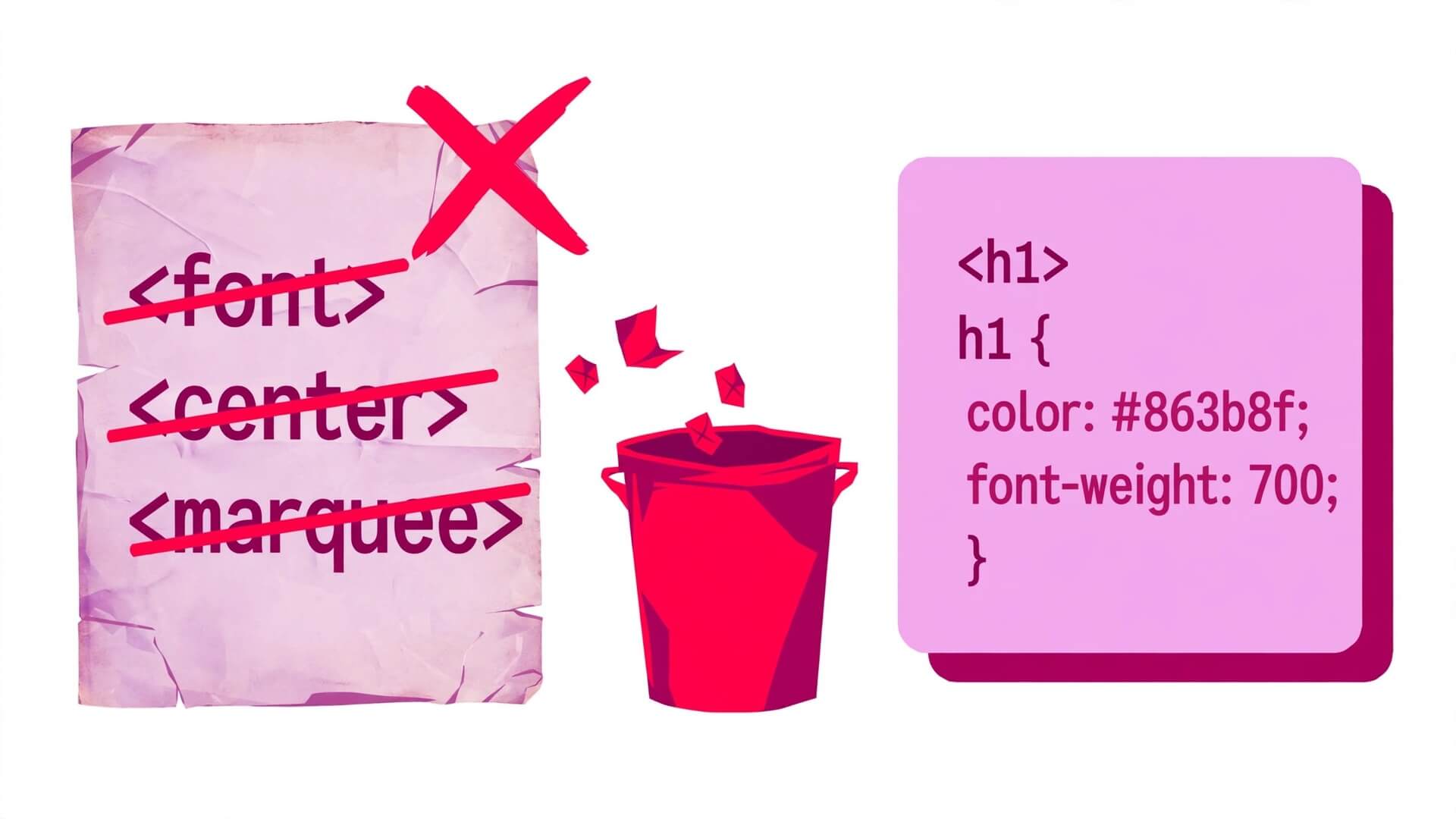
Deprecated HTML tags are the ghosts of the early web: tags like <font>, <center>, and <marquee> that once built every page on the internet and now have no place in a modern document. Browsers still render most of them, which is exactly why they are dangerous — a page full of deprecated tags can look fine while quietly failing validation, confusing screen readers, and making every future edit harder than it needs to be. This guide lists all 29 obsolete elements from the HTML Standard, shows you the modern replacement for each one, and gives you runnable before-and-after code so you can clean up legacy pages with confidence.
If you have ever inherited an old website, copied code from a tutorial written in 2009, or pasted a snippet from a forum answer, you have probably met these tags. They were removed from the HTML specification for good reasons: they mix presentation into structure, they say nothing about what content means, and several of them never worked the same way in two browsers. The replacements are not harder — in almost every case the modern version is shorter, clearer, and works everywhere. By the end of this guide you will know which tags to delete on sight, which ones only look deprecated, and how to find every last one hiding in your own site.
Quick Takeaways
- Deprecated HTML tags are elements the HTML Standard lists as entirely obsolete: authors must not use them. There are 29 of them, from
<font>and<center>to<frameset>and<applet>. - Browsers still render most deprecated tags for backwards compatibility, so a broken-looking page is not the symptom to watch for — a failed W3C validation is.
- The replacement for almost every deprecated tag is CSS, not another tag:
<font>becomes a CSS rule,<center>becomestext-alignor flexbox,<big>becomesfont-size. - Some tags people call deprecated are still perfectly valid:
<b>,<i>,<s>,<u>, and<small>all have defined meanings in HTML5. Deleting them would be a mistake. - Deprecated attributes are a separate problem from deprecated tags:
align,bgcolor,cellpadding, andborderon tables trigger validator warnings and belong in CSS too. - Run your pages through the W3C validator, fix the errors it reports in the order this guide lists them, and re-validate. A clean validation is the fastest proof that the deprecated tags are gone.
What “Deprecated” Actually Means in HTML
The word “deprecated” gets used loosely, so it helps to pin down what the HTML Standard actually says. The WHATWG HTML Standard — the living specification browsers follow — has a section called “Obsolete features” that splits old markup into two groups, and the difference between them matters when you read a validator report.
Entirely obsolete elements: must not be used. These are the 29 elements in the non-conforming list. The specification says they “are entirely obsolete, and must not be used by authors”. Using one is an error in the eyes of a conformance checker, and the W3C validator will flag it. This is the list this guide is about: <applet>, <acronym>, <bgsound>, <dir>, <frame>, <frameset>, <noframes>, <strike>, <basefont>, <big>, <blink>, <center>, <font>, <marquee>, <multicol>, <nobr>, <spacer>, <tt>, <isindex>, <keygen>, <listing>, <menuitem>, <nextid>, <noembed>, <param>, <plaintext>, <rb>, <rtc>, and <xmp>. If a tag is on this list, delete it and use the replacement shown later in this guide.
Obsolete but conforming features: allowed, but the validator warns you. These are mostly old presentational attributes — align, bgcolor, cellpadding, border on a table, language on a script — that are still technically conforming, so a document using them is not invalid in the strict sense. Conformance checkers must warn about them, though, and the warning is the specification telling you the feature is on its way out and has a better replacement. Treat a warning the same way you treat an error when you are cleaning up a page: fix it now, while you are looking at the file, rather than leaving it for the next person.
“Deprecated” in older HTML versions is not the same list. In HTML 4.01, elements such as <font>, <center>, <s>, and <u> were called deprecated, which meant “use CSS instead, but the tag still works”. HTML5 went further: <font> and <center> became entirely obsolete, while <s> and <u> were given new, precise meanings and kept. That is why old cheat sheets and new specifications disagree about some tags, and why this guide checks every claim against the current HTML Standard rather than a tutorial from 2012.
One more distinction worth making: a tag can be obsolete without being removed from browsers. Browsers are required to keep rendering old pages, so <font color="red"> still turns text red in Chrome, Firefox, and Safari today. Removal from the specification is a statement about authors, not about browsers. The tag works; you still should not use it. The rest of this guide is about what to use instead, and why the replacement is better rather than merely newer.
Why Browsers Still Render Deprecated Tags (and Why You Should Still Remove Them)
Every browser ships with a backwards-compatibility promise: a page written in 1998 should still display. That promise is why <center> still centres text and <marquee> still scrolls it, decades after both were removed from the specification. Browser makers cannot break the old web without breaking millions of pages that nobody maintains any more, so the rendering rules for obsolete elements are frozen into every engine. The tag works today and will probably work in ten years. That is not a reason to keep using it.
The first reason to remove deprecated tags is accessibility. A screen reader builds its picture of a page from the meaning of the markup, not from how it looks. <font size="5"> says nothing about the text it wraps — is it a heading, a warning, a price? A real heading tag or a class with a name answers that question; a font tag does not. <center> is invisible to assistive technology in the same way: it changes the layout and communicates nothing. When structure and presentation are separated — real semantic tags for meaning, CSS for appearance — assistive technology can do its job, and so can search engines, which read pages the same way.
The second reason is maintenance. Presentational tags scatter styling decisions through the markup, one tag at a time. Change a site’s body font and you must edit every <font face="..."> in every file; change it in one CSS rule and every page updates at once. The early web learned this lesson the hard way, which is why CSS exists at all. A page that uses <font> for colour, <center> for alignment, and <b> for headings is a page where a redesign means rewriting the HTML instead of swapping a stylesheet.
The third reason is validation, and it is the most practical one. The W3C validator is the tool that catches typos, unclosed tags, and structural mistakes before your visitors do, and a page full of obsolete elements drowns its report in noise. Every deprecated tag is an error or a warning that hides the real mistakes — the unclosed <div>, the duplicate id, the missing alt — underneath it. Clean out the obsolete markup first, and the validator becomes useful again: what is left in its report is worth reading.
Finally, there is the simple matter of looking professional. Deprecated tags are a visible fingerprint of an unmaintained site. A client, an employer, or a fellow developer who opens your source and finds <font> and <center> will reasonably conclude that nothing else in the codebase has been touched in years either. Modern markup costs nothing extra and signals that the site is cared for. The replacements in this guide are, in every case, no longer than the tag they replace.
The Complete List: All 29 Deprecated HTML Tags
Here is the full list, exactly as the HTML Standard defines it, with the modern replacement for each element. Keep this table bookmarked: when you meet a tag you do not recognise in old code, this is where to check it. The sections after the table take the ten tags you will actually encounter in real legacy code and walk through each one with before-and-after examples.
| Deprecated tag | What it did | Use instead |
|---|---|---|
<applet> | Embedded a Java applet | <object>, <embed>, or a modern web technology |
<acronym> | Marked an acronym | <abbr> with a title attribute |
<basefont> | Set the default font for a page | CSS font-family on body |
<bgsound> | Played a background sound | <audio> |
<big> | Made text one size larger | CSS font-size |
<blink> | Made text blink | CSS animation (and usually, nothing at all) |
<center> | Centred its contents | CSS text-align: center or flexbox |
<dir> | A directory list | <ul> |
<font> | Set font, size, and colour | CSS font-family, font-size, color |
<frame> | One pane inside a frameset | <iframe> or CSS layout |
<frameset> | Replaced <body> with frames | CSS layout or server-side includes |
<isindex> | A single-line search prompt | A <form> with an <input> |
<keygen> | Generated a key pair for a form | Web Crypto API |
<listing> | Preformatted text listing | <pre> |
<marquee> | Scrolling text | CSS animation |
<menuitem> | A menu command item | <button> or a link inside a list |
<multicol> | Multiple text columns | CSS columns |
<nextid> | Generated a unique id (NeXT editor) | Nothing — remove it |
<nobr> | Prevented line breaks | CSS white-space: nowrap |
<noembed> | Fallback when embed failed | Fallback content inside <object> |
<noframes> | Fallback when frames failed | Nothing — frames are gone, so is the fallback |
<param> | A parameter for <object> or <applet> | The data attribute or a <video> / <audio> source |
<plaintext> | Rendered the rest of the page as plain text | <pre> with escaped content |
<rb> | Ruby base text annotation | <ruby> with <rt> |
<rtc> | Ruby text container | <ruby> with <rt> |
<spacer> | Blank space of a set size | CSS margin or padding |
<strike> | Strikethrough text | <del> for edits, <s> for no-longer-accurate text |
<tt> | Teletype / monospace text | <code>, <kbd>, <samp>, or <var> |
<xmp> | Rendered example code literally | <pre> with <code>, escaped |
A note on counting: some lists you find online say 28 or 30, because they count differently — <rb> and <rtc> are sometimes left out as ruby-annotation edge cases, and <s> and <u> are sometimes wrongly included even though both are valid HTML5 elements with defined meanings. The count of 29 follows the WHATWG HTML Standard’s non-conforming list plus MDN’s obsolete-elements reference, which agree on these elements. What matters is not the exact count but the rule: if a tag is on this list, replace it.
The 10 Deprecated Tags You Will Actually Meet
Most of the 29 are museum pieces — you will never see <nextid> or <multicol> in a real codebase, because almost nobody used them even when they were current. The tags below are the ones that show up in inherited sites, old templates, and copied snippets. Each one gets a before-and-after example you can run.
1. <font> — the tag that styled the early web
<font> is the most common deprecated tag in legacy code, and the one whose replacement is the biggest win. It set the typeface, size, and colour of its contents with three attributes — face, size, and color — and because it could wrap any text anywhere, old pages are littered with it. Every instance is a styling decision trapped inside the markup, and every redesign had to hunt them all down.
The before example is a typical fragment from a late-1990s page. The after example is the same content with one CSS rule doing the work of three font tags, and the styling now lives in one place where it can be changed once for the whole site.
<!DOCTYPE html>
<html lang="en">
<head>
  <meta charset="UTF-8">
  <title>Before: font tags everywhere</title>
</head>
<body>
  <font face="Verdana" size="5" color="#c0392b">Welcome to Our Site</font>
  <p><font face="Verdana" size="3" color="#333333">We build websites for small businesses across the country.</font></p>
  <p><font face="Verdana" size="2" color="#777777">Last updated: January 2009</font></p>
</body>
</html>
<!DOCTYPE html>
<html lang="en">
<head>
<meta charset="UTF-8">
<title>After: one CSS rule replaces three font tags</title>
<style>
body { font-family: Verdana, sans-serif; color: #333333; }
h1 { font-size: 2rem; color: #c0392b; }
.fine-print { font-size: 0.85rem; color: #777777; }
</style>
</head>
<body>
<h1>Welcome to Our Site</h1>
<p>We build websites for small businesses across the country.</p>
<p class="fine-print">Last updated: January 2009</p>
</body>
</html>Notice what else improved in the rewrite: the heading is now a real <h1>, which screen readers and search engines understand, and the small print is a paragraph with a class name that says what it is. The font sizes also changed from the old size="1" to size="7" scale — a scale nobody remembers — to rem units that scale with the reader’s settings. If you are cleaning up a page, replace <font> first: it is usually the most numerous deprecated tag in the file, and removing it is the single biggest readability improvement you can make to old markup.
2. <center> — centring, the CSS way
<center> wrapped a block of content and centred everything inside it — text, images, whole tables. It was simple, which is why it survived so long, and it is also the clearest example of presentation pretending to be structure: the tag says nothing about the content, only about where it should sit on the page.
For a line of text, the replacement is one CSS declaration. For a block — a card, an image, a whole section — the modern replacement is flexbox, which centres both horizontally and vertically without the fragile margin tricks the old web relied on.
<!DOCTYPE html>
<html lang="en">
<head>
  <meta charset="UTF-8">
  <title>Before: center tags</title>
</head>
<body>
  <center>
    <h2>Our Services</h2>
    <p>Design, development, and hosting — all under one roof.</p>
    <img src="team.jpg" alt="Our team at work">
  </center>
</body>
</html>
<!DOCTYPE html>
<html lang="en">
<head>
<meta charset="UTF-8">
<title>After: CSS centring</title>
<style>
.hero { text-align: center; }
.hero img { display: block; margin: 1rem auto; }
</style>
</head>
<body>
<section class="hero">
<h2>Our Services</h2>
<p>Design, development, and hosting — all under one roof.</p>
<img src="team.jpg" alt="Our team at work">
</section>
</body>
</html>Two details in the after example are worth copying into your own cleanups. First, text-align: center on the container centres the text, but an <img> is not text, so it needs display: block plus automatic left and right margins to centre itself — a common gotcha when converting old <center> blocks. Second, the content now sits inside a <section> with a class name, so the centring is attached to a meaningful container rather than floating in the markup. When you meet <center> wrapped around a whole page — and you will, in very old templates — replace it with a centred container class on the <body> or a wrapper <div>, and delete the tag.
3. <big> and <basefont> — font sizing belongs in CSS
<big> made its contents one size larger than the surrounding text, and it could be nested — <big><big> was two sizes larger — which made font sizing a matter of counting tags. <basefont> set the default font face, size, and colour for the whole page, usually sitting right after <body> and silently affecting everything below it. Both are replaced by a single CSS rule on the body element.
<!DOCTYPE html>
<html lang="en">
<head>
  <meta charset="UTF-8">
  <title>Before: big and basefont</title>
</head>
<body>
  <basefont face="Georgia" size="3" color="#222222">
  <p>Standard text on this page.</p>
  <p><big>Important notice:</big> our office closes early on Friday.</p>
  <p><big><big>Sale ends Sunday.</big></big></p>
</body>
</html>
<!DOCTYPE html>
<html lang="en">
<head>
<meta charset="UTF-8">
<title>After: CSS font sizing</title>
<style>
body { font-family: Georgia, serif; font-size: 1rem; color: #222222; }
.notice { font-size: 1.15rem; font-weight: bold; }
.sale { font-size: 1.4rem; font-weight: bold; }
</style>
</head>
<body>
<p>Standard text on this page.</p>
<p class="notice">Important notice: our office closes early on Friday.</p>
<p class="sale">Sale ends Sunday.</p>
</body>
</html>The nested <big><big> in the before example shows the real problem with the tag: its size depended on where it sat in the document, so the same tag produced different sizes in different places. CSS classes say what the text is — a notice, a sale banner — and the size is fixed in one place. If you find <big> used to fake a heading, replace it with a real heading tag instead: a <big> that looks like a heading should be an <h2> or <h3>, not a larger paragraph.
4. <strike> and <tt> — text that means something else now
<strike> drew a line through text, and <tt> rendered it in a monospace typewriter font. Both were purely visual, and both have modern replacements that carry meaning — which is the whole point of the exercise.
For strikethrough, the choice depends on why the text is crossed out. If it marks an edit — text that was removed from the document — use <del>, which is the semantic element for deletions and pairs with <ins> for insertions. If the text is simply no longer accurate — an old price, a past date — use <s>, which is valid HTML5 and means exactly “this is no longer correct”. The common mistake is reaching for <s> when the meaning is an edit, or for <del> when nothing was ever edited; the distinction is small, but it is the kind of detail a validator and a screen reader both notice.
For <tt>, the replacement depends on what the monospace text actually is. Code becomes <code>, keyboard input becomes <kbd>, program output becomes <samp>, and a variable becomes <var>. Four tags look like one, because <tt> was doing four different jobs and hiding the difference. Picking the right one takes a second and makes the page genuinely more meaningful.
<!DOCTYPE html>
<html lang="en">
<head>
  <meta charset="UTF-8">
  <title>Before: strike and tt</title>
</head>
<body>
  <p>Was <strike>$49.99</strike> — now $29.99.</p>
  <p>Type <tt>npm install</tt> and press Enter.</p>
  <p>The function returns <tt>true</tt> on success.</p>
</body>
</html>
<!DOCTYPE html>
<html lang="en">
<head>
<meta charset="UTF-8">
<title>After: s, kbd, and code</title>
</head>
<body>
<p>Was <s>$49.99</s> — now $29.99.</p>
<p>Type <kbd>npm install</kbd> and press Enter.</p>
<p>The function returns <code>true</code> on success.</p>
</body>
</html>The price example uses <s> because the old price is no longer accurate, not because it was edited out of a document. The command uses <kbd> because it is something the reader types, and the return value uses <code> because it is code. Three replacements, each chosen for meaning rather than appearance — and the page looks identical in the browser.
5. <marquee> and <blink> — motion without the headache
<marquee> scrolled text across the page, and <blink> made it flash on and off. Both were famous, both were hated, and both are obsolete — <blink> never even made it into a standard, and <marquee> was never standardised either, though browsers still support it. The modern replacement is a CSS animation, which gives you the same movement with control over speed, direction, and — critically — a way to stop it.
That last point is not cosmetic. Scrolling and blinking text is a genuine accessibility problem: it distracts readers with attention disorders, it can trigger vestibular symptoms, and it is unreadable for anyone using a screen magnifier. The CSS replacement below respects the prefers-reduced-motion setting, so readers who have asked their operating system for less motion get still text automatically. That is something neither old tag could ever do.
<!DOCTYPE html>
<html lang="en">
<head>
  <meta charset="UTF-8">
  <title>Before: marquee</title>
</head>
<body>
  <marquee>Welcome to our website — summer sale now on!</marquee>
</body>
</html>
<!DOCTYPE html>
<html lang="en">
<head>
<meta charset="UTF-8">
<title>After: CSS animation with reduced-motion support</title>
<style>
.ticker { overflow: hidden; white-space: nowrap; }
.ticker span { display: inline-block; animation: scroll-left 15s linear infinite; }
@keyframes scroll-left {
from { transform: translateX(100%); }
to { transform: translateX(-100%); }
}
@media (prefers-reduced-motion: reduce) {
.ticker span { animation: none; }
}
</style>
</head>
<body>
<p class="ticker"><span>Welcome to our website — summer sale now on!</span></p>
</body>
</html>In most cases, though, the honest replacement for a marquee is nothing at all. A scrolling banner is a poor way to deliver information: readers cannot control its speed, cannot re-read a word they missed, and cannot search for it. Put the announcement in a normal heading or a banner at the top of the page, where it stays still and can be read. Reserve the animation for the rare case where movement genuinely adds meaning.
6. <acronym> — one letter changes everything
<acronym> marked an acronym — a word formed from initial letters, pronounced as a word, like NASA or RADAR — and <abbr> marked an abbreviation in general. HTML5 dropped the distinction and kept <abbr> for both, so the fix is a one-letter change: <acronym title="..."> becomes <abbr title="...">. The title attribute is what makes the tag useful: it holds the full expansion, which browsers show as a tooltip and screen readers can announce.
<!DOCTYPE html>
<html lang="en">
<head>
  <meta charset="UTF-8">
  <title>Before: acronym</title>
</head>
<body>
  <p>The <acronym title="National Aeronautics and Space Administration">NASA</acronym> launch is scheduled for Tuesday.</p>
</body>
</html>
<!DOCTYPE html>
<html lang="en">
<head>
<meta charset="UTF-8">
<title>After: abbr</title>
</head>
<body>
<p>The <abbr title="National Aeronautics and Space Administration">NASA</abbr> launch is scheduled for Tuesday.</p>
</body>
</html>This is the easiest fix in the whole guide — a find-and-replace across the site handles it — and it is worth doing because it is also the most common deprecated tag in otherwise modern pages. Many authors learned <acronym> from old tutorials and never noticed it was dropped. Check your own pages for it even if you think your markup is current.
7. <applet> — Java in the browser is gone
<applet> embedded a Java applet in a page, back when browsers ran Java code natively. Browsers removed Java plugin support years ago, so an <applet> tag today does nothing at all — the content simply does not load, and the visitor sees an empty space where the applet used to be. The replacement depends on what the applet did: a video becomes a <video> element, an interactive graphic becomes a <canvas> application or an SVG, and a file viewer becomes an <object> or <embed> element pointing at the file.
<!DOCTYPE html>
<html lang="en">
<head>
  <meta charset="UTF-8">
  <title>Before: applet</title>
</head>
<body>
  <applet code="ChartApplet.class" width="400" height="300">
    <param name="data" value="sales.csv">
    Your browser does not support Java applets.
  </applet>
</body>
</html>
<!DOCTYPE html>
<html lang="en">
<head>
<meta charset="UTF-8">
<title>After: canvas chart</title>
</head>
<body>
<canvas id="sales-chart" width="400" height="300"></canvas>
<script>
const canvas = document.getElementById('sales-chart');
const ctx = canvas.getContext('2d');
const sales = [120, 190, 140, 210, 180];
ctx.fillStyle = '#c0392b';
sales.forEach((value, index) => {
ctx.fillRect(20 + index * 70, 300 - value, 50, value);
});
</script>
</body>
</html>You will rarely meet <applet> in a page that is still maintained — it mostly survives in archived corporate intranets and university sites from the 2000s. If you do meet it, do not try to preserve the applet: rebuild the functionality with modern web technology, because the Java runtime it depended on no longer exists in any current browser.
8. <frameset>, <frame>, and <noframes> — the frame era ends
Frames split the browser window into separate panes, each loading its own page: a navigation frame on the left, a content frame on the right, a header frame across the top. The technique was everywhere in the late 1990s and is now entirely obsolete. Frames broke bookmarking (the address bar showed the frameset, not the page you were looking at), broke search engines (which indexed the individual frame pages out of context), broke printing, and broke accessibility. There is no modern version of frames, because the problem they solved — reusing a header and navigation across pages — is now solved properly, with server-side includes, templates, or a single-page layout built in CSS.
A frameset document had no <body> at all, which makes the before example below look strange to a modern reader. The after example is the same two-pane layout built with CSS grid, in a normal document with a normal body, a real navigation landmark, and a URL that can be bookmarked and shared.
<!DOCTYPE html>
<html lang="en">
<head>
  <meta charset="UTF-8">
  <title>Before: frameset</title>
</head>
<frameset cols="200px, *">
  <frame src="nav.html" name="nav">
  <frame src="content.html" name="content">
  <noframes>
    <p>Your browser does not support frames.</p>
  </noframes>
</frameset>
</html>
<!DOCTYPE html>
<html lang="en">
<head>
<meta charset="UTF-8">
<title>After: CSS grid layout</title>
<style>
body { display: grid; grid-template-columns: 200px 1fr; margin: 0; min-height: 100vh; }
nav { background: #f4f4f4; padding: 1rem; }
main { padding: 1rem 2rem; }
</style>
</head>
<body>
<nav aria-label="Main navigation">
<ul>
<li><a href="home.html">Home</a></li>
<li><a href="about.html">About</a></li>
<li><a href="contact.html">Contact</a></li>
</ul>
</nav>
<main>
<h1>Welcome</h1>
<p>This is the content area — a real page, with a real URL, in a normal document.</p>
</main>
</body>
</html>When you find a frameset, the cleanup is a rebuild rather than a search-and-replace: each frame page becomes a normal page that includes the shared navigation, either through your server’s templating or by repeating the navigation markup. <noframes> disappears with the frameset, because there is nothing left to fall back from — the replacement page works in every browser by default.
9. <dir>, <menuitem>, and the list tags that lost their jobs
<dir> was a directory list — a list of file or folder names, rendered like a bulleted list — and it is replaced by a plain <ul>. <menuitem> was a command inside a <menu> element, part of an early attempt at native browser menus that never shipped properly, and it is replaced by a <button> or a link inside a list, depending on whether the item performs an action or navigates somewhere. <listing> rendered preformatted text like <pre> and is replaced by <pre> itself. None of these is complicated; they are included here because they appear in old code with no obvious modern equivalent, and the answer in each case is the ordinary element you already know.
<!DOCTYPE html>
<html lang="en">
<head>
  <meta charset="UTF-8">
  <title>Before: dir and menuitem</title>
</head>
<body>
  <dir>
    <li>report.pdf</li>
    <li>budget.xlsx</li>
    <li>notes.txt</li>
  </dir>
  <menu type="context">
    <menuitem label="Refresh"></menuitem>
    <menuitem label="Save as"></menuitem>
  </menu>
</body>
</html>
<!DOCTYPE html>
<html lang="en">
<head>
<meta charset="UTF-8">
<title>After: ul and buttons</title>
</head>
<body>
<ul>
<li>report.pdf</li>
<li>budget.xlsx</li>
<li>notes.txt</li>
</ul>
<div role="menu">
<button type="button">Refresh</button>
<button type="button">Save as</button>
</div>
</body>
</html>10. The deep cuts: <bgsound>, <isindex>, <plaintext>, <xmp>, and the rest
The remaining elements are rare enough that you may never meet them, but they turn up in the oldest pages on the web, so here is the quick reference for each.
<bgsound> played a sound file when the page loaded, with no controls and no way to stop it. Replace it with <audio>, which gives the visitor a play button, a volume control, and the choice of whether to listen at all. Autoplaying hidden audio was a bad idea in 1998 and is still a bad idea now.
<isindex> rendered a single-line search prompt — a text field with a “submit” behaviour and nothing else. Replace it with a real form: a <form> element, a <label>, and an <input type="search">. The form version is accessible, styleable, and works with the browser’s own search features.
<plaintext> told the browser to render everything after it as raw text, with no markup interpreted at all — including the closing </body> and </html> tags. It was a trap for anyone maintaining the page, because nothing after it could ever be markup again. Replace it with a <pre> element containing properly escaped content.
<xmp> was similar to <plaintext> but scoped: it rendered its contents literally, so example HTML code could be shown without escaping the angle brackets. It is replaced by <pre> wrapped around <code>, with the angle brackets escaped so the browser shows them as text instead of parsing them as tags. Yes, escaping is slightly more work — and it is also the reason the modern version cannot accidentally break the page.
<keygen> generated a cryptographic key pair when a form was submitted, for certificate enrolment. It is replaced by the Web Crypto API, which does the same job from JavaScript. If you find <keygen> in a form, the form’s whole authentication flow needs rebuilding, not just the tag.
<spacer> inserted a blank rectangle of a given width and height — the old web’s way of adding space between elements. Replace it with CSS margin or padding on the real elements, or with a flexbox gap between them. A spacer is invisible in the markup’s meaning and visible only as a layout hack; CSS spacing says the same thing in a way every developer understands.
<nobr> prevented line breaks inside its contents. Replace it with CSS white-space: nowrap on the element that needs it — a phone number, a date, a price — and use it sparingly, because unbreakable text is the fastest way to break a layout on a small screen.
<multicol> split text into columns. Replace it with the CSS columns property, which does the same job with real control over column count, width, and gap.
<param> passed parameters to <object> and <applet>. With applets gone, it survives only inside <object>, and even there the modern approach is to use the data attribute on the object itself or to use the dedicated <video> and <audio> elements with their own attributes.
<rb> and <rtc> were ruby annotation elements — the small pronunciation guides used above East Asian characters. Both are replaced by the modern ruby structure: <ruby> containing the base text and an <rt> element with the annotation. The ruby elements themselves are alive and well; only these two helpers were dropped.
<nextid> generated a unique identifier for the NeXTSTEP text editor and has no replacement at all. If you find one, delete it: it never did anything in a browser.
A Full Legacy Page, Rewritten
The individual fixes above are easy to apply one at a time, but it helps to see them together. The before example below is a complete page in the style of the late 1990s: font tags, a center tag, a table used for layout, a marquee, and a spacer. The after example is the same page rewritten with modern HTML and CSS — same words, same structure, and roughly half the markup.
<!DOCTYPE html>
<html lang="en">
<head>
  <meta charset="UTF-8">
  <title>Before: a legacy page</title>
</head>
<body bgcolor="#ffffff">
  <basefont face="Arial" size="3">
  <center>
    <font size="6" color="#c0392b"><b>Sunrise Bakery</b></font>
  </center>
  <marquee>Fresh bread every morning from 7am!</marquee>
  <spacer type="horizontal" size="20">
  <table border="0" cellpadding="10" cellspacing="0" width="100%">
    <tr>
      <td valign="top" width="30%">
        <font size="4">Our Menu</font>
        <ul>
          <li><font size="3">Sourdough loaf</font></li>
          <li><font size="3">Croissants</font></li>
          <li><font size="3">Cinnamon rolls</font></li>
        </ul>
      </td>
      <td valign="top">
        <font size="3">Welcome to Sunrise Bakery. We bake everything on site, every morning, using flour milled ten miles from the shop.</font>
      </td>
    </tr>
  </table>
  <center><font size="2">Copyright 2004 Sunrise Bakery</font></center>
</body>
</html>
<!DOCTYPE html>
<html lang="en">
<head>
<meta charset="UTF-8">
<title>After: the same page, modern markup</title>
<style>
body { font-family: Arial, sans-serif; color: #222222; margin: 0; }
header { text-align: center; padding: 2rem 1rem 1rem; }
header h1 { font-size: 2.5rem; color: #c0392b; margin: 0; }
.announcement { text-align: center; background: #fdf2e9; padding: 0.75rem; margin: 0; }
.layout { display: grid; grid-template-columns: 1fr 2fr; gap: 2rem; padding: 2rem; max-width: 960px; margin: 0 auto; }
footer { text-align: center; font-size: 0.85rem; color: #777777; padding: 1rem; }
</style>
</head>
<body>
<header>
<h1>Sunrise Bakery</h1>
</header>
<p class="announcement">Fresh bread every morning from 7am!</p>
<div class="layout">
<aside>
<h2>Our Menu</h2>
<ul>
<li>Sourdough loaf</li>
<li>Croissants</li>
<li>Cinnamon rolls</li>
</ul>
</aside>
<main>
<p>Welcome to Sunrise Bakery. We bake everything on site, every morning, using flour milled ten miles from the shop.</p>
</main>
</div>
<footer>Copyright 2004 Sunrise Bakery</footer>
</body>
</html>Count the differences: seven font tags, two center tags, a basefont, a marquee, a spacer, and a layout table are all gone, replaced by a stylesheet of six rules. The heading is a real <h1>, the menu is an <aside> with a real <h2>, the copyright is a <footer>, and the layout is a grid instead of a table. The page looks the same to a visitor and is unrecognisable — in a good way — to a developer. That is the whole point of the exercise.
Deprecated HTML Attributes: The Ones the Validator Warns About
Removing deprecated tags is only half the cleanup. Old pages are just as full of deprecated attributes — presentational attributes stuck onto otherwise valid elements. These are the “obsolete but conforming” features from earlier in this guide: the validator warns about them rather than erroring, but the fix is the same in every case, and that fix is CSS.
| Deprecated attribute | Where it appears | Use instead |
|---|---|---|
align | <div>, <p>, headings, <table>, <img> | CSS text-align or float |
bgcolor | <body>, <table>, <tr>, <td> | CSS background-color |
background | <body>, <table> | CSS background-image |
border | <table>, <img>, <object> | CSS border |
cellpadding, cellspacing | <table> | CSS padding on cells, border-spacing |
width, height (presentational) | <table>, <td>, <hr> | CSS width, height |
hspace, vspace | <img>, <object> | CSS margin |
clear | <br> | CSS clear on the following element |
nowrap | <td>, <th> | CSS white-space: nowrap |
valign | <td>, <th>, <tr> | CSS vertical-align |
compact | <ul>, <ol>, <dl> | CSS line-height or margin |
type | <ul>, <ol>, <li> | CSS list-style-type |
frame, rules | <table> | CSS border |
scrolling, frameborder | <iframe> | CSS border, overflow |
marginheight, marginwidth | <iframe> | CSS margin or padding |
size, noshade | <hr> | CSS height, border |
language | <script> | type="module" or omit the attribute entirely |
name | <a> | id on the target element |
charset, rev | <a>, <link> | Nothing — remove them |
longdesc | <img>, <iframe> | A normal link to a long description, or aria-describedby |
The table example below is the one you will use most often, because old table markup collects more deprecated attributes than any other element. The before example has six of them on a single table; the after example has none, and the styling is a short CSS block that can be reused for every table on the site.
<!DOCTYPE html>
<html lang="en">
<head>
  <meta charset="UTF-8">
  <title>Before: deprecated table attributes</title>
</head>
<body>
  <table border="1" cellpadding="8" cellspacing="0" width="100%" bgcolor="#ffffff" align="center">
    <tr bgcolor="#f4f4f4">
      <th align="left" width="40%">Product</th>
      <th align="right">Price</th>
    </tr>
    <tr>
      <td valign="top">Sourdough loaf</td>
      <td align="right" valign="top">$6.50</td>
    </tr>
  </table>
</body>
</html>
<!DOCTYPE html>
<html lang="en">
<head>
<meta charset="UTF-8">
<title>After: CSS table styling</title>
<style>
table { width: 100%; border-collapse: collapse; background: #ffffff; margin: 0 auto; }
th, td { padding: 8px; border: 1px solid #cccccc; vertical-align: top; }
th { background: #f4f4f4; text-align: left; }
th:last-child, td:last-child { text-align: right; }
</style>
</head>
<body>
<table>
<tr>
<th>Product</th>
<th>Price</th>
</tr>
<tr>
<td>Sourdough loaf</td>
<td>$6.50</td>
</tr>
</table>
</body>
</html>One attribute on the list deserves a special note: name on <a>. In the old web, an anchor target was written as <a name="section-2"></a> — an empty link whose only job was to be a destination. The modern version is an id on the element you actually want to jump to: <h2 id="section-2">, linked as href="#section-2". It is one of the most common deprecated attributes still found in otherwise modern pages, because old documentation and old habits keep it alive. Search your site for name=" inside anchor tags; every hit is a five-second fix.
Tags People Think Are Deprecated (But Are Not)
Cleaning up deprecated tags is satisfying enough that it is tempting to delete anything that looks old. These tags look old, and they are not deprecated. Removing them would make your markup worse, not better.
<b> and <strong> are both valid — they mean different things. <strong> marks text with strong importance: a warning, a critical instruction. <b> marks text that is stylistically offset — a product name, a keyword, a lead sentence — without implying extra importance. The old rule “always use strong, never use b” is wrong: the specification defines both, and using the right one is a meaning decision, not a fashion choice. The same applies to <i> and <em>: <em> is stress emphasis that changes the meaning of a sentence, while <i> is an alternate voice — a technical term, a foreign phrase, a thought. The validator accepts all four, and so should you.
<s> is valid HTML5. It marks text that is no longer accurate or no longer relevant, and it is the correct replacement for <strike>, as shown earlier. The confusion comes from HTML 4.01, where <s> was deprecated along with <strike>; HTML5 brought <s> back with a defined meaning. Do not delete it.
<u> is valid HTML5. It marks text with an unarticulated annotation — a proper name in Chinese text, a misspelling flagged by a checker — and it renders with an underline. The old rule was “never underline text that is not a link”, and that rule still holds as design advice: underlined text confuses readers who expect a link. But <u> is not an error, and in its proper uses it is the right tag.
<small> is valid HTML5. It marks side comments and small print — copyright lines, legal disclaimers, attributions — and it is the correct tag for the footer text in the bakery example above. In HTML 4.01 it was a presentational tag; in HTML5 it has a meaning, and that meaning is exactly what small print is.
<hr> is valid HTML5. It marks a thematic break between sections — a scene change, a shift of topic — and it is not a decorative line, though it renders as one. Style it with CSS if you want it to look different, but do not remove it: a thematic break is structural information.
<br> is valid HTML5, but only for line breaks that are part of the content — an address, a poem, a signature block. Using <br><br><br> to push content down the page is a layout hack, not a deprecated tag, and the fix is CSS margin on the elements involved. The tag itself is fine; the misuse is the problem.
<table> is not deprecated, and using tables for layout is not a validation error either — it is a design and accessibility mistake. Tables are for tabular data, and a layout table confuses screen readers that announce table structure to their users. The validator will not flag it, so this one has to be caught by a human reading the code. If you find a table whose cells contain whole sections of a page rather than rows of data, rebuild it with CSS grid or flexbox, as in the bakery example above.
How to Find Deprecated Tags on Your Own Site
Knowing the list is one thing; finding every instance across a real site is another. Work through these steps in order, and re-validate after each round of fixes so the validator report gets shorter instead of longer.
1. Run the W3C validator on your most important pages first. Open the validator, enter a page URL, and read the errors. Deprecated elements are reported as errors, deprecated attributes as warnings, and both are named explicitly — the report tells you the tag, the line number, and the suggested replacement. Start with the homepage and the ten most visited pages; the templates behind them usually account for most of the site.
2. Search your source, not just the rendered page. Deprecated tags hide in templates, includes, and widgets, where a validator looking at one page only sees the output. Search the codebase for the ten tags in the deep-dive section above — <font, <center, <marquee, <big, <strike, <tt, <applet, <frameset, <acronym, <bgsound — and fix them at the source, in the template file, so every page that uses the template is fixed at once. On a WordPress site, check the theme files and any custom HTML blocks, which are the two places old markup survives longest.
3. Fix in this order: frames first, then font, then the rest. Frames change the document structure, so remove them before anything else. <font> is usually the most numerous tag, so removing it clears the most noise from the validator report. Then work down the list: <center>, <big>, <strike> and <tt>, <marquee>, and the attributes table. Each round of fixes makes the next validator report shorter and easier to read.
4. Check the pages the validator cannot see. Form confirmation pages, error pages, and pages behind a login are rarely validated, and they are where the oldest markup lives — nobody looks at a 404 page for years. Validate them by URL if they are public, or by direct input if they are not: paste the page source into the validator’s direct-input tab.
5. Re-validate and keep the report clean. A page with zero errors and zero warnings is the goal, and it is achievable: every fix in this guide removes an error or a warning rather than adding one. Once a page is clean, add validation to your publishing checklist so new pages start clean instead of needing a cleanup round later. A pre-publish validation takes thirty seconds and catches the copied snippet with a <font> tag in it before your visitors do.
Frequently Asked Questions
1. Do deprecated HTML tags still work in browsers?
Yes, in almost every case. Browsers keep rendering obsolete elements for backwards compatibility, so <font>, <center>, and <marquee> still produce the effect they always did. That is not a reason to keep using them: they fail validation, they carry no meaning for screen readers or search engines, and they make pages harder to maintain. A tag can work in the browser and still be wrong to use.
2. What is the difference between a deprecated tag and an obsolete tag?
In everyday use the two words mean the same thing, but the HTML Standard is more precise. “Entirely obsolete” elements — the 29 in this guide — must not be used by authors at all, and the validator reports them as errors. “Obsolete but conforming” features — mostly old presentational attributes — are still technically allowed, but the validator warns about them and the specification recommends the CSS replacement. In HTML 4.01, “deprecated” meant a feature was discouraged but still valid; HTML5 made the split sharper, and several HTML 4.01 deprecated elements, such as <font> and <center>, became entirely obsolete.
3. Will deprecated tags hurt my search rankings?
Not directly — Google does not demote a page for a <font> tag. The harm is indirect and real: deprecated tags usually come with the things that do hurt rankings, such as missing heading structure, no semantic landmarks, poor accessibility, and pages that are hard to maintain and therefore rarely updated. Cleaning them out is usually part of a larger cleanup that improves the things search engines do measure, and a valid page is easier for a crawler to parse correctly.
4. Is <b> deprecated? What about <i>?
No, neither is deprecated. Both are valid HTML5 elements with defined meanings: <b> is text offset stylistically without extra importance, and <i> is text in an alternate voice, such as a technical term or a foreign phrase. They are often confused with deprecated tags because old tutorials taught them as presentational — bold and italic — and the modern advice is to use <strong> and <em> when importance or emphasis is what you actually mean. Use the tag that matches the meaning, not the appearance.
5. How do I replace a <table> that was used for page layout?
Rebuild the layout with CSS grid or flexbox, as in the bakery example earlier in this guide. A two-column page becomes a grid with two columns; a header, content, and footer become a flex column or a grid with rows. Move the real tabular data — prices, schedules, comparison charts — into proper tables with <th> headers, and move everything else into semantic containers such as <header>, <main>, <aside>, and <footer>. The result is a page that a screen reader can navigate, a search engine can understand, and a developer can restyle without touching the HTML.
Conclusion
Deprecated HTML tags are not a mystery and not a crisis — they are a cleanup job with a fixed list and a known replacement for every item on it. The 29 obsolete elements in this guide all have modern equivalents, and in nearly every case the replacement is CSS rather than another tag: <font> becomes a stylesheet rule, <center> becomes text-align or flexbox, <marquee> becomes an animation you can actually control. The tags that look deprecated but are not — <b>, <i>, <s>, <u>, <small> — stay, because they carry meanings the specification defines and the browser understands.
Start with the validator, fix frames first, then work through the font tags, and re-validate after each round. The first page you clean will take the longest; by the third, the replacements will be automatic. And the next time you paste a snippet from an old tutorial, you will spot the <font> tag before it reaches your site — which is the real payoff. Clean markup is not about following a fashion. It is about writing pages that mean what they say, work for every visitor, and stay easy to change for years.
Related Articles You’ll Love
- Debugging HTML: W3C Validator Errors and How to Fix Them — the validator guide behind the cleanup workflow in this post: read its error reports, fix them in order, and re-validate until the report is clean.
- HTML Headings H1 to H6: Hierarchy, SEO Rules, and Common Mistakes — the heading rules that replace the old habit of faking headings with
<font size="5">and<big>: one H1, sections in order, and the mistakes that break a page outline. - HTML Accessibility Checklist: Landmarks, ARIA, and Keyboard Navigation — the checklist that explains why semantic markup matters beyond validation: landmarks, labels, focus order, and alt text.
- rel noopener Explained: HTML Security Attributes Guide — the companion guide to modern HTML attributes: what
rel,sandbox, andreferrerpolicydo, and which old attribute habits they replace. - HTML Meta Tags: Complete SEO List Every Page Needs 2026 — the tags that belong in the head of every clean document, from the description to the social preview, so the page you just fixed is also findable.



No comment